QR Code Contact Card: What It Holds and How to Set One Up
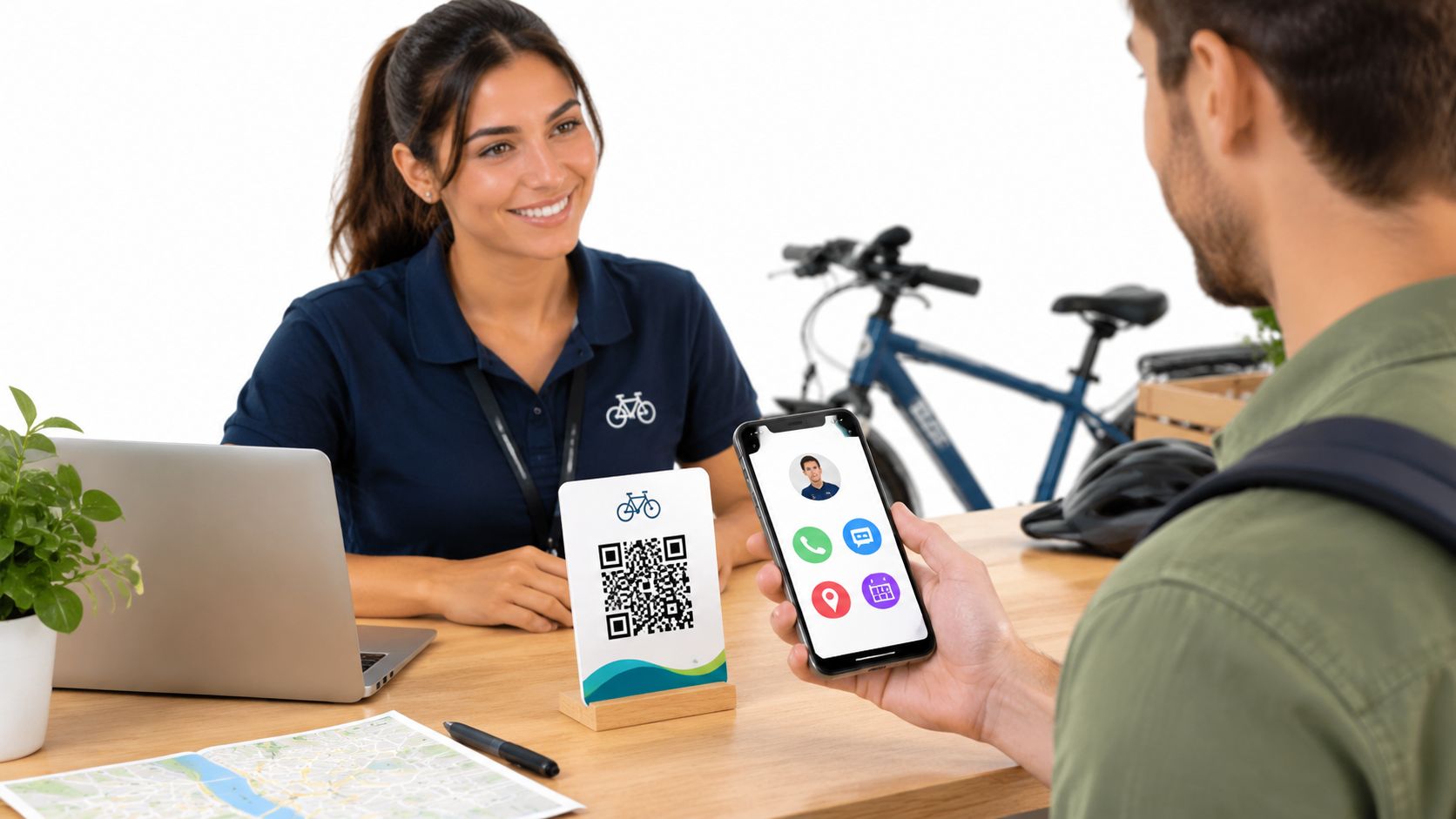
A guest stands at a bike rental counter at 9 p.m., wondering where to return the bike and whom to call if the gate is locked. The answer shouldn't require a search through old booking emails. A code on the counter can open the business's phone number, return directions and practical information on the same mobile page.
That's the useful version of a QR code contact card. But the code is a door, not proof that the page behind it is genuine. A readable web address beside it, plus a written phone number, helps guests check the destination and reach the business when scanning fails.
What a QR Code Contact Card Can Hold
A QR code contact card is a printed code that opens a mobile page containing business details and useful links. Guests can tap an action instead of copying a number, searching for a social profile or guessing which map listing is correct.
Contact sharing is an established QR use. In its platform-specific compilation, indi.cards' analysis of QR-code usage reported that business-card QR codes accounted for 13.08% of recorded code uses. That describes the recorded platform activity, not every QR scan worldwide, and it doesn't mean every guest saved a contact.
Items a QR Code Contact Card Can Hold
The right contents depend on what guests need at the place where they scan.
| Item | What the guest gets | Best use |
|---|---|---|
| Phone call | Opens the dialer with the business's number | Urgent questions and same-day pickups |
| WhatsApp chat | Opens a chat with the business | Bookings and questions in any language |
| Email address | Opens a new email to a fixed address | Quotes, invoices and group requests |
| Website or booking page | Opens the home page or booking form | Full prices and availability |
| Map pin | Opens directions in the guest's maps app | Hard-to-find beach, harbour or farm locations |
| Social profiles | Links to Instagram, Facebook or other accounts | Photos and daily updates |
| Practical information | Opens house rules, menus or route maps | Holiday homes, tours and restaurants |
| Review links | Opens Google, TripAdvisor or Facebook review pages | Guests who want to share their own experience |
These are possible contents, not a checklist that every business must complete. A holiday home may need arrival instructions more than Instagram. A boat rental may need a return map more than an email button.
WhatsApp also needs a clear purpose. A chat button lets an international guest write in a preferred language, but it doesn't promise an instant answer or automatic translation. Owners should state when staff answer messages and keep urgent instructions separate.
Practical rule: Start with five to seven useful items, not every account the business owns.
Each extra button adds another choice. A guest looking for return directions shouldn't have to work through promotional links first. Before building the page, the owner should list the top three guest needs and put those actions first.
How One Scan Opens the Card
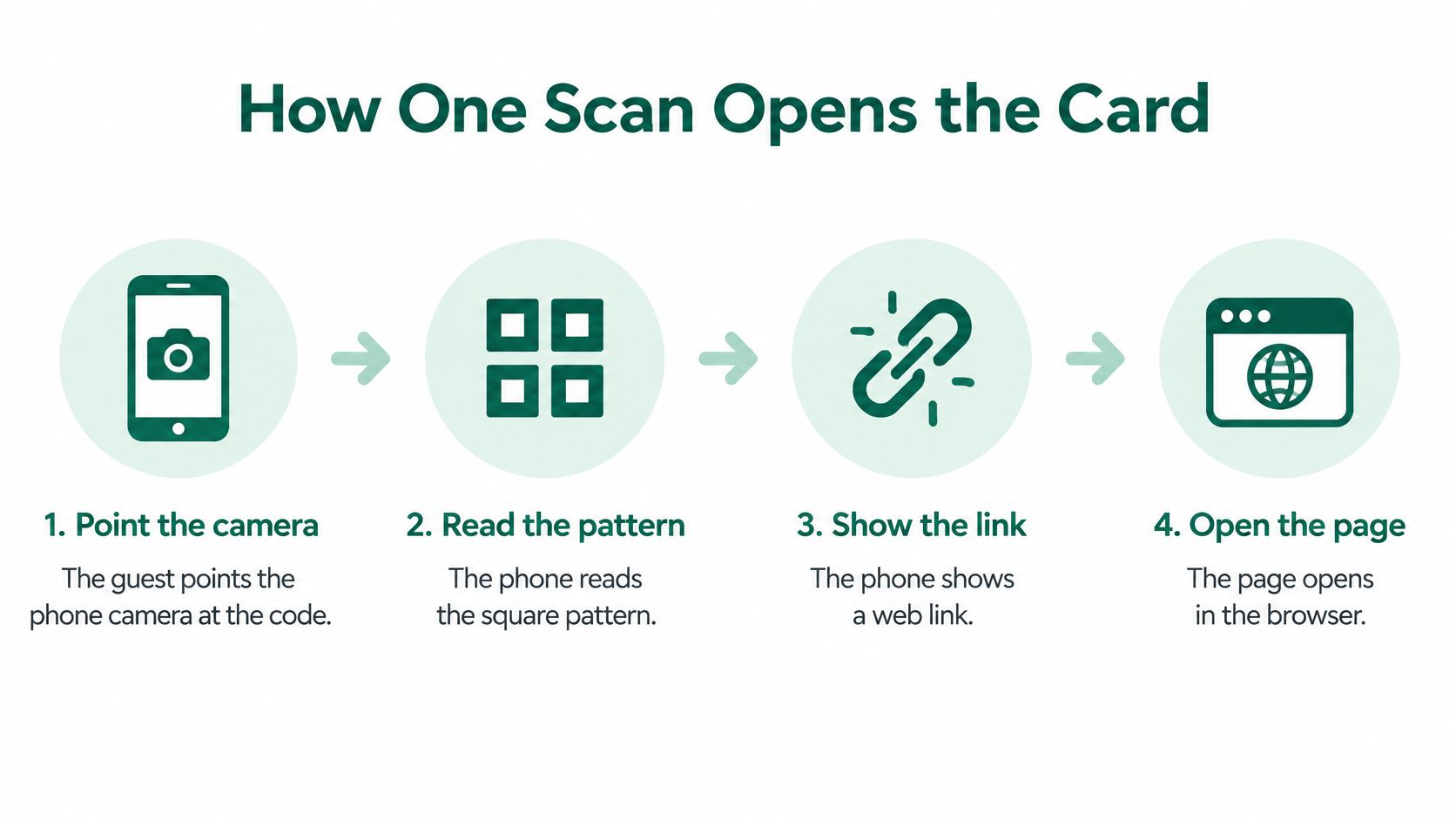
At the rental counter, the guest opens the phone camera and points it at the printed square. The phone recognises the pattern and offers a web link. After the guest taps that link, the contact page opens in the browser.
The sequence is straightforward:
- Point the camera. The guest aims the phone camera at the code.
- Read the pattern. The phone recognises the square pattern.
- Show the link. The phone displays a web address for the guest to inspect.
- Open the page. The guest taps the link and reaches the mobile page.
DENSO WAVE created the QR Code in Japan in 1994 to identify car parts in factories, and making its specifications freely available helped phone makers, printers and businesses adopt it.
The Address Stays, the Page Changes
The code works like a door sign with an address on it. The mobile page is the room behind that door. The owner can rearrange the contents without changing the sign, provided the page remains at the same address.
That's why a web page is often more useful than putting all contact details directly inside the code. A changed phone number can be corrected on the page rather than left inside an old printed pattern.
HolaQR builds a branded mobile page with business links and a code that can be printed and displayed. Guests open it with their phone camera and browser, with no app or account needed.
In the rental example, the guest sees the phone number, map pin and house rules together. A useful check today is to scan the code on a phone the owner doesn't normally use.
Which Format Fits
QR codes suit places, including counters, rental equipment, restaurant tables and tour desks. NFC cards suit a personal handover, while paper cards remain useful when a guest doesn't want to use a phone.
NFC means a guest taps a card with a compatible phone. It can be convenient during a conversation, but it's less obvious on unattended equipment unless the tapping point is clearly marked.
QR Code Card, NFC Card and Paper Card Compared
| Factor | QR code card | NFC tap card | Paper card |
|---|---|---|---|
| How the guest uses it | Points the phone camera at the code | Taps the card with an NFC-capable phone | Reads the printed text |
| Works on stickers and equipment | Yes, printed or on a sticker | Only with an added tag | Yes, as printed text |
| Works on older phones | Needs a camera that reads codes | Often needs newer NFC hardware | Yes |
| Updating details later | Edit the page, the code stays the same | Edit the linked page, or rewrite an unlocked tag | Reprint required |
| Best use | Counters, rentals, tours, tables | Personal handover between two people | Backup and fallback |
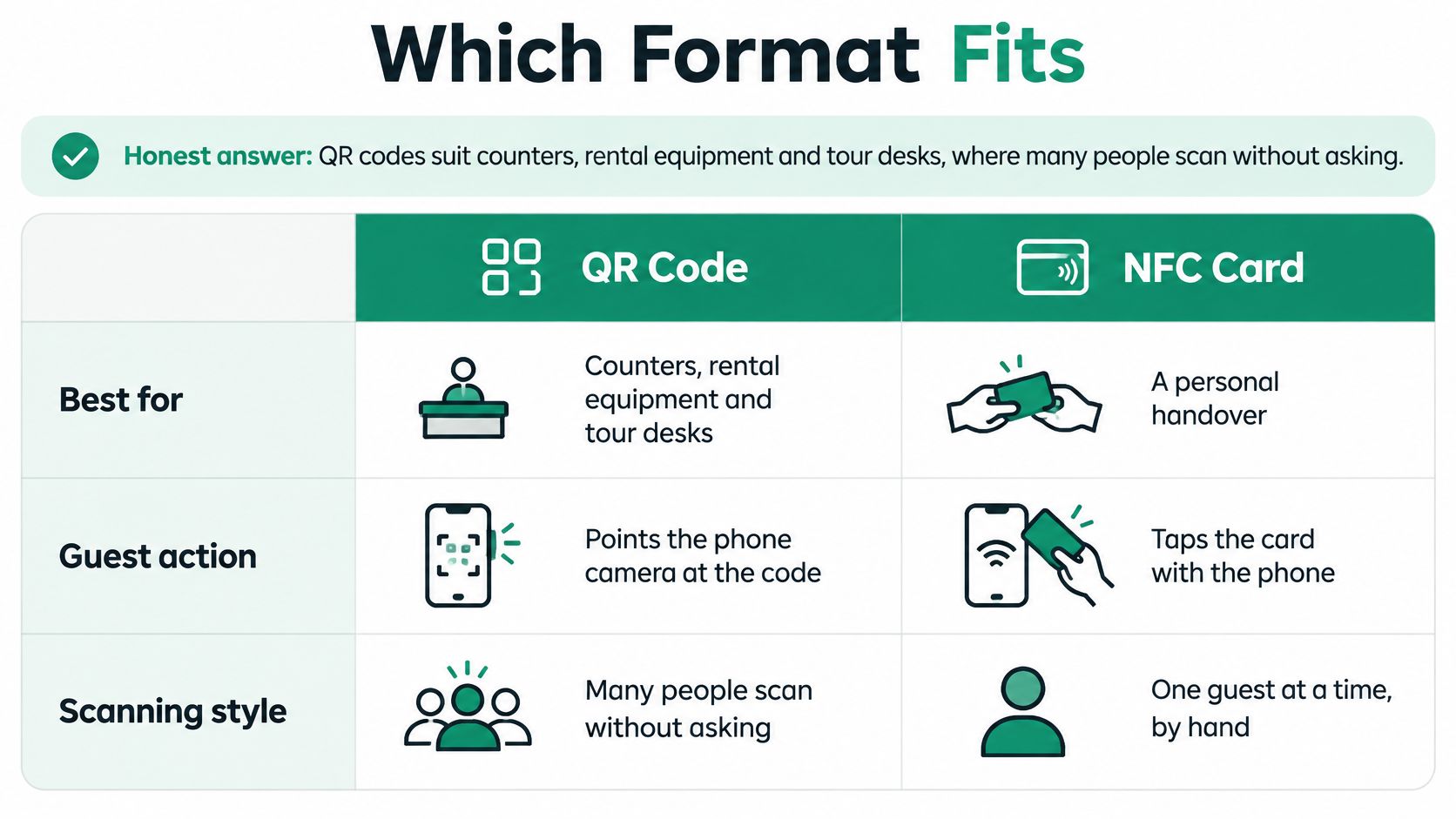
For an owner, updating details is the important distinction. Both a QR code and an NFC tag can lead to an editable page. Neither makes an abandoned website or broken destination useful. Paper is simpler, but printed changes require a replacement.
Compatibility Matters More Than Novelty
Scanning needs a working camera, a visible code and enough light. NFC needs supported hardware, which some older phones lack. Reading paper needs neither, although following its online links still requires a connected device.
QR use is widespread, but that isn't universal access. The State's coverage of QR-code use provides useful context for broad adoption; an individual guest may still have a flat battery, limited connectivity or difficulty handling a small screen.
The best card therefore isn't necessarily the cleanest-looking design. It's the one with readable text, strong contrast and a non-scanning route to the business.
Use QR for places, NFC or paper for people, and written contact details as the fallback.
A business doesn't need to replace every existing card. Adding a tested QR code to a useful paper design can preserve what already works.
How to Set Up Your Card Step by Step
Choose the useful actions first.
Select five to seven items from the contents table, starting with the question guests ask most often. Each extra button adds a choice, so unrelated promotions should stay off the contact page.A bike rental might lead with return directions. A holiday home might lead with arrival instructions and a contact route. The order should reflect the guest's immediate task, not the owner's favourite social account.
Gather the destinations in a note.
Collect the website, phone number, WhatsApp number, email address and relevant review links before building. Keeping them together makes it easier to paste accurately and check the finished buttons.Phone numbers should include the international country code. Map links should identify the actual entrance or meeting point, rather than a nearby road or the centre of a harbour.
Build the mobile page with plain labels.
Give each action its own button, using wording such as “Call the rental desk” or “Book a boat.” Specific labels tell guests what will happen after a tap.Owners can start creating a page through the HolaQR website by pasting their website link. If HolaQR can't find the business, the owner fills in the links in about one minute. The page shows itself in each guest's language.
Use a short, stable web address.
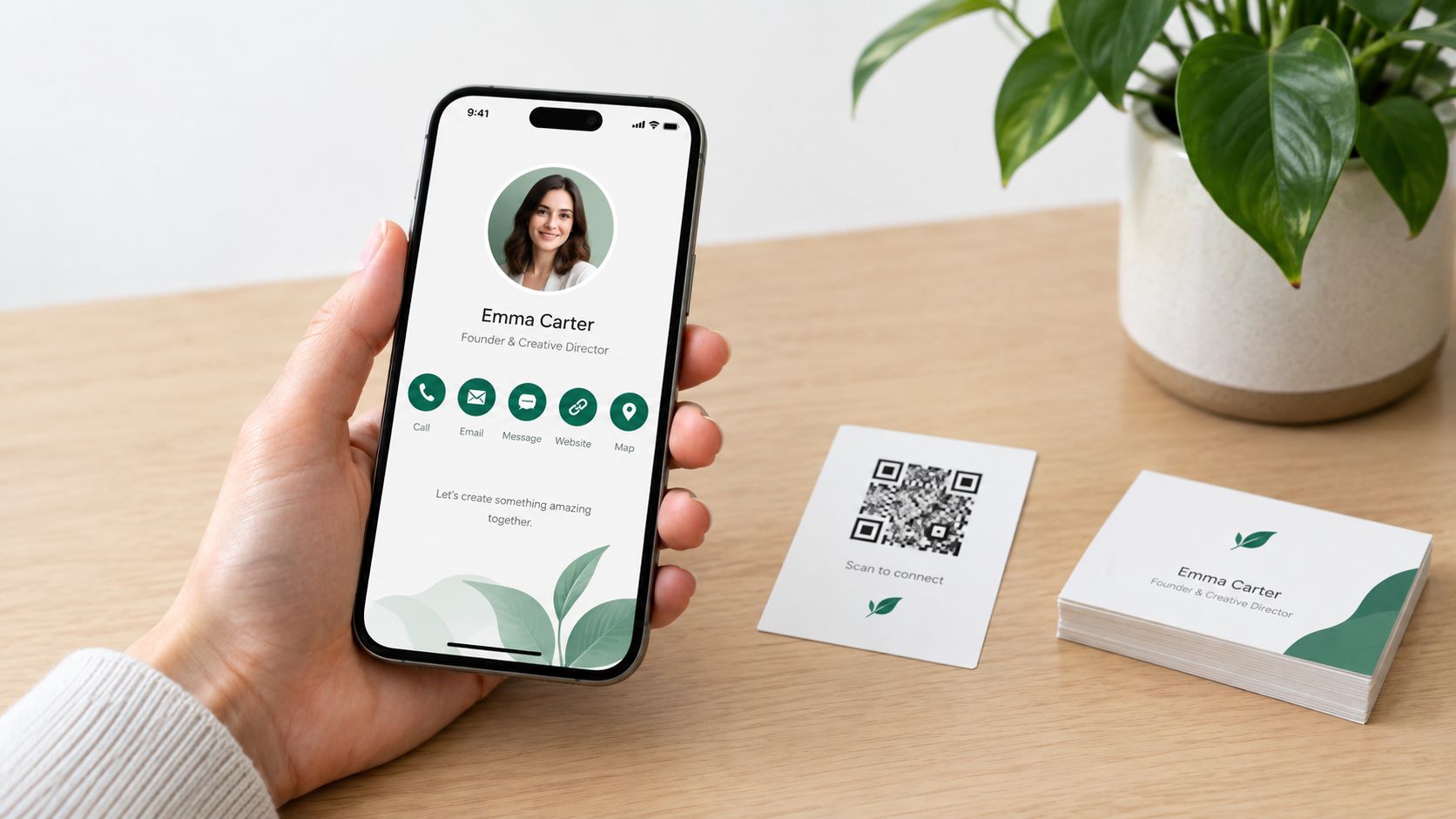
Point the code to the page rather than packing every contact detail into the square. A compact address generally creates a less dense pattern, while the page can hold editable information.The ISO/IEC 18004 QR-code specification defines the format's encoding and production requirements. In practical terms, preserve the square pattern, strong contrast and clear surrounding space instead of treating the code as decorative artwork.
Print at the intended size with a white border.
Add the business name and readable web address beneath the code, with a plain-text phone number nearby. Guests can compare the address before opening it or type it when scanning fails.Supporting text can be smaller than the main label, but it must remain legible. Avoid putting text or artwork into the clear border around the code.
Try a single physical placement first.
Print a sticker or table card and put it where the relevant question arises. A tested code at a rental return desk is easier to maintain than an untested batch spread across equipment.Choose a flat, visible surface. Glare, a curved bottle or a scratched cover can turn a clear digital file into a frustrating printed code.
Test the Card for Every Guest
A working preview isn't enough. The printed card needs testing in the setting where guests will use it, including poor light, small screens and unreliable reception.
Check the Actions and the Print
- Tap every button. Confirm that calls use the correct number, email opens the intended address and booking buttons reach the right form. Review buttons must belong to the correct business location.
- Try realistic lighting. As a practical starting test, scan from about 30 cm away, then try the actual counter distance. Repeat near a bright window and in a dim room.
- Use another device. Test an older phone and a phone with weak signal. A marina or rural holiday home may expose loading problems that office Wi-Fi hides.
A guest shouldn't need to hold a phone at a perfect angle to get a result. If scanning is awkward, enlarge the code, move it away from glare or change the print finish before producing more copies.
Check Reading and Fallback Access
- Enlarge the screen. Test text and buttons on a small display with the phone's zoom increased. Check that labels remain visible and controls don't overlap.
- Check guest languages. Open the page in the languages guests use. Long labels must remain understandable, and translated text must describe the destination accurately.
- Type the printed address. Confirm that it reaches the same page without scanning. Check the printed spelling, not a saved browser bookmark.
- Ask someone to find the number. A staff member or guest who finds scanning difficult should still be able to locate the phone number.
Another language doesn't solve accessibility by itself. Tiny text, vague labels and cramped buttons can fail guests in any language. Each language needs its own reading and tapping check.
Keeping Guests Safe From a Swapped Code
A fraudster can place a different QR sticker over the genuine one. The replacement can send a guest to a fake login page asking for a password or card details, even though the counter and surrounding branding look familiar.
A large-scale analysis of QR codes published by Springer found that 0.16% of analysed codes supported malicious activity, including phishing and malware distribution. That finding establishes a real risk, not a prediction about a particular business's cards.
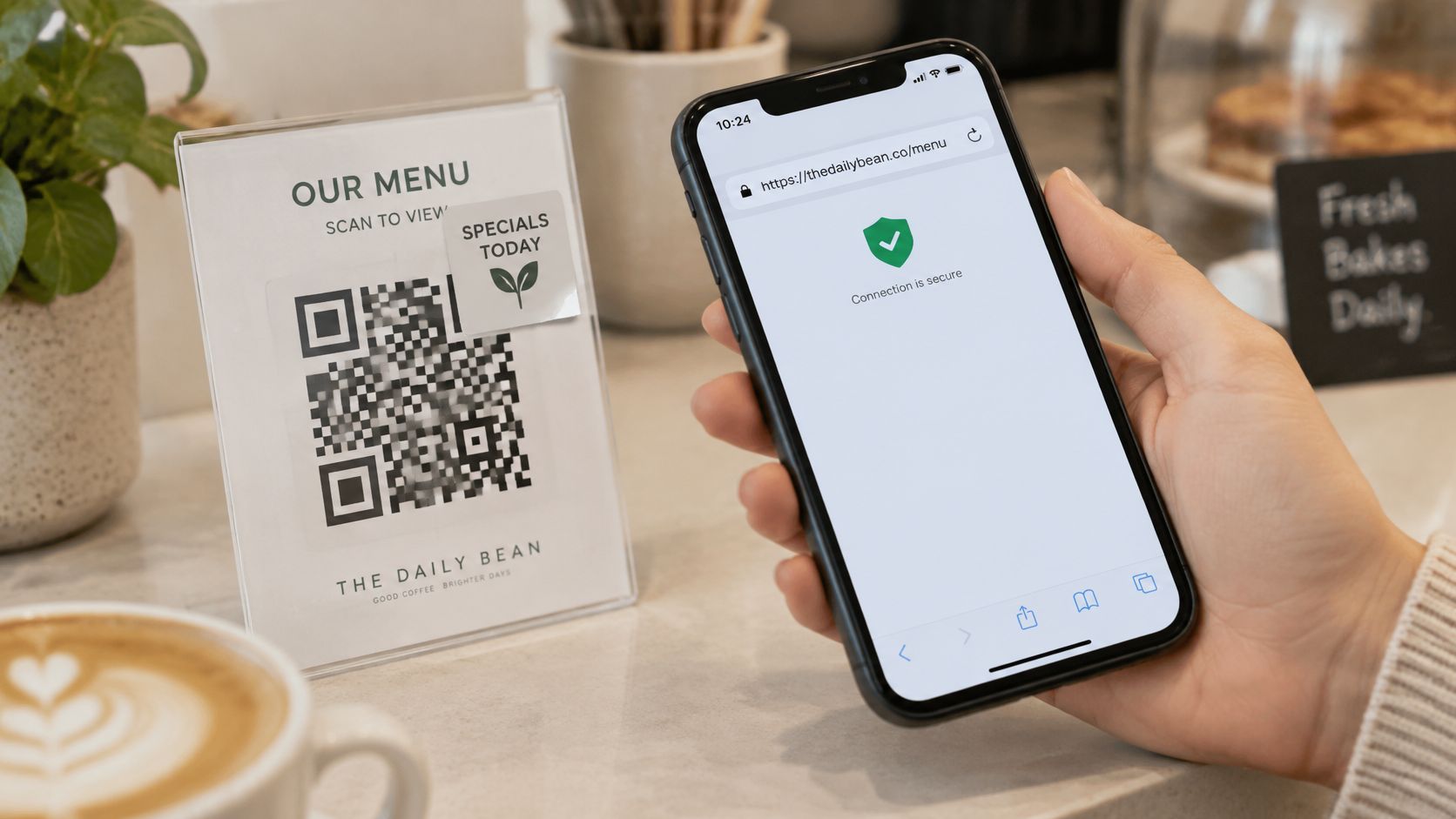
Make the Destination Checkable
- Use HTTPS and retain control. A business-controlled address is preferable where practical. When using a hosted service, the owner should recognise the expected domain and protect access to the page's settings.
- Print identifying details. Put the business name and web address beside the code. Guests then have something concrete to compare with the phone's link preview.
- Inspect physical cards. Include a monthly check for overlays, lifted edges, cracks and replacement stickers. Publicly accessible placements also deserve attention during routine cleaning.
HTTPS protects the connection, but it doesn't prove that the destination belongs to the business. A fake site can also use HTTPS. Staff should check the actual address and page contents, not just look for a security symbol.
Keep the Contact Route Simple
- Separate sensitive tasks. The contact landing page shouldn't ask for passwords, card details or an app installation. A clearly labelled booking link can lead elsewhere without making the contact page itself a payment form.
- Avoid automatic downloads. Guests should choose whether to open a document. A route map or menu needs a clear label before any file opens.
- Explain suspicious behaviour. A printed notice can tell guests to close an unexpected login or payment page and call or message the business using the written number.
Trust check: A QR code is an entry point, not proof of who operates the destination.
If staff find an overlay, they should remove the affected card from use and inspect other placements. Scanning the replacement repeatedly isn't necessary to establish that the printed asset has been tampered with.
Adding Review Links Within Platform Rules
Every guest can be invited to review, but the business must not pay, reward or steer the result. A convenient review button should shorten the route to honest feedback, not influence the rating.
Google's contribution policy prohibits payment, discounts, free goods or free services in exchange for reviews, review revisions or removal of negative reviews. Google treats incentivised or biased reviews as rating manipulation.
Tripadvisor's review rules also prohibit incentives regardless of rating, including free drinks, discounts, contest entries, donations in a customer's name and employee bonuses linked to reviews. They prohibit selectively seeking positive feedback or blocking moderate and negative feedback.
Use the Same Route for Everyone
| Do this | Not that |
|---|---|
| Display a shared page with the same review buttons for every guest | Show review buttons only after a positive satisfaction answer |
| Invite honest feedback without suggesting a rating | Ask for a particular star rating or preferred wording |
| Make the invitation available at normal service points | Ask only guests who appear satisfied |
| Keep gifts, discounts and staff rewards separate from reviews | Offer a drink, upgrade or reward for posting |
| Let guests choose whether to review | Stand over a guest while a review is written |
A page can contain Google, TripAdvisor and Facebook buttons together. The guest chooses the platform and whether to continue. A private contact option can sit alongside those buttons, but it must not replace the public review route for dissatisfied guests.
Practical Placements and a Fair Tool Comparison
A boat tour can place a shared code at check-in, where every guest receives the same access. A restaurant can put a code on the bill folder without attaching a discount or asking staff to judge who looks pleased.
HolaQR is a free QR review page that shows itself in each guest's language, with direct review buttons and a code that never expires. Its page can combine review platforms, including Google and Tripadvisor, in the same place. Other review tools can also display Google and TripAdvisor buttons, so owners should judge the route each tool creates rather than assuming a particular brand guarantees compliant use.
A useful test is whether every guest sees the same review choices. A satisfaction question that sends positive responses to a review platform and negative responses elsewhere fails that test.
The guest chooses the stars and the words. Staff should make the invitation neutral, leave space for an independent decision and treat critical feedback as a service matter rather than a reason to restrict access.
Start Today and Check Every Two Weeks
An owner can start without printing anything. The code can appear on a phone screen at handover, ready for a guest to scan. That makes it possible to test the page before committing to stickers or counter cards.
- Pick a useful spot. Choose the counter, rental desk or bill folder, and decide which guest task the code should support.
- Build and test the page. Use clear labels, check the destinations and run the device, language and fallback tests.
- Print the first card. Place it at the chosen spot with the readable web address and written contact number beneath it.
Put Maintenance on the Calendar
At the two-week check, confirm that hours, phone numbers and links still match the business. Update changed destinations on the page, inspect the physical card for tampering and check that review invitations remain neutral.
A scan test should reach the intended page, but the written route matters too. Staff should type the address and confirm that guests can still find contact details without using the code.
Start a HolaQR page today without opening an account or providing a credit card. HolaQR is free. Test the code from a phone screen, place the first printed card only after the checks pass, and set the two-week reminder before putting it into service.