Ad with QR Code: How to Design, Link and Measure It
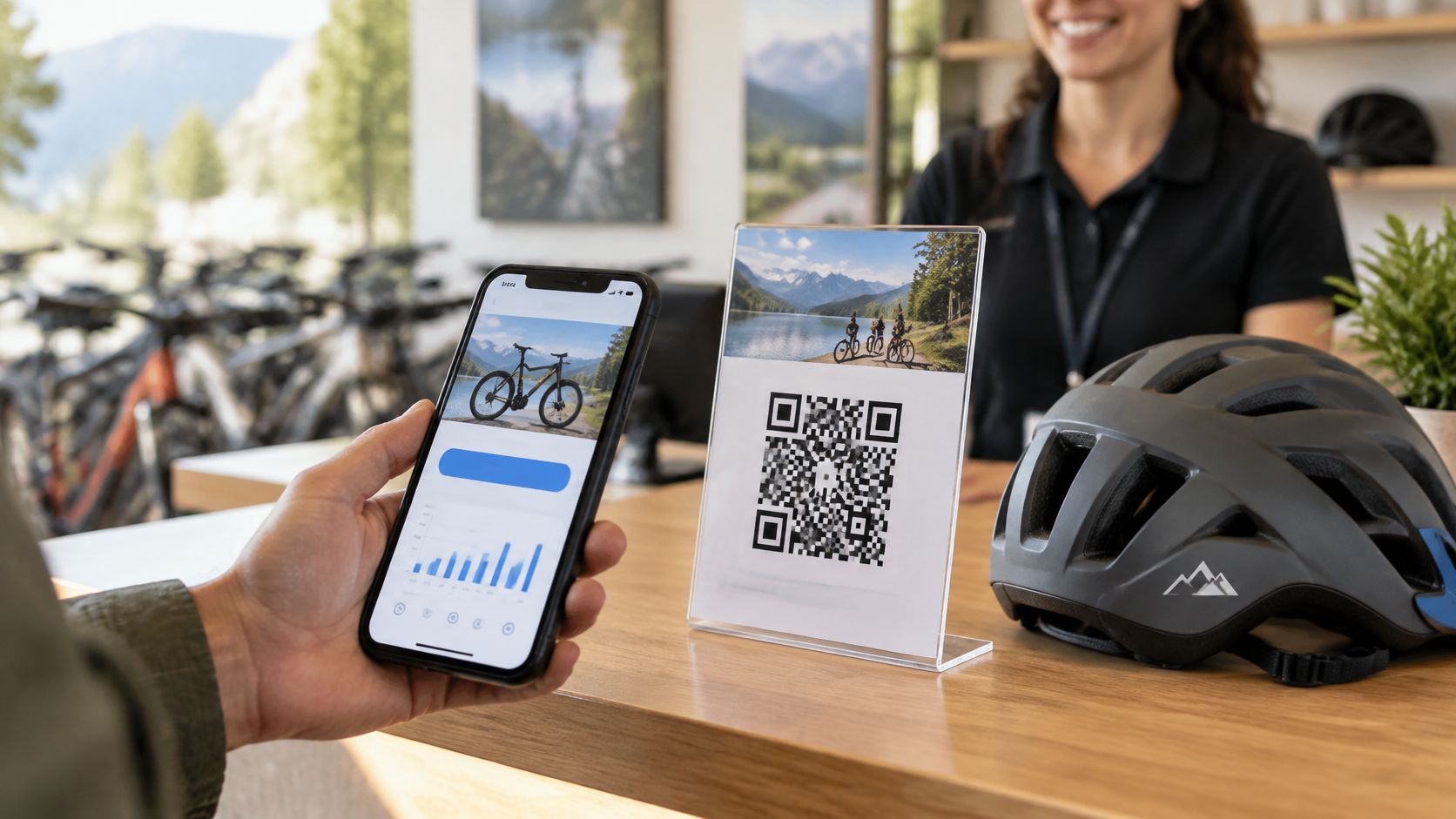
A guest at the bike counter hands back a helmet with a phone already open. The till queue at a beach café looks the same, and so does the moment someone opens a holiday-home folder. An ad with QR code only works in that pause. If the symbol, the page, and the proof of what happened are planned together, the scan can become a review, a booking, or a message before the guest walks off.
Where Guests Actually Scan Your Ad
The receipt prints at a beach bar and the phone is already on the counter. That second is the whole window. A code set out where hands pause gets scanned before the card goes back in the wallet.
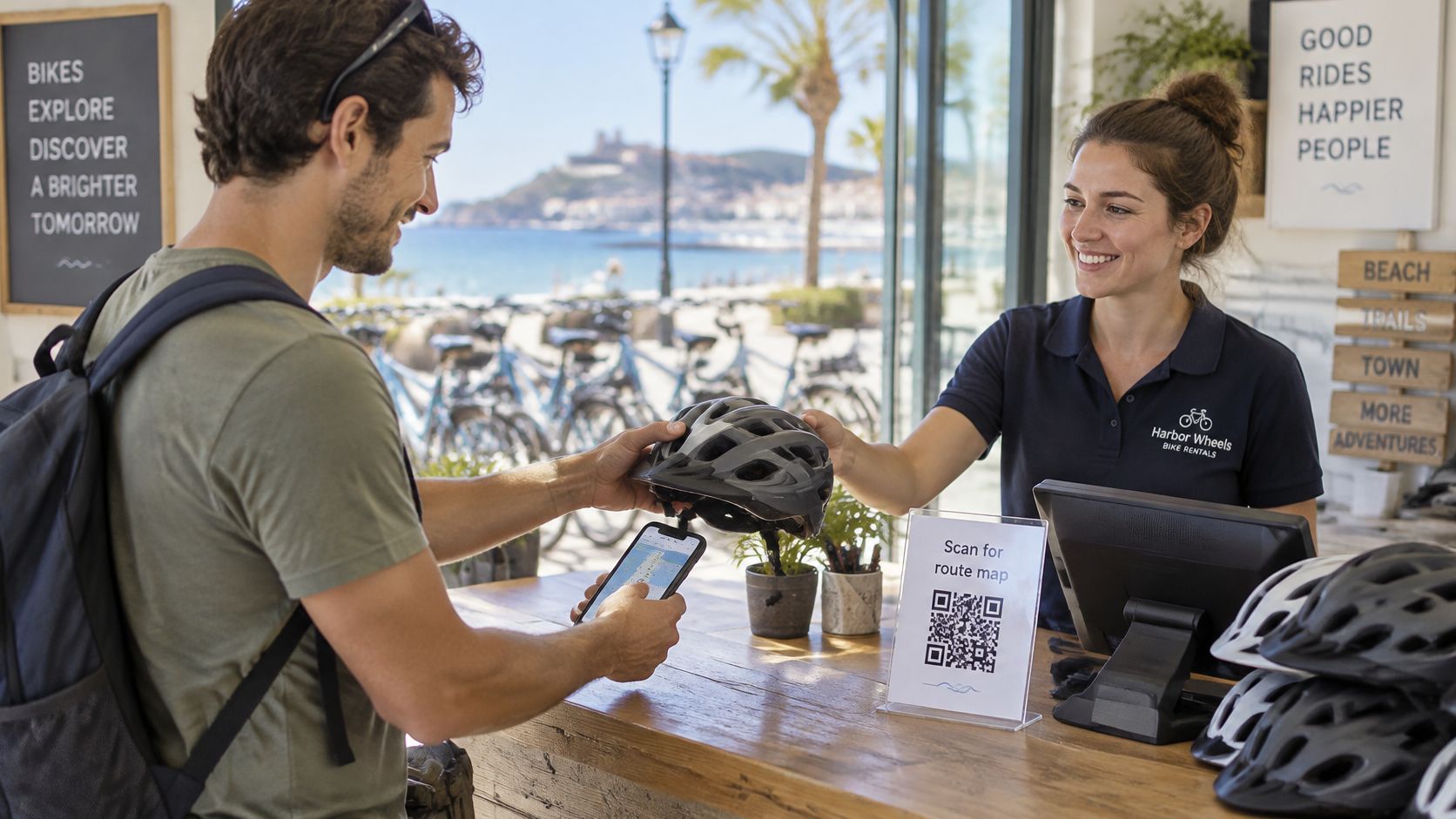
Phones come out at predictable moments. Guests reach for a camera to open a menu at a table, get an app at the till, pull up product details from a shelf label, join the Wi-Fi on arrival, or show a ticket at the door. Match the ad to the moment it shares. A counter card sits at payment. A sticker on a hire bike is scanned at handover, while the helmet is still in hand. A code inside the welcome folder waits for the sofa.
Two things still kill a scan. A page that loads slowly loses the guest, and a bare black square earns no trust. Write the benefit beside the symbol, whether that is the menu, the route, or the review. Keep the first screen short so it opens fast on roaming data.
Show the code when guests are content and the phone is already out, usually when they pay or return something.
Note two or three of those moments during a normal day, then print for the one that repeats the most.
Size and Place the Code for Scanning Distance
Code width should be about one tenth of the distance a guest scans from. Add a little extra for poor light and tired eyes. The table below is a starting point. Distances are estimates, so each one still needs a real proof.
| Placement | Typical scan distance | Starting code width |
|---|---|---|
| Counter card or table tent | 30-40 cm | 3-4 cm |
| Flyer or welcome folder | 30-40 cm | 3-4 cm |
| Rental equipment label | 20-30 cm | 2-3 cm |
| Shop door or window sticker | 50-100 cm | 5-10 cm |
| Eye-level poster | 1-2 m | 10-20 cm |
| Outdoor sign or banner | 2-4 m | 20-40 cm |
Test at the real distance
Print one sample at the final size. Stand where the guest stands. Scan in daylight, then again in dim light. A formula that looks right on a screen fails if the counter lamp throws a shadow or the folder is read on a sofa.
Practical rule: Pick the smallest size that scans at the real distance, and write that size on the print file so the next batch matches.
Surfaces that break a good size
Glossy laminate throws glare and hides the pattern. Outdoor vinyl fades in one season and loses contrast. Curved spots, such as a bike frame, a boat hull, or a cup, need a larger code and a matte finish. A small sticker on a handlebar or helmet is scanned while the item is held, so give that sticker the generous end of the range, not the minimum.
Choose a Destination Guests Will Use
The code is only a doorway. The destination decides whether the guest reviews, books, or asks a question. Give each placement one primary action, and keep extra links below it.
| Destination | Best for | Main risk |
|---|---|---|
| Review page with direct buttons | Counter cards, equipment handover, welcome folders | Guest may skip writing it |
| WhatsApp chat | Questions and bookings from guests abroad | Slow replies lose the guest |
| Menu or rental route | Restaurant tables, tour and bike routes | Heavy file loads slowly on mobile data |
| Booking or enquiry form | Holiday homes, tours, B&Bs | Long forms lose visitors |
| Generic website homepage | Few goals | Guest must search for what they came for |
A homepage is the weak choice. The guest has to hunt for the thing they came for. A review page fits a counter, a bike return, and a welcome folder. WhatsApp fits a question from someone whose data plan is expensive. A menu or route fits a table and a piece of kit. A short booking form fits a tour or a holiday home.
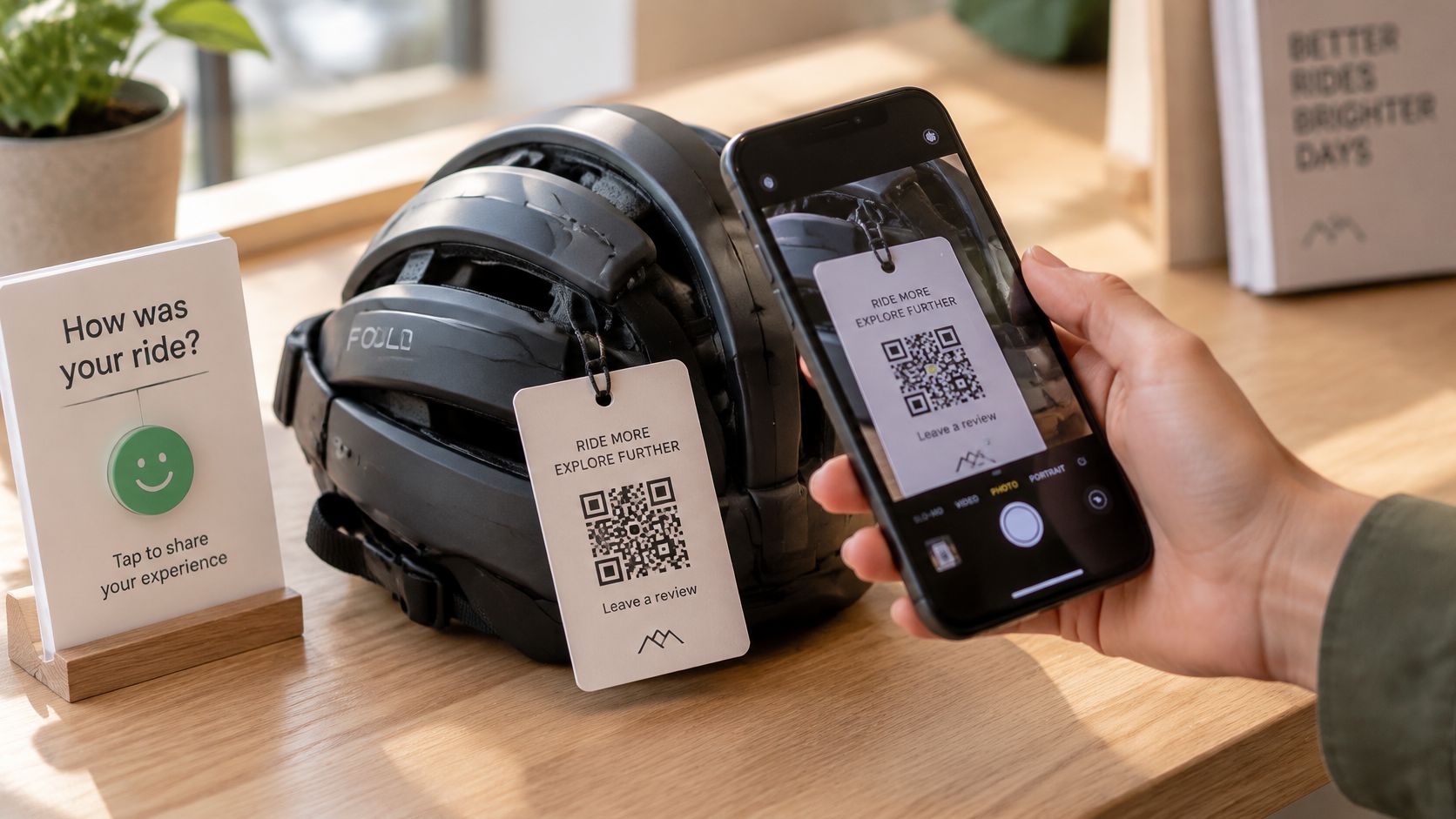
One page, several languages
One page can hold review buttons, WhatsApp, a menu, house rules, and local tips, so one code can serve one placement. International guests scan in a hurry. The page should say the next step in their own language.
A plain Google or Tripadvisor link costs nothing and works well for one language. HolaQR is a free QR review page that shows itself in each guest's language, with direct review buttons and a code that never expires. It fits a business that serves several languages and wants menus, questions, and reviews on one page. Pasting a Linktree link copies the existing links onto that new page. A QR code contact card is another way to put phone and message links in one place.
The same card does not mean the same action. A lobby card may need a booking button. The same design at a bike return needs a review button. Write the one action for each placement before anything is printed.
How to Build the Ad Step by Step
Build the page first. Print second. A pretty card that opens the wrong page wastes the paper.
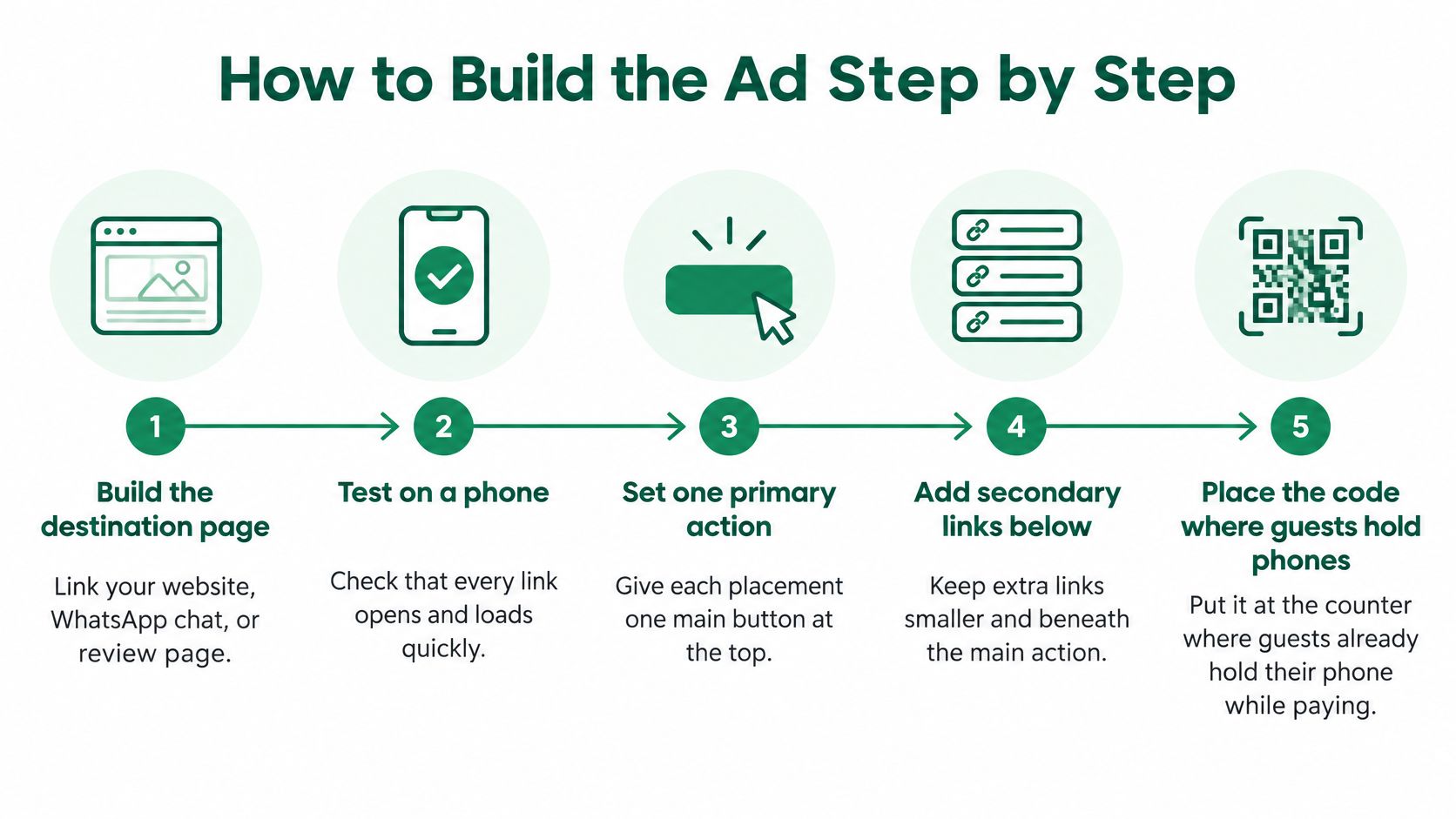
- Build the destination page. Paste the website link, or connect the WhatsApp chat or review page, and confirm every button on a phone. Guests scan with the phone camera and the page opens in the browser, with no app or account needed.
- Download the code at the size already chosen. Use a vector file or a high-resolution image so the printer does not blur the squares.
- Leave a quiet zone. A layout study of print constraints says to keep at least four modules of blank space on every side, with strong contrast between the dark squares and the background. Keep any logo small and clear of the three large corner squares.
- Add one short line beside the code. "Scan to review, ask a question, or book" tells the guest what will happen. A bare symbol does not.
- Choose a matte material. Glossy laminate and textured paper cause glare and failed scans. Card, matte sticker, and flat outdoor film behave better.
- Print one proof at final size on the actual paper, card, sticker, or outdoor material. A screen preview is not a proof.
- Scan that proof on three phones: a recent iPhone, a recent Android phone, and an older phone. Load the page on mobile data as well as Wi-Fi. The camera recognising the symbol is not enough. The button has to open.
- Set error correction to the lowest level that the spot can survive. Higher correction tolerates scratches, but it also packs the code tighter and can make a small print harder to read. Save the higher level for abrasion or a partly covered spot.
Failures that show up after a print run
The usual failures are a missing quiet zone, a logo over the finder squares, a code printed too small, a shiny surface, and a generic homepage instead of an action page. Steps 1 to 4 fit in one sitting. Steps 5 to 7 need one trip to the print shop, or one test print on the office printer for a counter card.
Check the whole path, from camera to the review button or the booking form, before ordering a stack.
Ask for Reviews Without Breaking Platform Rules
The common mistake is a reward, or a quiet habit of asking only the smiling guests. Both can get reviews removed.
Google's contribution policy says reviews must be genuine and unbiased. A business may not offer payment, discounts, free goods, or services in exchange for a review, a review edit, or removal of a negative review. Google classes that as rating manipulation, and such content may be removed from Maps.
Tripadvisor bans any benefit tied to a review. Its examples include a free drink, free Wi-Fi, a bill discount, a room upgrade, or entry into a raffle. Staff targets and rewards for hitting a review count are banned too. Requests have to come with no strings attached.
The same path for every guest
Tripadvisor also prohibits selective asks. A business may not chase only positive comments, block moderate or negative feedback, or send unhappy guests somewhere else. If a page sends people to Tripadvisor, the path for a positive review and a negative review must be identical. A screen that asks "How was it?" and hides the review button from low scores fails that test.
The fair setup is one neutral option that every guest sees the same way, at the counter, in the folder, or at equipment handover. Asking for a review is allowed. Do not name a star rating. HolaQR does not filter guests and does not change the rating. It only helps guests leave a review, and it sends every guest to the same review window.
Would a guest who had a poor day see the same review path as a guest who had a great one? If the answer is yes, the setup is fair.
Measure Scans Against Real Actions and Act This Week
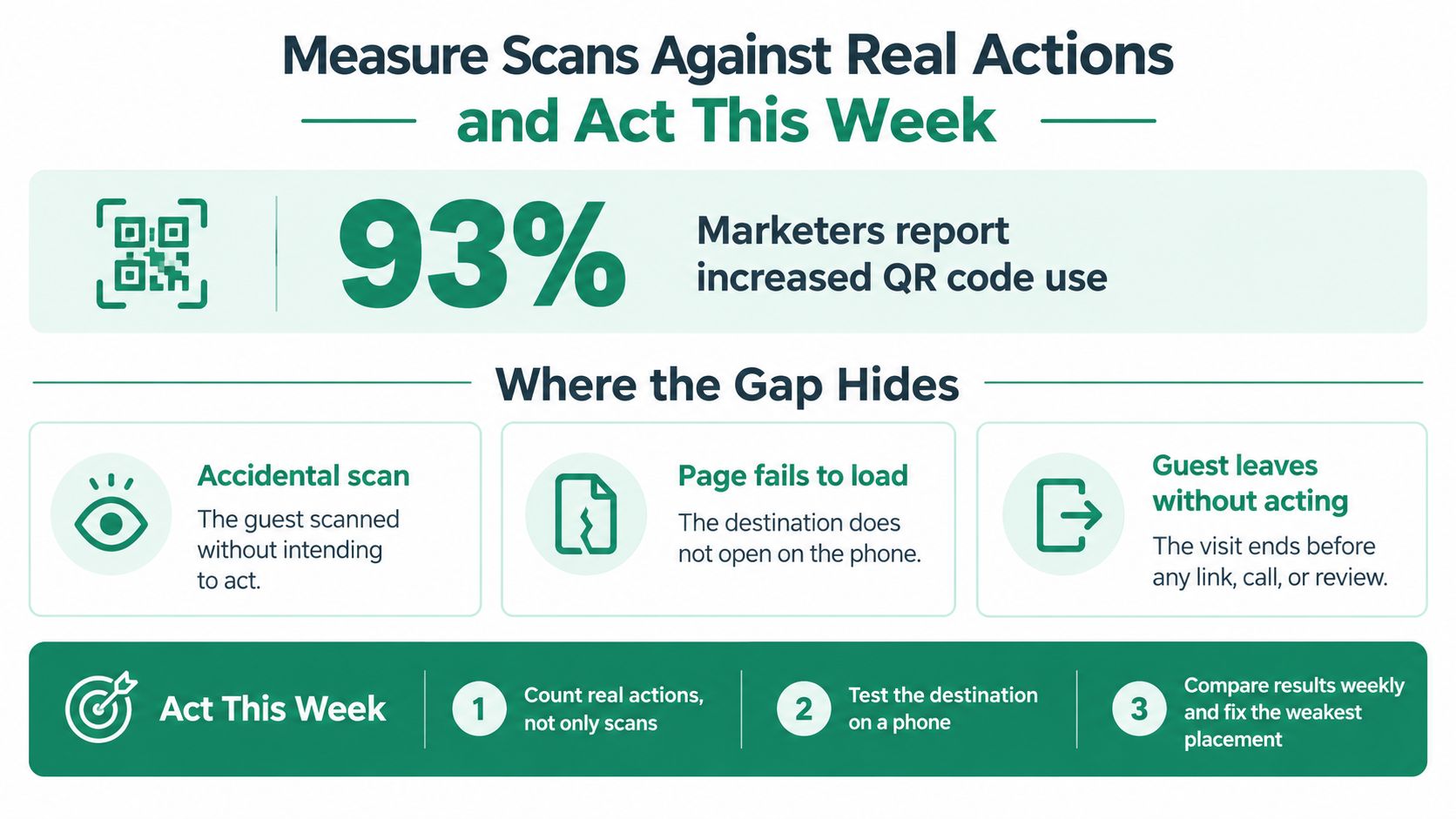
A scan can be an accident, a page that never loads, or a guest who leaves without tapping anything. Counting scans and stopping there hides that gap. In Bitly's 2025 marketer findings, 93% of surveyed marketers increased QR use during the previous 12 months, yet only 31% track what users do after scanning.
Count the full path
LinkUTM's scan-rate glossary treats the ad as a funnel, not a single tally.
- Give each placement its own destination. Use a separate page or a tagged link for the counter card, the equipment label, the welcome folder, and the flyer.
- Split total scans from unique scans. One guest who opens a menu three times inflates the total. Repeat use is normal on menus and kit labels.
- Estimate exposure from flyers handed out, units rented, guests served, or people through the door. That estimate is often the weakest number in the sum.
- Calculate scan rate as unique scans divided by estimated exposed people, multiplied by 100.
- Track page loads and the final action, such as a review click, a booking enquiry, or a WhatsApp message.
- Compare scan-to-action by placement over the same window. Keep the strongest spot. Rewrite the line on the weakest one.
| Measure | How to calculate | A weak number points to |
|---|---|---|
| Total scans | Count every scan | Little interest, or repeat scans hiding a small audience |
| Unique scans | Count distinct phones, where the tool allows | Low reach of that placement |
| Scan rate | Unique scans divided by people exposed, times 100 | Code hard to see or scan, or weak exposure estimate |
| Page loads | Visits to the destination page | Slow or broken page on mobile data |
| Action rate | Actions divided by unique scans, times 100 | Wrong destination or weak call to action |
Other businesses' averages are not a target. They only compare when placement, code size, call to action, and time window are disclosed.
A two-week cycle
In week one, put one code on each placement and tag each destination. An owner can start the same day by letting guests scan the code on a phone screen, with nothing printed yet. In week two, compare unique scans and actions. Change one thing at a time. If the number is low, check exposure, then size, then page speed, then the wording. Do not blame the symbol first.
Changing the links on the page does not change the QR code, so printed stickers and flyers keep working. There is nothing to cancel, and the code keeps working after those edits. Before the next busy day, write the best placement's action on a card and put that code where the phone is already out.
Open a page for the counter, the bike return, or the welcome folder before the next handover. Put one clear action at the top, show every guest the same review path, and scan it once on a phone before anyone else does. HolaQR builds that page, the code, and the printable card for free, with no account and no card number, at holaqrcode.com.