Branding QR Codes: How to Look On-Brand and Still Scan
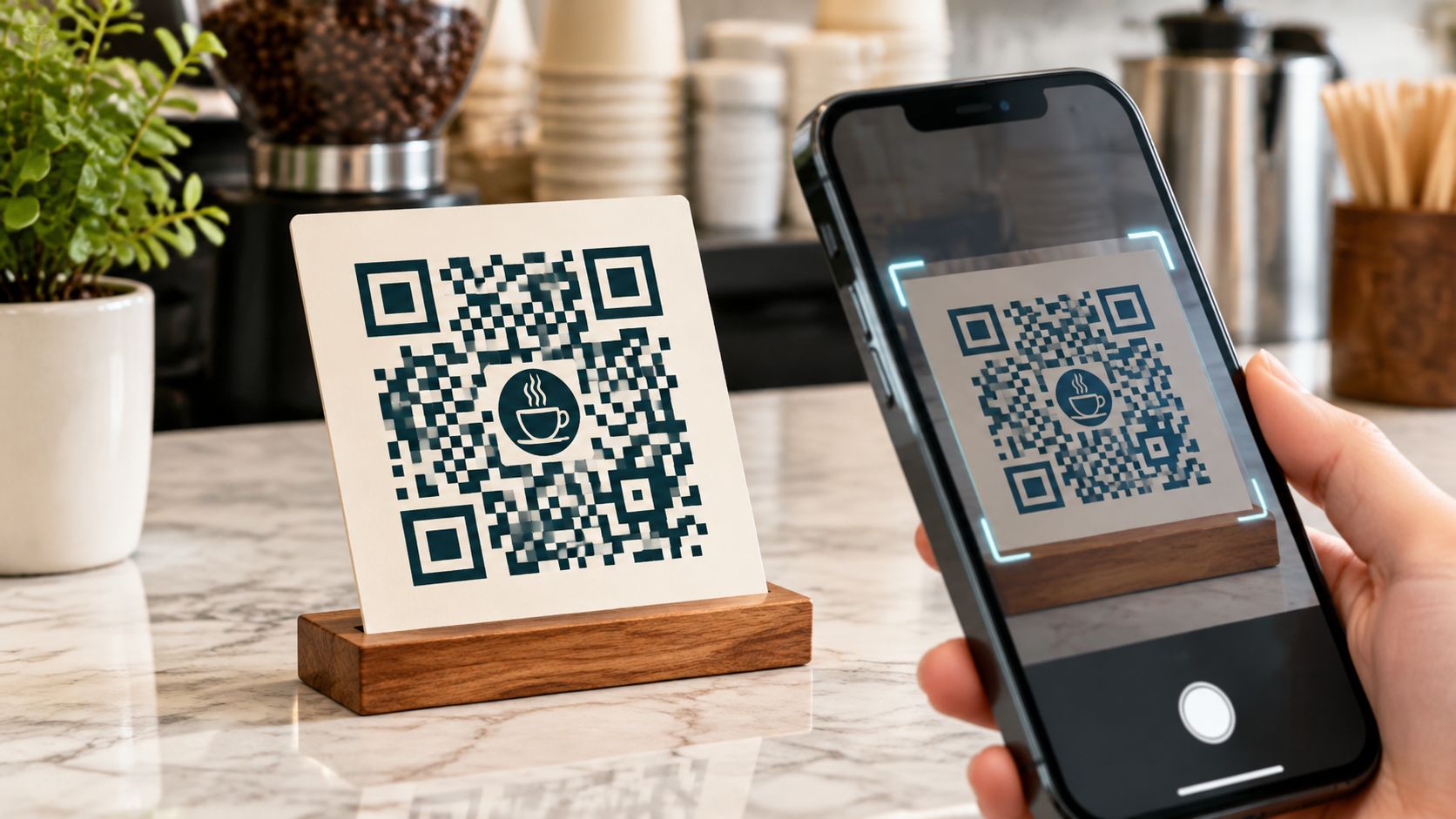
A restaurant owner has a counter card ready to print. The logo looks right, the colours match the menu, and the QR code fits neatly underneath. Then a phone struggles to read it. A rental operator faces the same problem when a good-looking sticker meets sunlight, a curved boat rail, or a guest holding a helmet.
Branding QR codes starts with scan testing, not decoration. The useful design is the one guests can open without changing position, guessing what to tap, or asking for help. Brand recognition matters, but it can't rescue an unreadable code or prove that its destination is genuine.
What a Branded QR Code Really Is
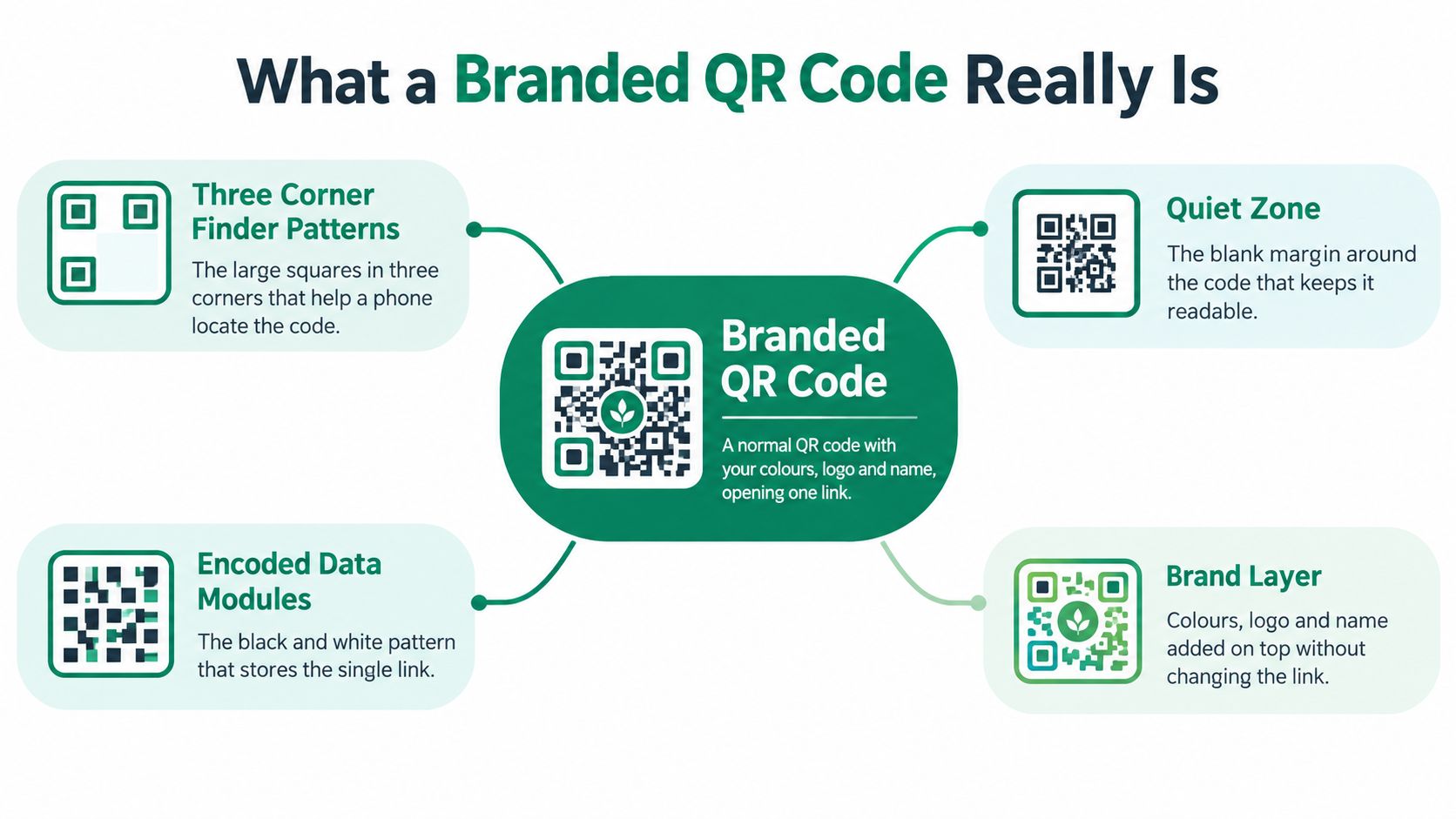
A branded QR code is a normal QR code with a business's colours, logo, and name added to or around it. For a review page, it still opens one link. The page behind that link can offer several destinations, such as review buttons, contact details, and practical information.
A phone needs to distinguish the code's working parts from its decoration:
- Corner marks: The three large square marks help the phone locate and orient the code.
- Data squares: The dark and light squares hold the encoded information.
- Quiet zone: The empty margin separates the code from nearby text, borders, and artwork.
A branded code is like a road map printed on a T-shirt. The paint can change, but the roads and signposts must stay where the reader expects them.
DENSO's development account explains that the company created QR codes in Japan in 1994 for automotive production tracking. DENSO later made the specification public and chose not to enforce its patent rights, allowing broad adoption without licensing barriers.
For an owner, the code is a door. Brand choices decide whether guests can still open it.
Brand Changes That Keep a Code Scannable
| Brand element | Safe choice | Risky choice | Why it matters |
|---|---|---|---|
| Code colour | Deep navy, dark green, or black | Pale yellow, light grey, or weak mid-tones | The phone needs strong contrast |
| Background | Plain white or light cream panel | Photos, textures, or busy patterns | Background detail can interfere with the pattern |
| Logo in centre | Small logo on a white square, followed by testing | Large logo or artwork touching corner marks | A logo hides encoded information |
| Corner squares | Keep every corner mark square and clear | Rounded, warped, or decorative marks | The phone uses these marks to locate the code |
| Gradients | Subtle shading that stays dark throughout | Neon or multicolour gradients with pale areas | The lightest areas may become unreadable |
| Printed size | Large enough for the actual viewing position | Tiny sticker intended for distant scanning | Small squares become harder to distinguish at distance |
A scanner looks for a clear dark pattern on a light field and recognisable corner marks. Weak contrast or altered shapes can prevent it from decoding the symbol.
An independent University of Memphis study of designer QR codes found successful read rates ranging from 9.6% to 88.6%, with a 61.5% average after excluding benchmark symbols. The study identified weak contrast, damaged fixed patterns, and distorted data squares as the main causes of failure.
Put the strongest branding outside the code
A business with a pale yellow identity doesn't need a pale yellow QR pattern. A dark code can sit inside a yellow counter card, with the business name and logo outside its blank margin. That preserves the brand without weakening the working symbol.
The same approach suits detailed logos. A small crest may become an indistinct blot in the centre of a printed code. Moving it above the code keeps the crest readable and leaves the encoded pattern intact.
Practical rule: If a brand detail makes scanning less reliable, move that detail outside the code rather than forcing it into the pattern.
Error correction can help a decoder recover missing information, but it isn't permission to cover arbitrary areas. A large central logo and a damaged corner aren't equivalent problems. Preserving the code's structure matters more than choosing the most forgiving setting.
Colour and logo changes should therefore remain modest and reversible. Keep the corner squares and underlying grid intact, then judge the finished design on the material guests will actually encounter.
How to Build a Branded QR Code Step by Step
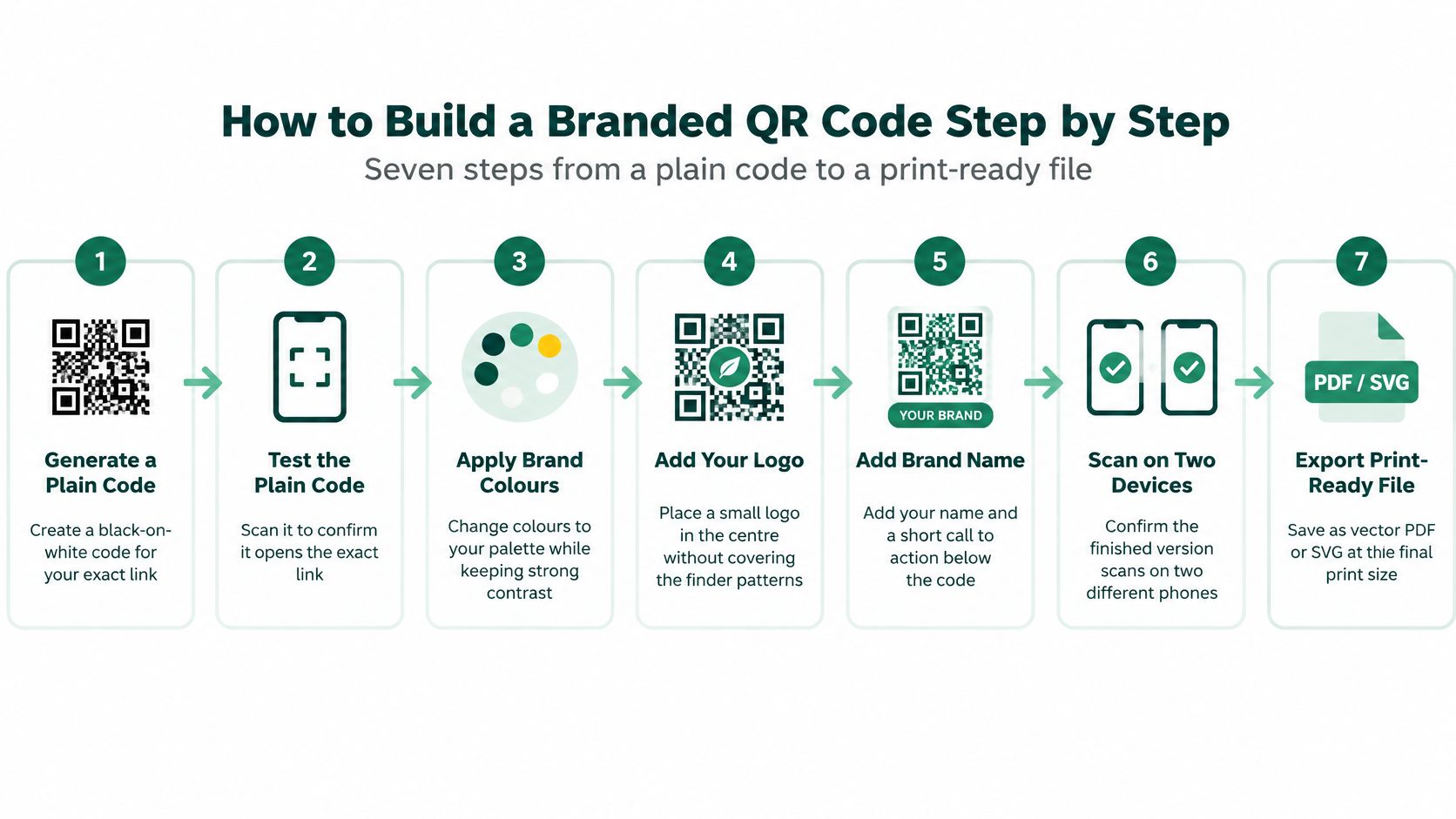
These seven steps take a plain code to a file ready for a printed proof. A generator with error-correction controls and SVG or PDF export makes the process easier to manage.
Generate a plain black-on-white code. Use the exact destination intended for guests, not a search result or an owner-only editing page. A clean starting version makes later problems easier to isolate.
Open the destination with a phone. Confirm the business name, page content, and review destinations before changing the artwork. A readable code that opens the wrong page still fails the job.
Apply the darkest suitable brand shade. Keep the background white or light cream so the pattern remains distinct. Leave pale brand colours for the surrounding card, heading, or border.
Select error correction level H before adding a logo. This gives the decoder more capacity to recover obscured information, although the generator may produce a denser pattern. If the result becomes cramped at the intended print size, removing the logo is preferable to shrinking everything.
Place a small logo centrally on a white square. Keep it well away from the corner marks and avoid stretching it to fill the available space. Add the business name and a short instruction outside the working symbol instead of embedding more artwork.
Protect the blank margin. The QR Code KIT quiet-zone guide specifies at least four module widths on every side, so 1 mm modules require a 4 mm margin. Keep any scan instruction, coloured frame, or nearby photograph outside that space.
Export SVG, PDF, or a high-resolution PNG at the final size. Inspect the exported file for blurred edges, clipped margins, or a shifted logo. Then print a proof, because screen rendering and printer scaling can change the result.
Inspect the file that will reach the printer
The export is a common point of failure. An owner may approve a sharp design preview, then send a compressed screenshot to the printer. Enlarging that screenshot won't restore crisp square edges.
Vector files such as SVG and PDF are useful because the artwork can scale without becoming a larger collection of blurry pixels. For PNG files, enough resolution must remain at the intended physical size. A large image squeezed through a messaging app may no longer be the same production file.
Keep the editable original and the approved print export separately. That makes it easier to change wording without accidentally replacing the tested code with an untested version.
Where to Place Your Branded Code and What to Say
Place the code where guests already pause, rather than where spare wall space happens to exist. A card hidden behind a payment terminal or inside a drawer won't help someone leaving.
Useful placements include:
- Café or restaurant counter: Keep the card visible during payment without blocking the terminal.
- Bike or boat return point: Position it where equipment handover finishes.
- Holiday-home departure folder: Place it beside checkout information.
- Tour welcome pack: Include it on a card guests can keep.
- Printed receipt: Use the back, provided the print remains sharp and readable.
A neutral invitation can ask guests to tell the business about their experience. A short supporting line can explain that scanning opens the business page. A QR code contact card can also provide a useful contact route alongside the review invitation.
Keep the invitation identical for everyone
Google's contribution policy requires genuine, unbiased reviews and prohibits payment, discounts, free products, or services in exchange for reviews. Tripadvisor's incentive guidance also bans benefits such as free drinks, upgrades, and raffle entry, and requires identical review paths for positive and negative experiences.
Every guest should see the same options. Staff shouldn't ask only apparently happy guests or divert unhappy guests away from the review page.
A review invitation should make access easier, not influence the rating.
The owner can prepare a neutral card for each relevant location and agree on the wording with staff. Consistency removes awkward improvisation and keeps the request free of pressure.
Why a Branded Code Does Not Prove It Is Genuine
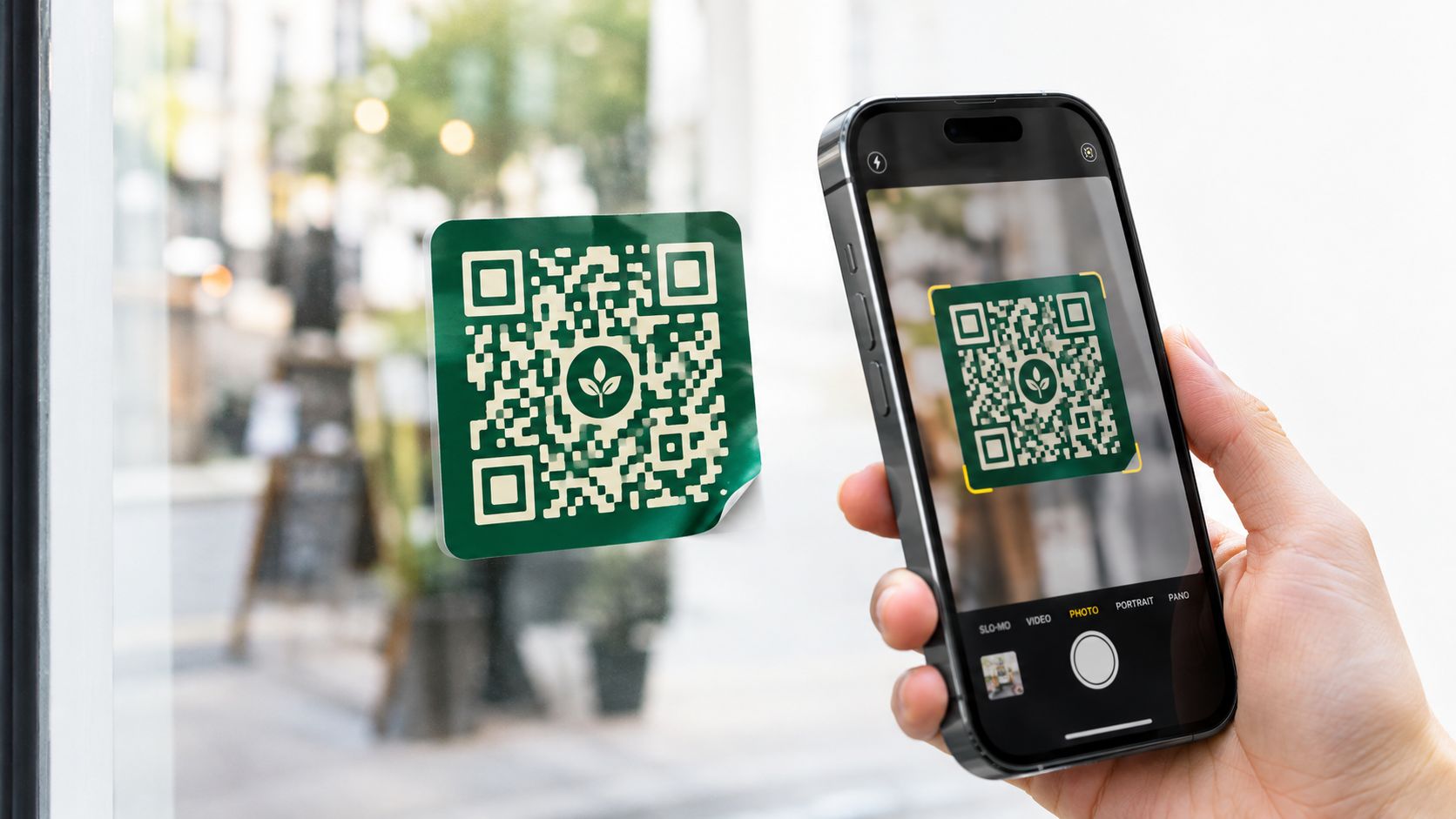
A polished code isn't automatically a safe code. A copied logo can make a fraudulent sticker look official.
CNBC's 2025 coverage of QR phishing cited a report finding that 73% of Americans scan QR codes without verifying them, with more than 26 million people reportedly sent to malicious sites; it also reported that 26% of malicious links identified in a 2025 KeepNet Labs study were delivered through QR codes.
Separate recognition from verification
Branding helps guests recognise official materials. It doesn't prove the destination belongs to the business.
- Show the destination: Print a recognisable short web address and the business name beside the code. Use HTTPS, without treating it as proof of ownership.
- Explain the check: Ask guests to inspect the phone's link preview before opening.
- Reduce tampering: Use staff-visible locations and protected displays that make an overlay sticker noticeable.
- Maintain consistency: Keep the official appearance consistent across counters, equipment, and folders.
- Inspect routinely: Add monthly checks to the maintenance calendar and replace peeled, stacked, or pasted-over stickers immediately.
If the destination uses a service's domain rather than the business's own domain, printed wording should make that relationship clear.
Making a Branded Code Easy to Scan for Every Guest
A bike-rental guest may be holding a helmet and a bag. An older visitor may struggle to steady a phone in a dim cabin. Neither situation is solved by adding a better logo.
Research on accessible QR systems describes approaches including audio feedback, easy-to-read text, and sign-language support. Standard scanning can assume adequate light, reach, steady hands, and clear visual cues that not every guest has.
Make the whole route usable
- Reachable placement: Prefer an accessible counter position over a high sign. Leave room to approach without leaning across equipment.
- Clear presentation: Use a generous code size and strong contrast. Avoid placing essential instructions over a photograph.
- Camera-free alternative: Print a short web address beside the code so a failed scan doesn't end the journey.
- Plain instructions: Explain that the phone camera opens the page, using the languages guests commonly read.
- Readable destination: Use clear buttons, legible text, keyboard-friendly navigation, and text alternatives for meaningful images.
- Human assistance: Offer staff help, a printed information card, or a phone contact without making guests explain a disability.
Automatic language selection helps international visitors understand the destination. It doesn't replace accessible navigation or an alternative that works without a camera.
Service check: A guest who can't scan should still be able to reach the same information and review options.
Owners should also check what happens after the first page opens. An easy landing page isn't enough if its next button leads to tiny text, an unclear form, or essential information available only as an image.
Access is part of the brand. A guest who can't open the page may remember the business as difficult to deal with, even when the printed card looks excellent.
Test Your Branded Code and Decide Whether to Print
Test the exported or printed sample, never only the design preview. The following is a practical trial setup, not a universal scan-distance guarantee.
| Test | Setup | What to check | Pass sign |
|---|---|---|---|
| Bright daylight | Printed card flat outdoors | Glare doesn't block the pattern | Page opens on the first or second try |
| Dim indoor light | Card in a cabin or evening table setting | Phone focuses without repeated repositioning | Page opens in one smooth move |
| Reading distance | For example, hold the card 20 to 30 cm away | Camera finds the code promptly | Page opens within a few seconds |
| Across the counter | For example, test from 1 to 2 m | Printed size suits the intended position | No awkward leaning or approach needed |
| Glossy or curved surface | Laminated card, mug, or metal rail | Reflections and curvature don't hide squares | Page opens from normal guest positions |
| Two different phones | An older iPhone and Android | Both recognise the same code | Both open the same page |
Use the normal camera app. For a small trial, an owner could allow about ten minutes for ten scans across the phones and a printed card. Also open the page on a phone set to another language and inspect its layout.
Make a clear print decision
If a condition fails, increase size or contrast first, then repeat the complete test. Print the batch only when every applicable condition passes. A counter-only card needn't work across a room, but it must work from the position promised by its placement.
HolaQR is a free QR review page that displays itself in each guest's language, with direct review buttons and a code that never expires. Guests open it in their browser through the phone camera, with no app or account needed. Changing the links on the page doesn't change the code, so printed stickers and flyers keep working.
Other generators also produce branded codes. Compare error-correction controls, export formats, and what happens when destination links change, rather than judging only the design preview.
Choose one counter or one piece of rental equipment this week. Start by displaying the HolaQR code on a phone screen, with nothing to print, then test a printed proof in its intended location. Order the remaining materials only after that proof passes the checks above.