QR Code with Multiple Links: A Practical Setup Guide
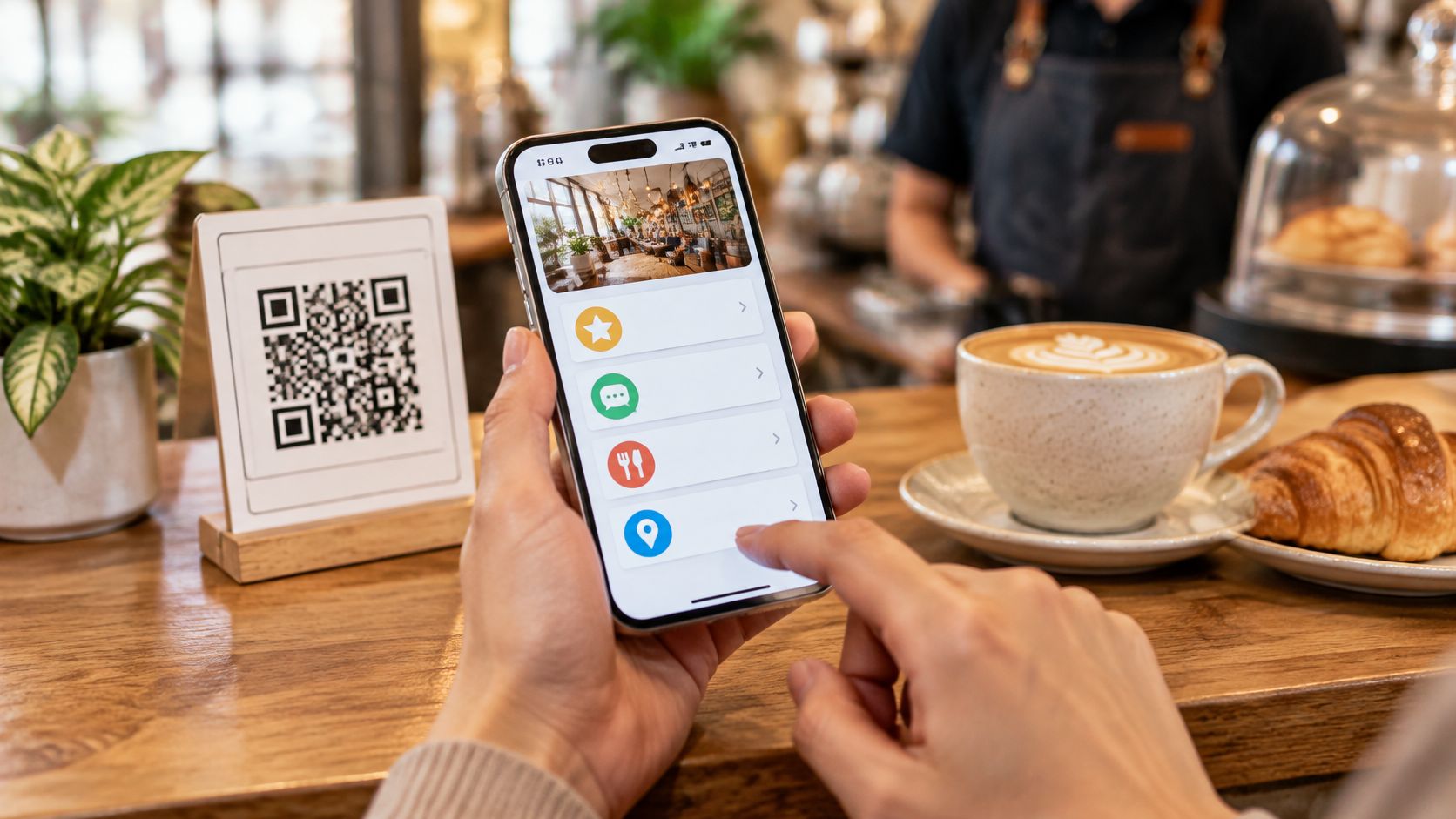
A guest is at the rental counter, phone in hand, life jacket still damp. They want to leave a review, ask one last question, and save the route before the next group arrives. Staff are already with the next booking. One printed square can cover those jobs if it opens a page, not a single dead-end address.
A QR code with multiple links does that job. The symbol holds one short web address. The page behind it holds the destinations the guest needs. The card on the counter can stay put while the links change.
How One Code Can Open Many Links
The guest is not looking for a technology demo. They want the review, the question, and the route map, in that order of whatever is on their mind. A multi-link setup matches that moment. Scanning opens a mobile page with the links the owner chose: review buttons, WhatsApp, the website, Instagram, a menu, or a route.
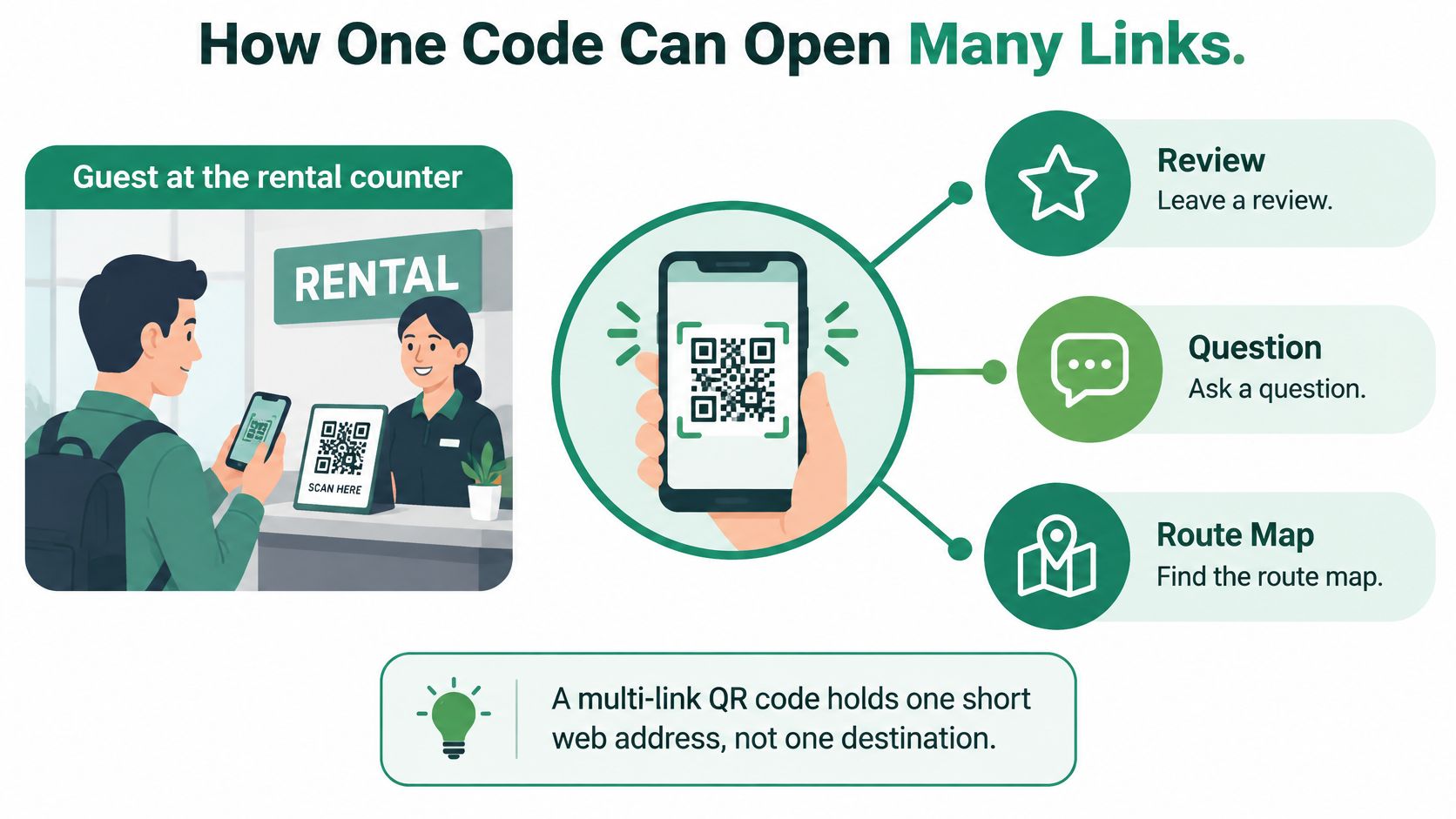
The code itself should hold one short, stable HTTPS address, not every destination typed into the symbol. ISO/IEC 18004 sets capacity by version, encoding mode, and error correction, and Version 40-L can hold up to 7,089 numeric digits. That ceiling is not a reason to pack the code. A longer payload raises the symbol version and packs the modules tighter, which makes a fixed-size print harder to scan. A redirect page keeps the printed payload small. Owners can add, remove, reorder, or replace review, WhatsApp, website, social, and booking links on the server without reprinting menus, counter cards, equipment labels, or welcome folders.
Three ways to connect printed codes to several links
| Setup | What the code holds | When a link changes | Best for |
|---|---|---|---|
| Direct link in the code | One destination | Reprint every sticker | A single task that never changes |
| Multi-link page (one code) | One short web address to a page | Edit the page, the code stays the same | Several guest needs at once |
| Separate code per link | One destination per code | Reprint the affected codes | Two or three fixed links |
A direct link is fast when the destination never moves, such as a permanent map pin. Separate codes fit two or three fixed jobs, but the counter fills with stickers and each change means a reprint. A multi-link page fits a bike desk, a tour meeting point, a restaurant, or a holiday home, where guests arrive with more than one need.
HolaQR is one example of that middle option: a free QR review page that shows itself in each guest's language, with direct review buttons and a code that never expires. It builds one mobile page with the business's brand, links, and a code that can be printed and displayed. A plain landing page or a link-in-bio tool can also work. Judge any of them on the three setups above: what the code holds, what happens when a link changes, and whether one code has to serve several guest needs at once.
Adding extra destinations into the symbol does not make scanning better. It makes the pattern denser. Skip long tracking text in the address, and test the printed piece at its real size, distance, light, and material.
Practical rule: Count how many links change in a year. If the answer is more than one, a multi-link page saves reprints.
Review Rules Your Page Must Follow
Every guest gets the same invitation. The guest chooses the platform and the star rating. A page full of buttons does not earn the right to sort people first.
The myth is that a multi-link page can filter guests. It cannot. Google's review request guidance lets a business share a direct link or code into the review flow, and it suggests offering that link at the end of a chat, after the guest has just been helped. For a bike rental, tour, restaurant, or holiday home, that moment is equipment return, checkout, or handover. The invitation goes to every guest, not only to people who look pleased.
What the policies forbid
Google's Maps contribution policy bans payment, discounts, free goods, or free services for a review, a revision, or the removal of a negative review. It also bans discouraging negative reviews and asking only customers with a positive experience to post in public. Google treats incentivized or biased reviews as rating manipulation, and that content may be removed from Maps.
Tripadvisor's review trust rules go further on rewards. A free drink, free Wi-Fi, a bill discount, a room upgrade, a raffle entry, or a contest all count as incentive offers. Staff rewards for a review quota, or for being named in a review, are banned too. Tripadvisor also bans review gating: sending unhappy guests to a private form while sending satisfied guests to the public site. Incentivized reviews can be removed, and the listing can face temporary ranking penalties.
The same line applies on a spoken ask, a WhatsApp message, a printed card, or a page that lists several review platforms.
Allowed today:
- Show the code to every guest. Do not wait to see the mood first.
- Let the guest pick the platform. Google, Tripadvisor, or another button can sit side by side.
- Let them write what they like. The page must not steer the star rating.
- Offer no reward of any kind. No drink, upgrade, discount, or prize.
A neutral line for the card is enough: "Please share your genuine experience." The page can shorten the path to the form. It must not screen customers.
Link Order for Each Type of Business
A guest scanning at a counter has one question in mind. The first button should answer it. Weak signal, an older phone, or limited English makes a long icon row fail. Large labelled buttons beat pictures alone, and the main action should sit above the fold with a plain-text fallback.
Research on QR-based web surveys found a 16.75% breakoff rate among QR-code users versus 10.79% among direct-link users, and that gap became insignificant after screen resolution and digital skills were taken into account, according to a Journal of Survey Statistics and Methodology study. The scan is not the win. Reaching the right button is. Translated labels also change length and prominence, so check each language on a real phone rather than trusting the English layout. Owners comparing a link-in-bio page with a review page can look at link-in-bio alternatives before they lock the button order.
Link order by business type
| Business | Put first | Put next | Keep lower on the page |
|---|---|---|---|
| Bike or boat rental | Return instructions and rental route | Review button and WhatsApp help | Website and Instagram |
| Tour or activity | Meeting point and what to bring | WhatsApp booking | Review button and social profiles |
| Restaurant or beach club | Menu | WhatsApp for reservations | Review button and Instagram |
| Holiday home | House rules and check-out | WhatsApp host and local tips | Review button and website |
The review button sits after the help links on purpose. A guest whose question has just been answered is the person most willing to write. That button still appears for every guest. It is never hidden, delayed, or swapped based on who looks happy.
Why the first row differs:
- Rentals. Return steps and the route stop the "where do I go" queue at the desk.
- Tours. Meeting point and packing list stop no-shows before the van leaves.
- Restaurants and beach clubs. The menu is the scan. Reservations come next.
- Holiday homes. House rules and check-out prevent the 11 p.m. message.
Ask one guest from another country to find their first task in under ten seconds. If they cannot, move that link up.
How to Build a Multi-Link QR Page in Six Steps
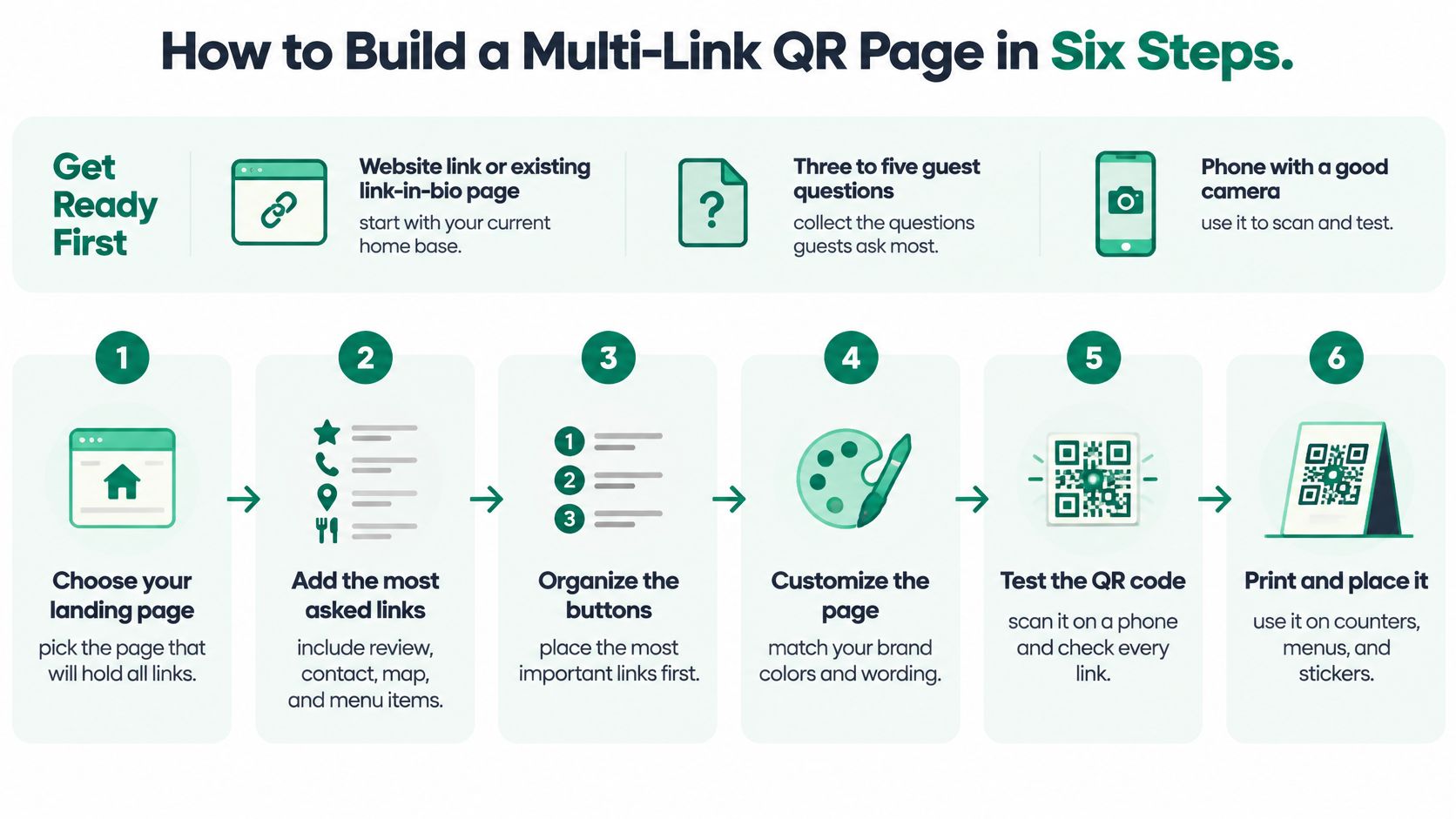
Before any tool work, gather three things: the website link or an existing link-in-bio page, the three to five questions guests ask most, and a phone with a good camera.
The six steps
Start from a name or a link you already trust. Type the business name, or paste the website link. Pasting a Linktree link copies the existing links over. This saves retyping the same addresses by hand.
Check what the tool fills in. Logo, social profiles, website, and review links should match the business. If the lookup misses the business, fill the links in yourself. That check takes about a minute, and wrong links cause the most guest complaints.
Add the daily questions. Put in rental routes, the menu, house rules, local tips, and a WhatsApp button. Guests get the answer without stopping staff.
Preview on the phone. Open the page in the phone's language, then in a second language if a guest is likely to use it. Translated labels can wrap, push the first button down, or crowd the review line.
Make the sticker or counter card from the code the tool gives you. Use the size and error-correction choices in the print guidance below. A code that is too small or too dense will not scan at the counter.
Test at the exact spot. Scan from normal standing distance under the actual counter light, and confirm the right page opens. Glare on a laminated card and tiny print both show up here, not on a laptop screen.
A working page has the business name at the top, the review button easy to find, WhatsApp visible, and no broken links. Custom links should answer the questions staff hear every day, not every profile the business happens to own.
Print can wait. The same code can be shown on a phone screen today so the first guests try the page before any card is ordered.
Print Size and Error Correction for Scanning
A card that scans at arm's length can still fail on a wall across the room. Judge the code from where the guest stands. The screen it was designed on sits at a different distance.
Error correction lets a damaged code still read, but each step up reserves more of the symbol for recovery data and shrinks the modules at the same print width. ISO/IEC 18004 specifies four Reed-Solomon levels: about 7% recovery at L, 15% at M, 25% at Q, and 30% at H.
Error correction levels and when to use them
| Error correction level | Damage tolerated (approx.) | Best use |
|---|---|---|
| L | about 7% | Clean indoor cards and screen display |
| M | about 15% | Counter cards and welcome folders |
| Q | about 25% | Equipment labels and stickers that get handled |
| H | about 30% | Outdoor signs and high-wear items |
For most hospitality print, M or Q is enough. Reserve H for bikes, boats, and beach furniture where stickers take sun and abrasion. On a clean indoor card, extra correction only shrinks the modules and makes a dense code harder to scan.
A longer multi-link address plus a higher correction level makes each module smaller at the same print width. The practical sizing habit is to keep the code's width near one tenth of the scanning distance. A code meant to be read from about a metre wants roughly 10 cm across. Counter cards sit closer and can run smaller, but only after a real scan from where the guest stands.
Colour, contrast, and a clear quiet zone matter as much as the level. A logo inside the pattern, a tint behind it, or a frame touching the edge can cost more scans than a lower level ever saves, so branded QR code design stays secondary to a scannable pattern.
Print checks that catch failures:
- Contrast. Dark modules on a light, plain background.
- Quiet zone. Empty margin around the pattern, with no logo or border touching it.
- Geometry. No stretch on a curved bottle, helmet, or folded menu.
- Real light. Sun, laminate glare, and evening bulbs, tested from the guest's position.
Print fixes the size and the pattern. The links behind the code stay editable, since changing the page later leaves the printed symbol unchanged. That permanence puts weight on the page order. Guests scan with the phone camera, the page opens in the browser with no app and no account, so the most likely action belongs first.
Protecting Every Link Behind One Code
One editable page is convenient. The same editing right is also the risk. A compromised account, or one neglected link, can change every sticker, menu, and counter card at once. APWG's Q2 2025 trends report records the scale of QR-code phishing in that quarter: Mimecast detected 635,672 unique malicious QR codes, and 1,642 brands were targeted. Guests may move from that one page into Google, Facebook, WhatsApp, booking, or payment. Each of those doors needs an owner.
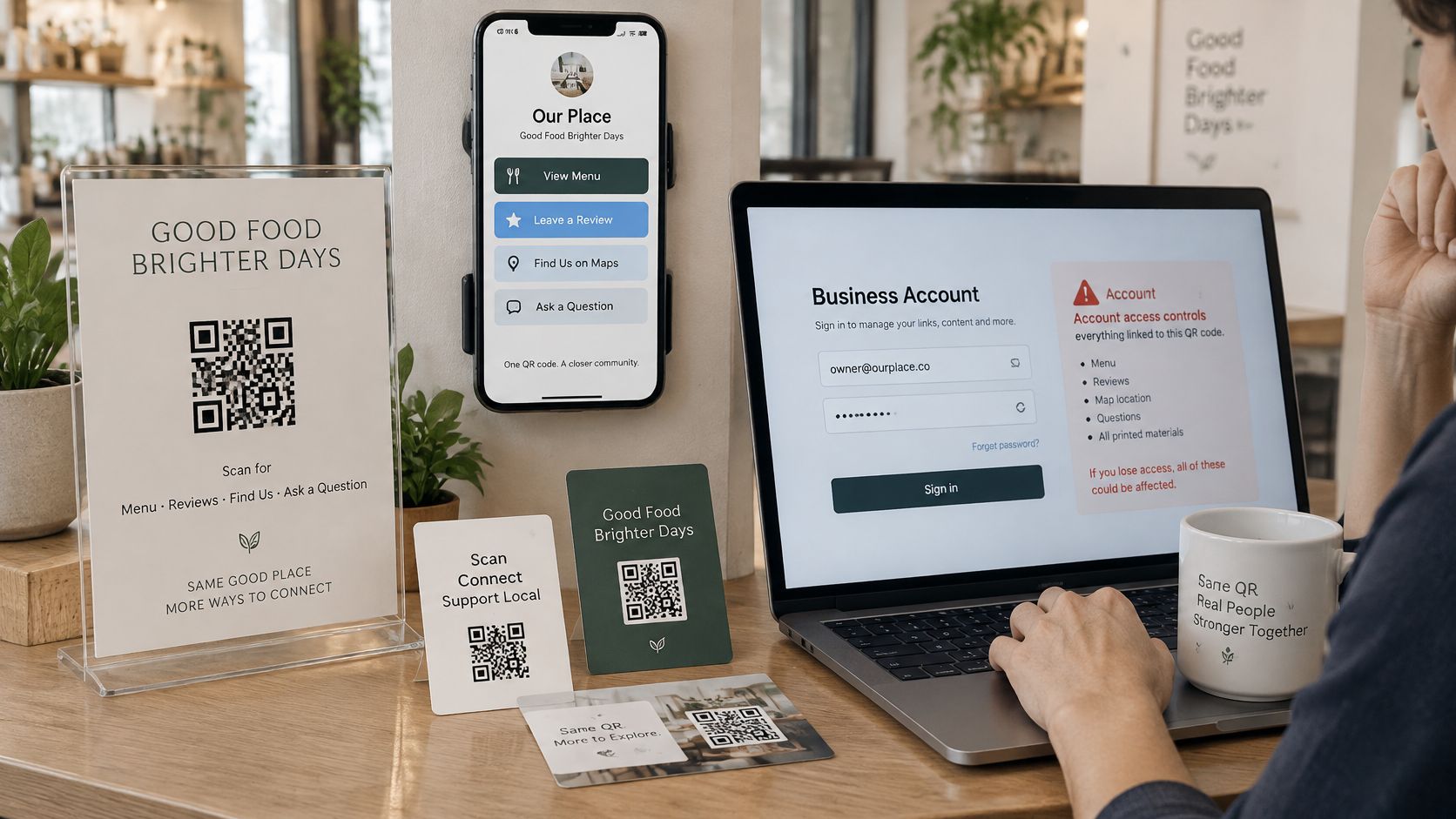
Changing the links does not change the QR code, so printed stickers and flyers keep working. That is why a dynamic QR code needs a short safety routine, especially where print is already in drawers, on boats, and in welcome folders. The owner can change the links at any time. The code on the table will follow.
Monthly link checklist
- Use one named owner account with a strong password and two-step login.
- Keep a written list of every destination, its purpose, and who owns it.
- Open each link once a month. It should use HTTPS and land on the right business.
- Remove old links, including closed events and former supplier pages.
- Record each change with the date and the reason.
- Print a phone number or website beside the code for guests who will not scan.
- Tell staff when a link changes so they can spot an old card that still looks current.
Warning signs are simple. A guest reports an odd page. The page appears in the wrong language for no clear reason. An unfamiliar destination shows up on the button list. Remove that link at once, then check the account.
Editability saves reprints. It also means one bad change reaches every card already in the world.
Launch Your Multi-Link QR Code This Week
Start with one code this week, and add a second only after the first one works.
- Pick the single action guests need at the moment they scan, such as the review line or the route map.
- Build the page from the name or website link, then add only the daily questions.
- Test the scan at the spot, at the size and correction level that spot needs.
- Check every link once a month, and pull anything that no longer opens the right business.
- Add a second code only when the first one works and a different place has a different first task.
The page, the QR code, and the printable files are free, and there is no credit card to start. Other options also work, including a plain landing page or a link-in-bio tool, if the owner can maintain them and keep the same review rules for every guest. Nothing has to be printed first. Guests can scan the code on a phone screen today.
The first test should stay small: one neutral review line, one help link, and one map or route link.
Put one code on the counter or on a phone screen before the next handover. Use "Please share your genuine experience," one WhatsApp or help link, and one route, menu, or house-rules link. Scan it where the guest stands, fix anything that fails, and leave the printed cards alone until that page is the one you want every sticker to open.