Facebook Review QR Code: Setup, Testing and Placement
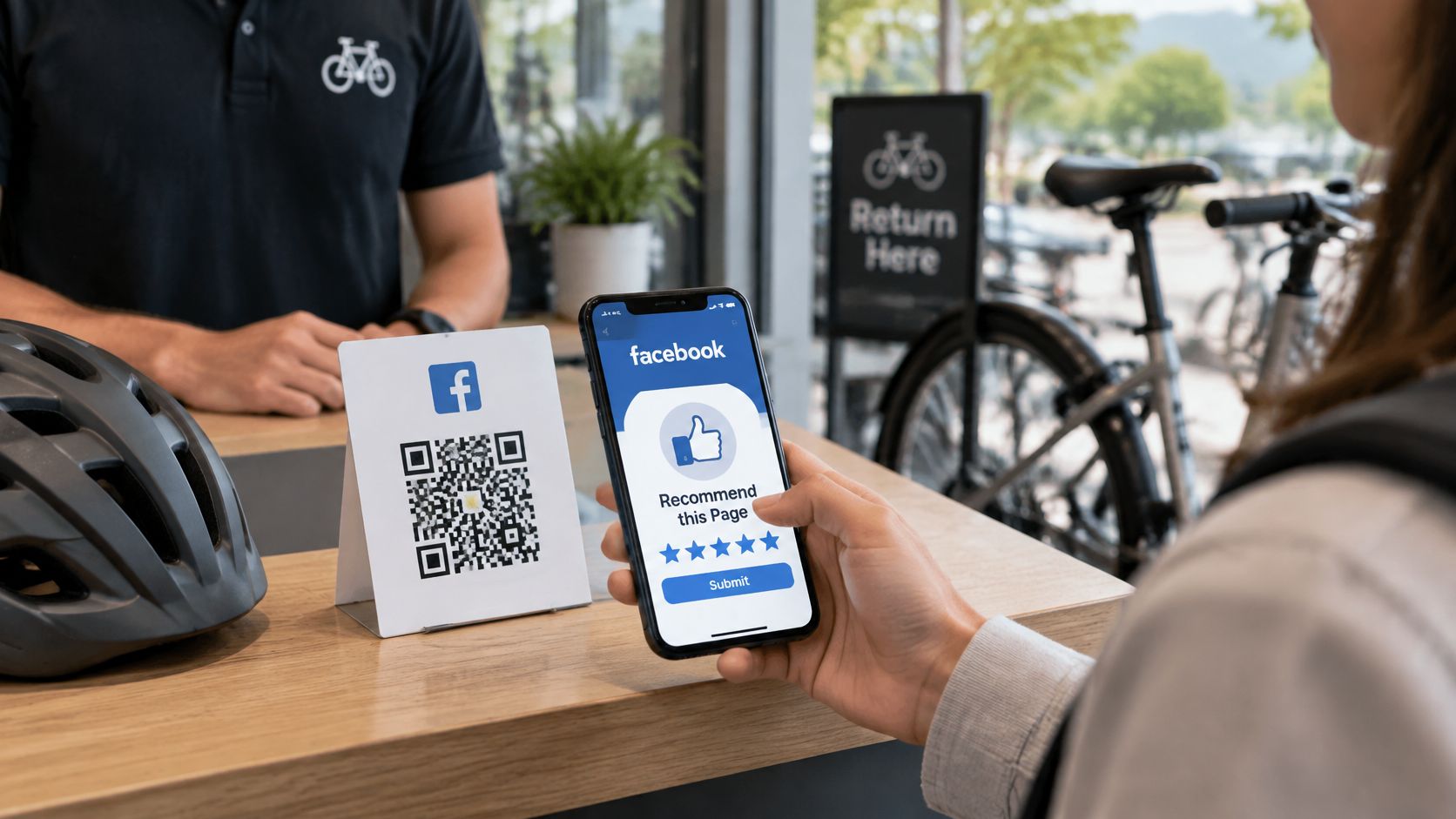
The helmets are back on the rental desk. A guest has a phone in hand, the next booking is waiting, and there's barely time to ask for a review. By the car park, the guest is checking directions instead.
A Facebook review QR code puts the request at that handover. But generating the code is only the start. The link, printed size, lighting and sign-in path all need to work from the guest's side of the counter.
Why a QR Code Helps Guests Leave Facebook Reviews
At a bike rental return, the guest has just finished the experience. The route, equipment and service are still fresh. That's a useful moment to make an honest review easy, without holding up departure.
Without a direct route, the guest must search for the business, identify the correct Facebook Page, find Reviews and sign in. A similar business name or an outdated Page can stop the process before the guest starts writing.
A QR code removes the search. The phone camera reads the code, and the guest follows the link. A well-configured review button then takes the guest to Facebook's recommendation interface rather than leaving them on a general profile page.
Familiar access, not automatic reviews
According to ElectroIQ's QR code statistics, 47% of surveyed users had scanned a QR code to read customer reviews, while 44% had scanned one for product information during in-store shopping. Reading reviews isn't the same as submitting them, but guests already use codes for review-related tasks.
A dynamic QR code keeps the printed symbol unchanged while the destination behind it can change. That makes a counter card more useful when a review link needs updating.
Practical limit: A QR code opens a route to feedback. It doesn't write the review, select a rating or sign the guest in.
For a business serving international visitors, a review page can also provide a readable choice of platforms. Each HolaQR page has buttons for Google, TripAdvisor and Facebook. One tap opens the chosen review window instead of a profile page, subject to the platform's sign-in requirements.
The useful outcome is simple: less searching, fewer wrong turns and a clear decision left with the guest.
Create Your Facebook Review QR Code Step by Step
A direct Facebook code and a review-page code solve slightly different problems. A direct code offers the shortest route when Facebook is the only destination. A review page adds a platform choice and language support, but guests must select a button before reaching Facebook.
For a rental desk serving visitors from different countries, that choice can be useful. The setup should still stay simple enough for staff to check without technical help.
Build and check the destination
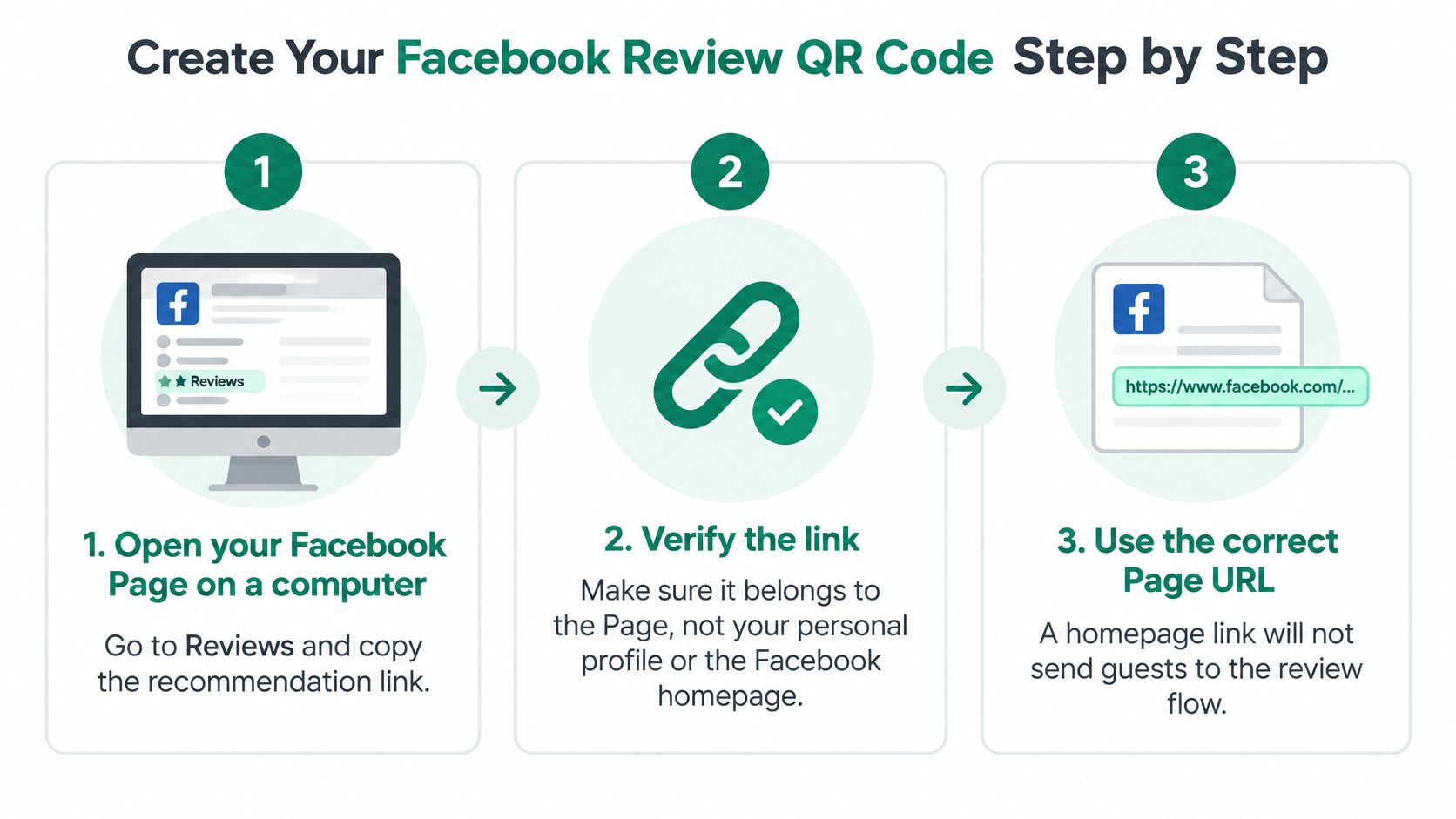
Open the business's Facebook Page on a computer. Go to Reviews and copy the recommendation destination from the browser. Confirm that the Page name belongs to the business, not the owner's personal profile. A Facebook homepage address won't take guests into the review flow.
Start the page at HolaQR. Paste the Facebook Page link or the business website link. Another option is to enter the business name or paste a Linktree link, allowing the service to find available logos, social accounts and review links automatically.
Complete missing details and select the business type. If the business can't be found, the owner can fill in the links manually in about one minute. Available types include bike rental, boat rental, tours and activities, restaurant, café or bar, beach club, holiday home, B&B or hotel, salon or spa, and shop.
Inspect the generated page as a guest would. Check the business name, logo and each review destination. The Facebook button must open the recommendation window, not merely the Page's main feed. The page displays itself in each guest's language, helping visitors understand the buttons without asking staff to translate.
Choose screen display or printed material. A phone screen works for an initial trial. Print-ready stickers, flyers and table cards are available for a permanent position. Avoid ordering a batch until the finished design passes a real scan test.
Add a clear destination label. Place the business name beside the code and use wording such as Recommend us on Facebook. Keep the instruction outside the code's white border.
Keep the printed code useful
The page, QR code and printable files are free, and the code never expires. Links can be changed later without replacing the printed symbol. Free pages include a small made with HolaQR line at the bottom.
For owners comparing a fixed destination with an editable one, the dynamic QR code guide explains the practical difference. The important decision is whether a future link change would require replacing every sticker.
Finish with a saved page, a saved code and a checked Facebook destination. A good-looking preview isn't yet proof that a guest's phone will complete the journey.
Print Sizes for Every Scan Distance
Code width by scan distance
| Scan distance | Minimum code width | Typical placement |
|---|---|---|
| Under 30 cm (phone held at a counter) | 2.5-3 cm | Counter card or sticker |
| About 1 m (seated guest reading a table) | About 10 cm | Table card |
| About 2 m (standing guest at a desk or door) | About 20 cm | Wall or door sign |
These are starting sizes, not a promise that every phone will scan. The practical rule is about 1 inch of code width for every 10 inches of scanning distance. Measure the code itself, not the whole card.
Leave room around the symbol
Keep a clear white margin of at least four modules on every side. A module is a small square in the QR pattern. Text, decorative borders and trimming must stay outside that margin.
Use a dark code on a light background. Matte stock is usually a better choice than glossy laminate beside a window or under strong overhead lighting. Reflections can hide parts of an otherwise clear symbol.
- Error correction: Medium is a sensible default for ordinary indoor material.
- Logos: Keep an overlay small or leave it off. A larger logo makes reliable scanning harder.
- Outdoor signs: Use durable material and secure the sign so it doesn't bend or flap during a scan.
The guide to branding QR codes helps balance appearance with readability. A business logo beside the code can identify the business without covering the pattern.
Print-ready sticker, flyer and table card files are included with the page. Even so, print a proof at its final size before producing the full batch.
A sharp file on a laptop can become a poor sign behind reflective plastic. Test the finished material from the guest's actual position.
Test Scans on iOS and Android and Fix Failures
The most useful test starts with a phone that isn't already signed in to the owner's Facebook account. An owner's phone can hide login steps, saved permissions and app behaviour that guests will encounter.
Facebook's recommendation guidance places recommendations under the Page's Reviews section. Follow that route all the way through, rather than counting the appearance of a Facebook screen as success.
Check the full guest journey
Test on an iPhone and an Android phone before committing to a print run. Repeat while logged out and logged in. Include devices with the Facebook app installed and devices that open Facebook in a browser.
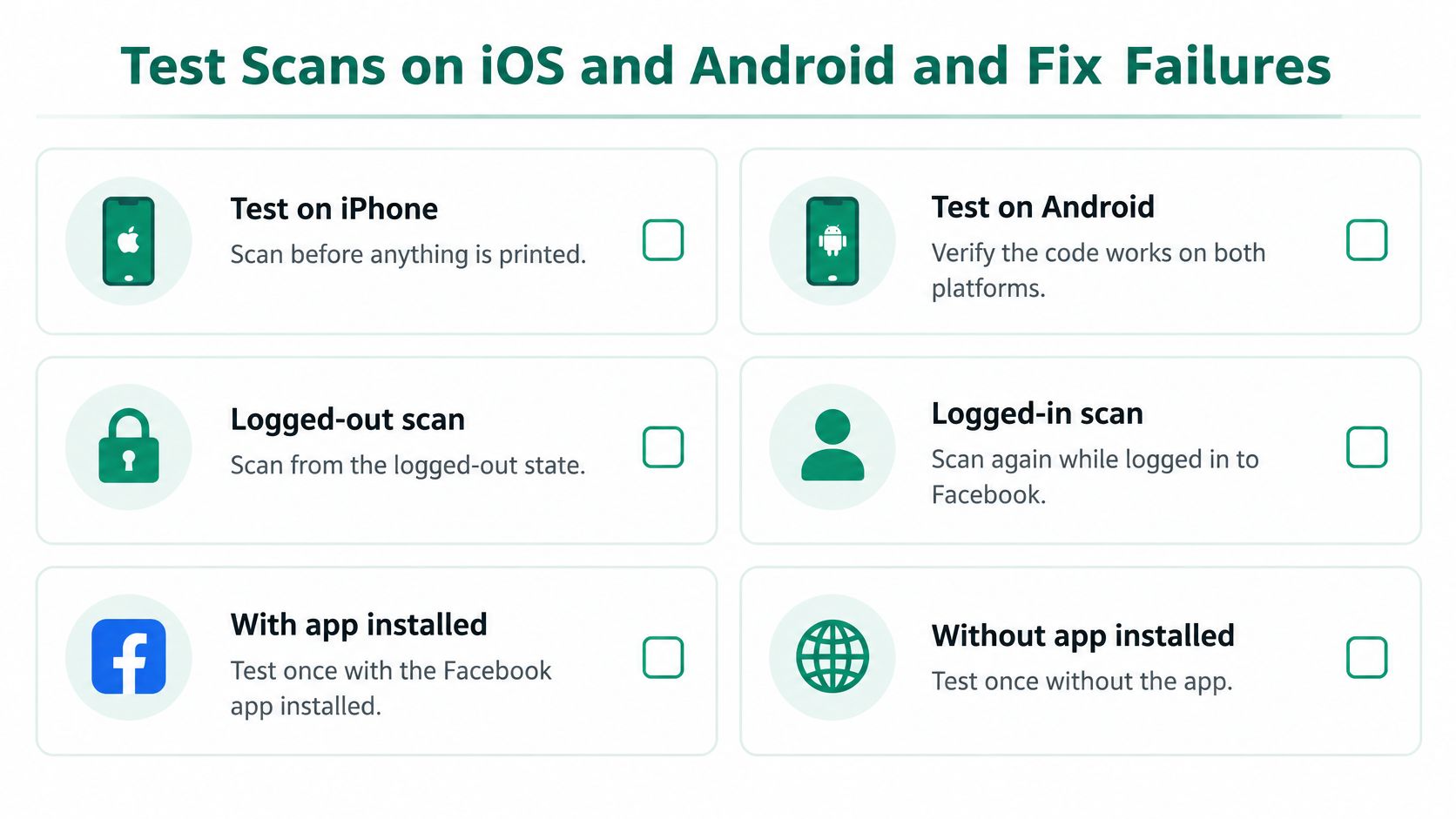
Use the normal phone camera first. Scan at the counter under service lighting, from a standing position and in bright sun if the sign will face outdoors. Then print a proof and repeat from the spot where guests will stand.
Scan problems, causes and fixes
| Symptom | Likely cause | Fix |
|---|---|---|
| Opens the Facebook homepage | Link points to the homepage, not the Page | Edit the link to the Page's Reviews section; the printed code stays the same |
| Will not scan at the counter | Glare or glossy laminate | Print on matte stock and move the card away from direct light |
| Will not scan from a distance | Code too small or white margin cropped | Enlarge the code using the size table and restore the margin |
| Works on iPhone, fails on one Android | Dense logo or low contrast | Shrink or remove the logo and test on both phones again |
| Opens Facebook but guest gets stuck at sign-in | Login step and app switching | Add a short line such as Sign in to Facebook to share an experience, and test the logged-out path |
Fix the failing part
A wrong destination needs a link change, not a redesigned card. Glare needs a material or placement change. Distance failures need a larger symbol and an intact border.
A failure on a particular Android phone doesn't prove Android is the problem. Simplify the design before blaming the device. Check camera focus, contrast and the actual printed edges.
Changing links on the review page leaves the QR code unchanged, so existing stickers and flyers keep working. Keep access to that editable destination and retest after every change.
Staff don't need to publish a review during testing. They only need to confirm that an eligible guest can reach the correct submission interface without an unexplained dead end.
Where to Place the Code So Guests See It
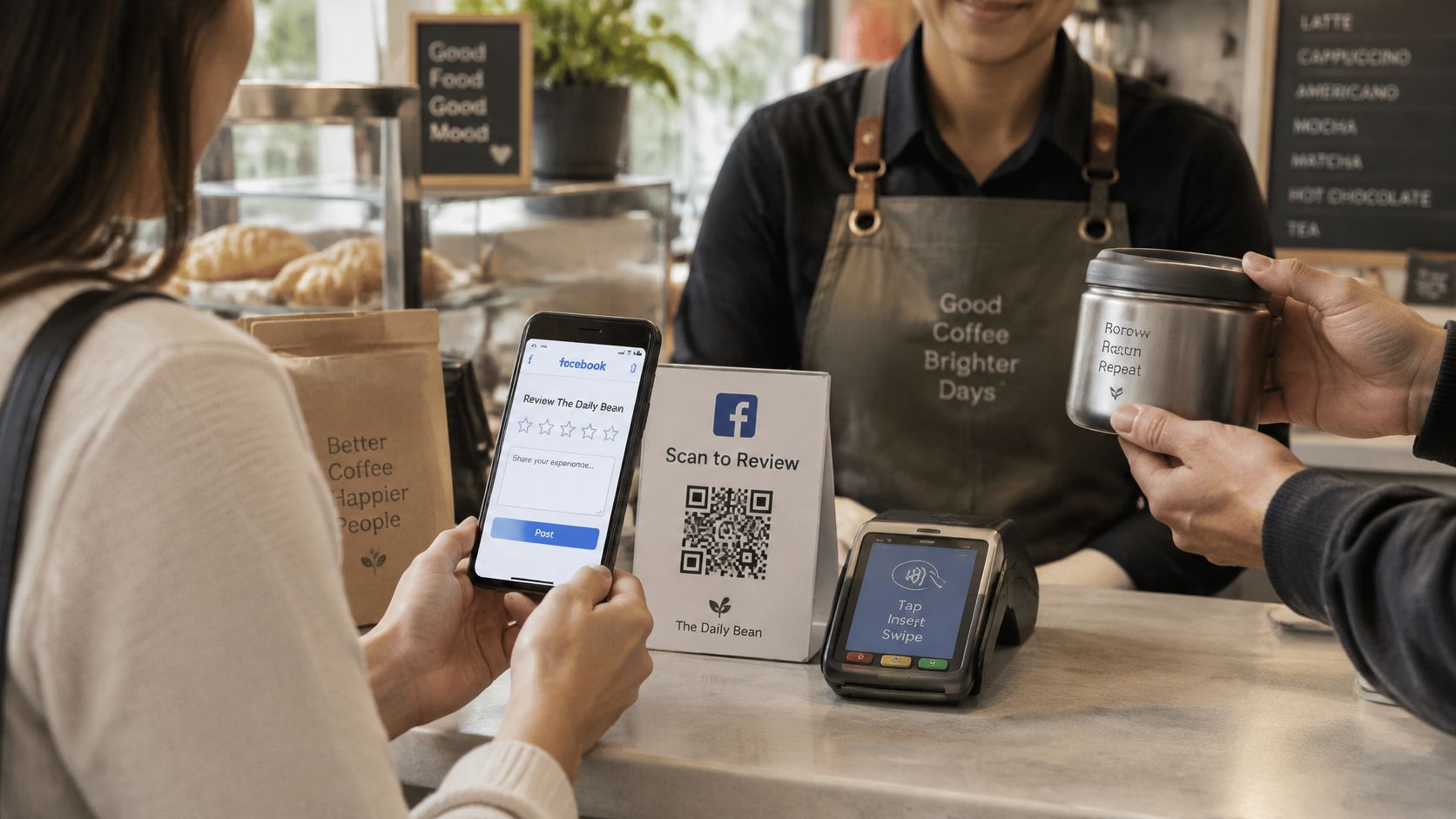
Place the code where guests already hold their phones: payment, equipment return or checkout. Guests can open the review page with their phone camera and browser, without installing an app or creating an account for that page. Writing on Facebook still requires Facebook sign-in.
At a bike return desk, for example, a card can face the guest while staff collect the helmet. It shouldn't sit behind the monitor or underneath the paperwork.
Placement moment and spot by business type
| Business type | Best moment | Placement |
|---|---|---|
| Bike or boat rental | Equipment return, when keys or helmets are handed back | Return desk or key box |
| Tour or activity | End of the tour at the drop-off point | Meeting point board or guide card |
| Restaurant, café or bar | When the bill is paid | Table card beside the bill |
| Beach club | Pay at table or sunbed checkout | Table card and reception desk |
| Holiday home or B&B | Checkout morning | Welcome folder and fridge door |
| Salon, spa or shop | At the till after payment | Counter card by the card reader |
Make the destination obvious
A QR trust survey reported by NEWS10 found that 53% of users won't scan codes from sources they don't recognize. Print the business name and Recommend us on Facebook beside the symbol.
State that the destination opens Facebook. If scans are tracked, disclose that plainly and explain what is measured. Don't claim anonymity without checking the tracking setup.
The right moment is a natural pause, not a satisfaction test. Every guest should see the same invitation, including someone who has raised a complaint.
Ask for Honest Facebook Reviews Without Breaking Rules
A discount for a review or a code shown only to pleased guests may sound like a shortcut. Both compromise honest feedback. A multilingual review page should make access easier, not decide whose opinion deserves a public route.
Google's fake-engagement policy prohibits money, discounts, free goods or services in exchange for reviews, and bans selectively asking customers likely to leave positive reviews. The rule applies even when the business hopes the reward will produce an honest response.
Tripadvisor's review-integrity rules prohibit incentives regardless of rating. When an outside survey sends guests to Tripadvisor, positive and negative paths must offer the same interface and experience. A complaint box for unhappy guests and a public review button for happy guests isn't a neutral setup.
Use the same invitation for everyone
A sound process doesn't require a long staff script. It requires consistent access and no preferred answer.
- Offer the same route: Display the code where all departing guests can see it.
- Ask for personal experience: Invite guests to describe the service they received.
- Leave the content alone: Don't suggest a star rating, supply praise to copy or watch over the guest while they write.
- Keep support separate: Offer help with problems without making private contact a condition for reaching the public review form.
Asking for a review is allowed. The review page sends guests to the same review window rather than sorting them by satisfaction. Guests sign in to Google, TripAdvisor or Facebook as they would for any review.
Facebook uses recommendations, so staff shouldn't promise a particular star-rating screen. The guest chooses the response available on the platform and writes in their own words.
Scan to recommend us on Facebook. Share an honest experience.
Meta requires recommendations to reflect personal experience. People managing the business Page shouldn't submit recommendations for that Page. Staff shouldn't use the owner's logged-in phone to collect guest opinions either.
Handle criticism without hiding it
The guide to asking customers for Google reviews is useful for teams maintaining a consistent request across platforms. The wording can change for Facebook, but the neutral approach should remain.
When a negative recommendation appears, reply calmly on the platform. Acknowledge the concern, explain any relevant facts without exposing personal details, and offer a direct contact route to resolve the issue.
That contact route is for fixing the service problem, not concealing the public feedback. Don't make a refund, replacement or other benefit conditional on removing or rewriting the review.
A declined invitation needs no follow-up at the counter. Guests may lack time, a Facebook account or the wish to post publicly. Staff should let them leave without pressure.
Start Collecting Reviews This Week
A small launch is easier to check than a batch of stickers spread across every boat, table and holiday home. Start with a visible location and a staff routine that doesn't interrupt service.
A practical launch schedule
- Day 1: Create the page and display the code on a phone screen at the counter. Nothing needs printing yet. Let guests choose whether to scan.
- Day 2: Run the iPhone and Android tests, including logged-in and logged-out paths. Record where each test stops.
- Day 3: Print a proof at final size. Scan from the guest's position before producing stickers or table cards.
- Day 4: Put the finished code at the return desk or till. Make sure bags, bills and equipment don't cover it.
- Days 5 to 7: Count unique scans if the chosen tracking setup provides them. Check Page visits and recommendation starts or completions only where Facebook makes those measures available.
Measure access and outcomes separately
A scan shows that someone reached the destination. It doesn't prove that a recommendation was submitted. Login, app switching and a guest changing their mind can all leave a gap.
Keep a simple record of placement, wording and visible results. Change only a single element during a test, then retain a control week without changes. Don't treat every new recommendation as a proven result of the code.
The page, code and printable files are free, and the code has no scan limit. That leaves room to improve the setup without rushing a print order.
Pick next week's test before changing the sign. Make a real-phone scan part of the weekly opening checks.
Start a free review page with HolaQR, verify the Facebook button and show the code at the next equipment return or checkout. Print only after the guest-side test works, then keep the invitation visible, honest and available to everyone.