Linktree QR Code: How to Make, Test and Print One
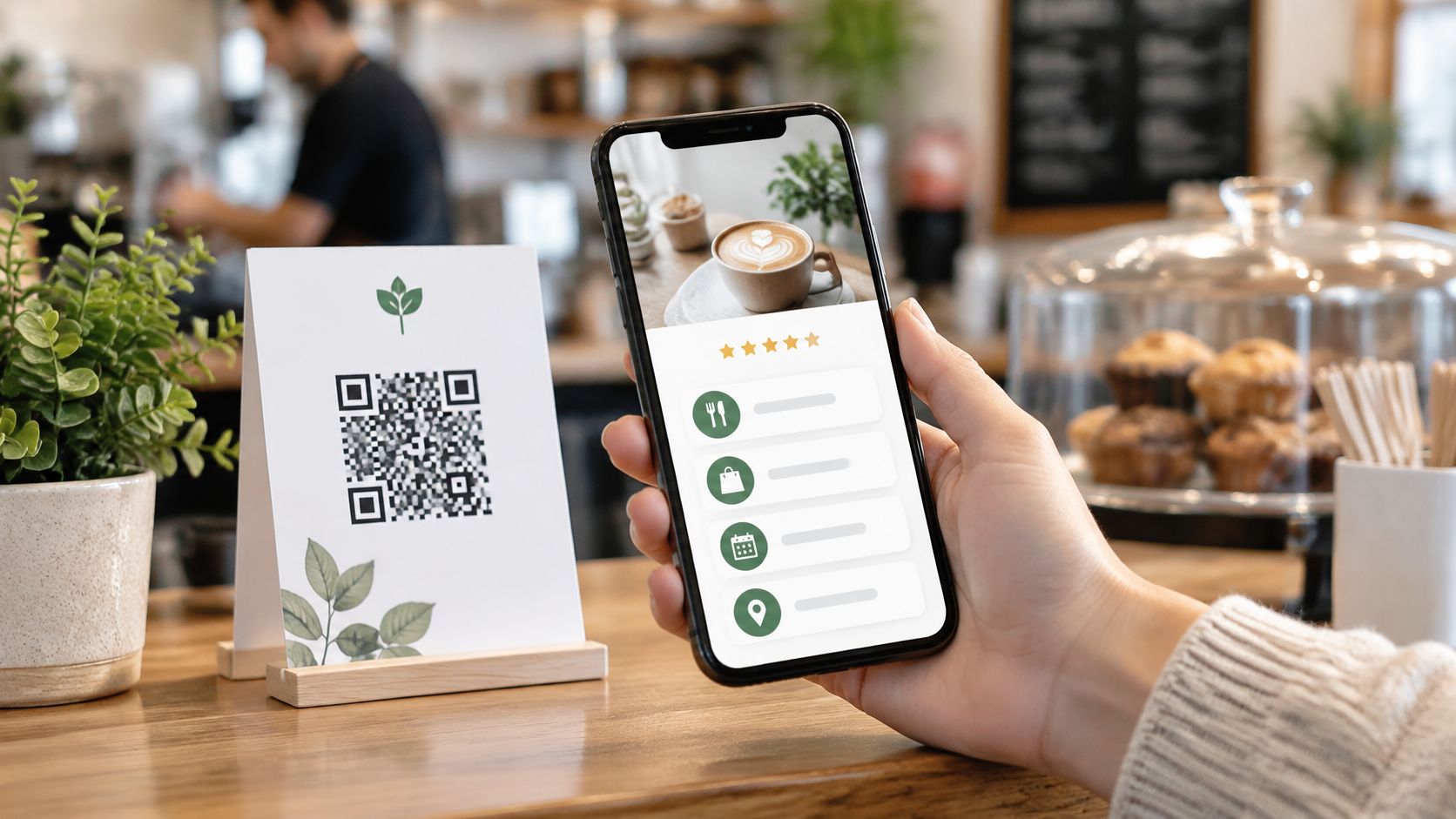
The card is already at the counter. It was printed months ago, it carries a small square, and nobody is quite sure whether guests still scan it or whether it opens the right page. Somebody changed the links in spring. Nobody reprinted the card.
Printed codes in tourism businesses drift like this. Meanwhile the habit has settled in. Guests point a phone camera at a square and expect a page to open, no app, no fuss. Scanning is the easy part now.
The work is keeping the printed code honest: the right size so phones read it on the first try, a spot guests can reach, no sticker pasted over it, review links that treat every guest the same. A linktree QR code is a long-lived asset. Printed well, it earns its place on the counter for years while the page behind it changes.
What a Linktree QR Code Points To
The square holds one address: your Linktree page. The eight or twelve buttons on that page are not inside the code. A scan opens the browser, then the guest chooses what to tap.
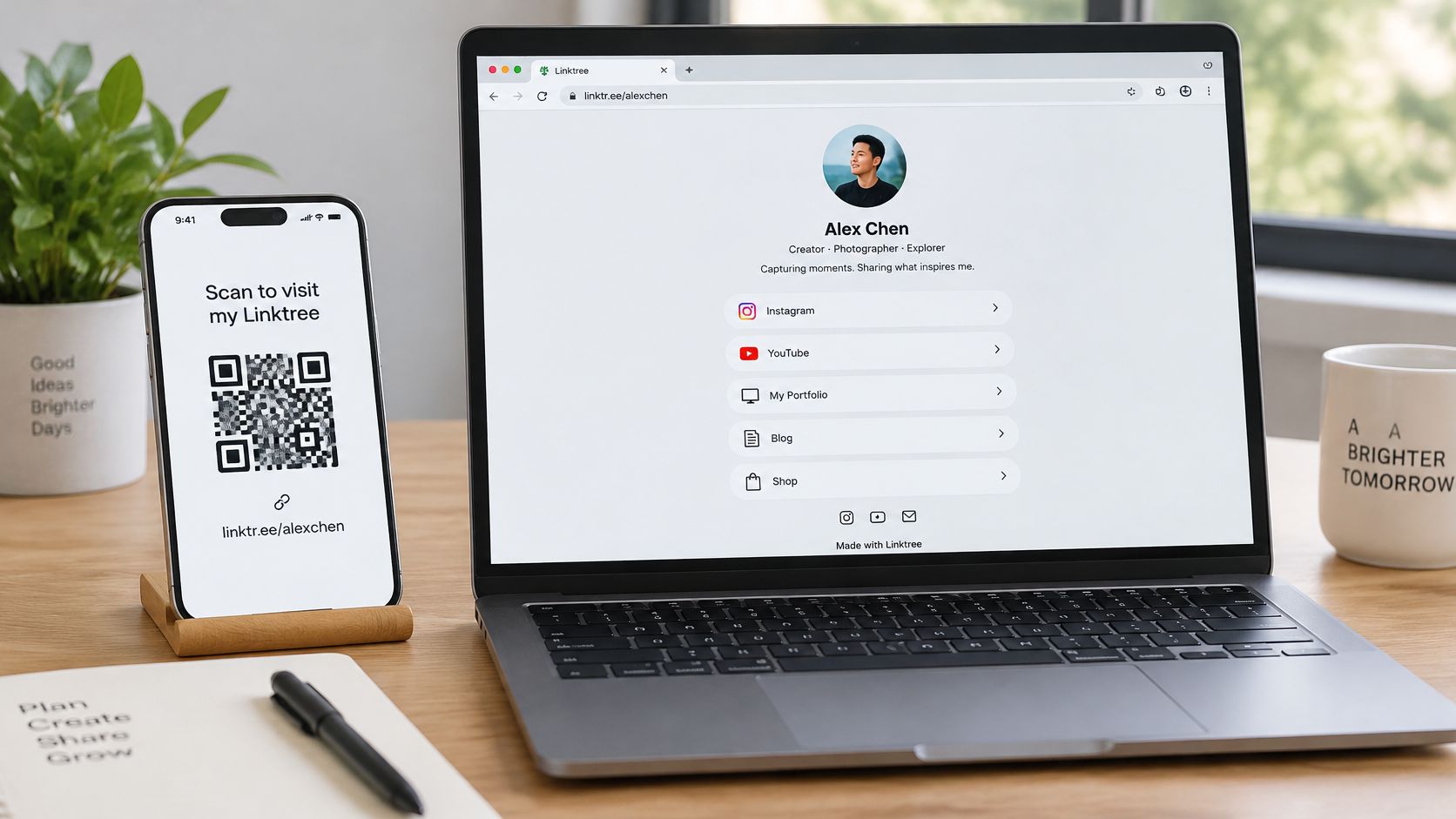
That separation is why printed pieces keep working after edits. A bike rental can print handover sheets in April, then swap the summer route map for winter hours, a "closed until March" note and a WhatsApp button in November. The drawer full of old sheets still opens the current page because the code never stored those links.
Guests already know the gesture, so the job is governing the destination. Treat the printed symbol like equipment: check on a schedule that it still resolves, that no sticker covers a corner, and that the first screen shows what a tired guest needs before they scroll. Keep review buttons beside the practical links, not above them, so every guest gets the same page.
The trade-off is invisible to the person scanning. They see the destination, never the printed sheet, so a sticker can cover your code and send guests somewhere else without a single visible change on the paper. That cuts both ways. A QR landing page that works on a phone gives you the same flexibility for legitimate updates.
Three groups get the most from one page: restaurants (menu, allergen notes, review link), tour operators (booking, meeting point, weather policy) and holiday homes (house rules, wifi, checkout time). Write down the three things a guest needs in the first ten seconds after scanning, then open your own page on a phone. If those three things aren't the first thing on screen, the code is fine and the page isn't.
Create Your Linktree QR Code in Six Steps
The process is short. Most failures come from skipping the boring parts, so each step below carries the reason it exists.
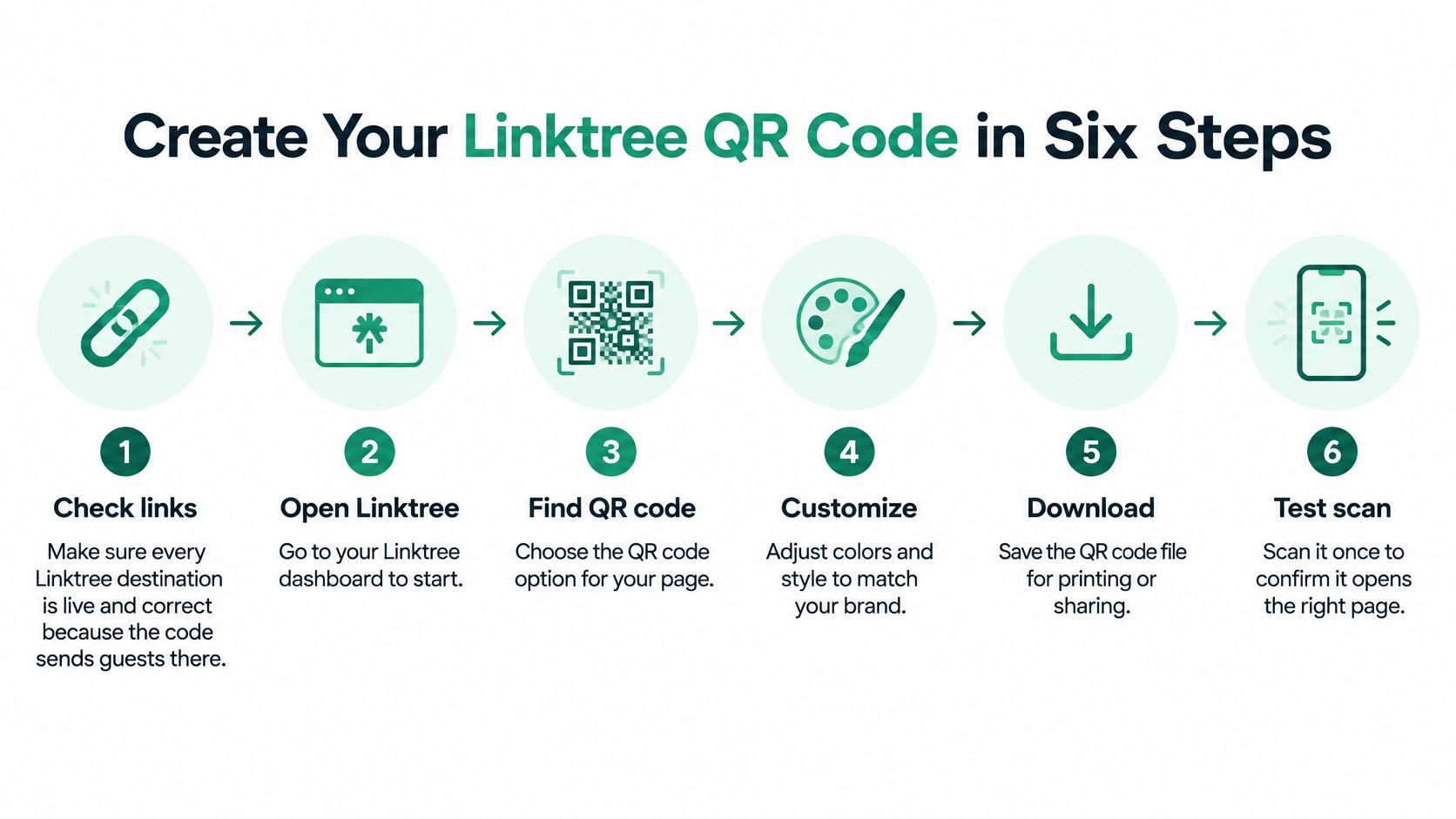
- Check every link first. The code sends guests to your page, so the first thing they hit is whatever is broken there. Open each destination on a phone, including the booking link and the menu, before you generate anything.
- Open Share and pick My Linktree QR code. In the Linktree admin this sits behind the Share button on the Links page, next to the copy-link option. It takes one click and there's no separate generator to sign up for.
- Download SVG for print, PNG for screens. SVG is vector, so an A2 poster can be enlarged without softening the edges. PNG suits a phone screen or a social post, and it blurs the moment you scale it up. If your card might be resized later, keep the SVG.
- Keep it dark on light, with empty space around it. Black modules on white card scan best. Leave a clear margin of quiet space around the symbol, roughly the width of four small modules, so a printed border or a folded edge doesn't clip it.
- Test the printed piece, not the file. Stand where a guest will stand, hold the paper at the angle they'd hold it, and scan with at least one iPhone and one Android phone. A file that scans on a laptop screen tells you nothing about ink on gloss card.
- Retest after any change. New artwork, new size, new destination, new printer. Rerun step 5 every time, because the variable that broke it last time was probably the thing you just changed.
Linktree points its own code at a stable internal address rather than your username, so a handle change doesn't kill printed stock. A code you generate elsewhere that encodes the handle directly will break. On the styling side, colour changes and logo removal sit on paid plans, so budget for that before you promise a branded code to anyone.
Before you send anything to a printer: scan the proof, not the design file. Two failures show up at that stage, a dead link and a symbol sitting too close to the trim.
Success looks like this. The page opens in a couple of seconds, your business name is visible without scrolling, the first action is obvious, and the next tap needs no thought.
Print Sizes and Error Levels That Keep Codes Scanning
Error correction is the first number to understand, because it decides how much damage a code survives. Linktree's QR code guide sets out the four levels: L recovers up to 7% of the symbol, M up to 15%, Q up to 25% and H up to 30%. The same page cites experimental detector research putting practical decoding at roughly 3 to 3.5 pixels per module.
| Error correction level | Damage it can recover | Best use for your print |
|---|---|---|
| L | up to 7% | Clean digital screens and plain indoor prints |
| M | up to 15% | Indoor prints that may get handled, such as menus |
| Q | up to 25% | Small logos, stickers and surfaces that get wet or scuffed |
| H | up to 30% | Heavy overlays or worn outdoor signs; uses the most capacity, so keep the code large |
Higher correction isn't automatically better. H packs more redundancy into the same square, which makes every module smaller at a fixed print size. A dense code at 20mm fails where a lighter one still reads.
So set the final print size first, then choose the level, then test. A table card at 30mm with a small logo in the middle is a Q job. A plain menu insert at 25mm on matte paper is fine at M.
Common failures cluster in four places: a PNG enlarged until the edges blur, pale grey on white, busy artwork sitting behind the symbol, and a code read at a steep angle off a wall. Fix them before a batch, not after. Print one at final size, stand at the proper distance, scan with two phones, and if either phone hesitates for a second, change something.
Counter card rule: plain black on white beats a patterned background every time you test it.
This is also where branding a QR code goes wrong. A logo covering a fifth of the symbol eats error-correction capacity that was meant for scuffs and rain, not decoration.
Where to Place Codes So Guests Actually Scan
Placement does more work than design. Put the code where a guest already has a reason to act: the table, the handover sheet, the welcome folder, the counter at payment. Skip surfaces you don't control or can't check.
The gap between good and bad placement is large. A survey reported scanning rates of 65% in stores and 59% in restaurants, against 16% on social media and 12% on public transport, and nearly four in ten respondents failed to complete a scan because of incompatibility, poor placement or a weak post-scan experience, per the WHDN survey report. Older comScore data cited in the same report found 23.5% of scanners used codes from posters, flyers or kiosks, and 35.3% scanned from product packaging.
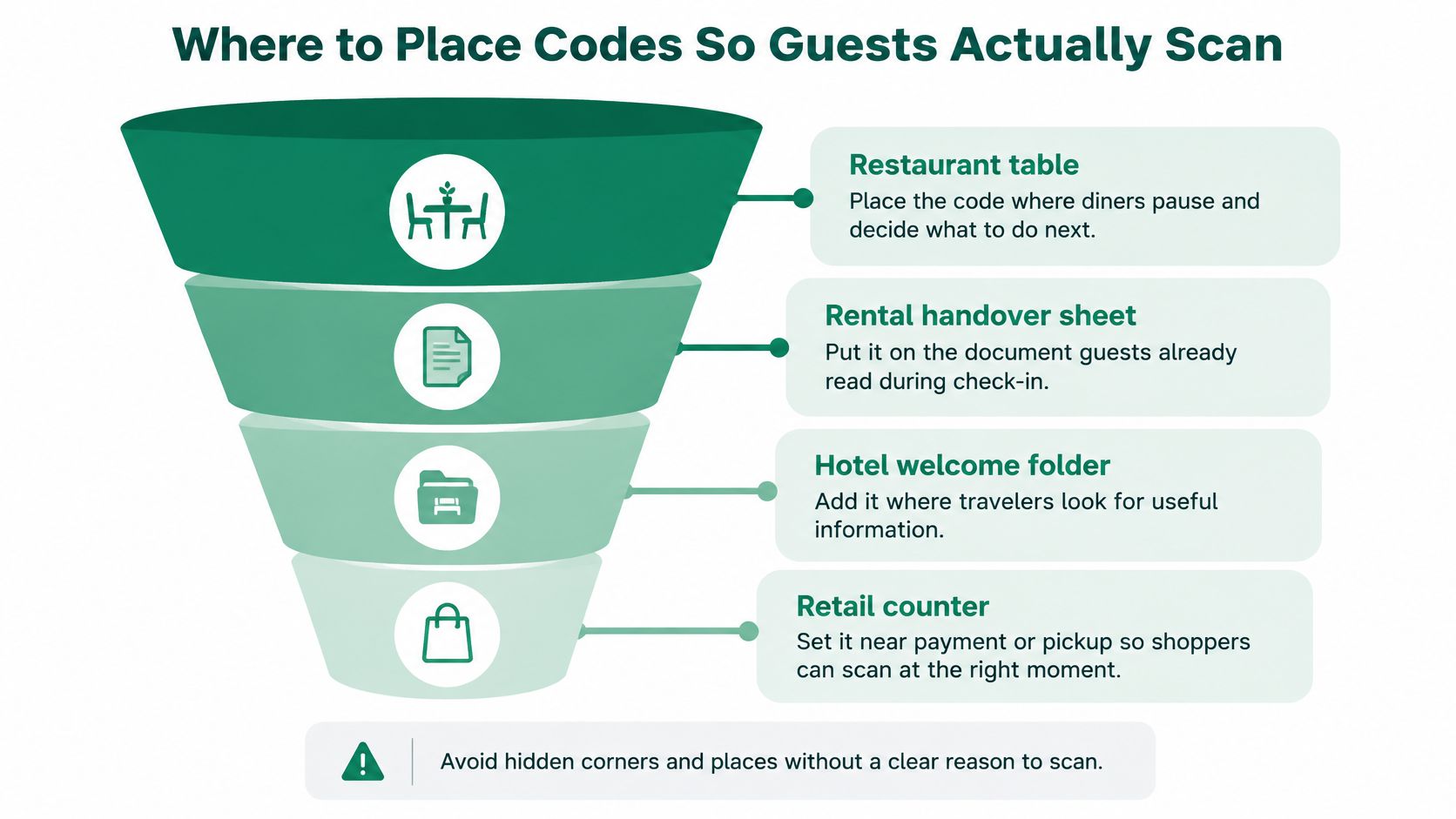
Beside the code, write one short benefit in plain words. "Review us." "See all links." "Message us on WhatsApp." A code with no label asks the guest to gamble on what opens.
Then run the same four steps for every placement:
- Write the benefit next to the code, in the guest's likely language if you serve international visitors.
- Put it where the guest is waiting, not where you have wall space.
- Count next-action taps for two weeks, not scans alone.
- Move it if the count stays low, and compare before and after.
Say a bar has a code on the beer mat. Move it to the bill folder and the count of review-page visits changes within a fortnight, because the guest is now holding the folder and deciding what to do next. The code didn't improve. The moment did.
Scan volume flatters a bad placement. A code on a busy door can collect hundreds of scans and zero actions. Track the next tap. If you also hand out printed review cards for customers, keep them at the same point of need.
Protect Printed Codes From Tampering
Printed codes get covered. That's the risk most tutorials skip. In a 2025 study with 1,876 participants across three experiments, only 13% recognised fraudulent QR payment requests, compared with 46% who recognised equivalent attacks using manually entered payment details, as reported by the USENIX Security 2025 paper. Reporting cited in the same paper found 73% of Americans scan QR codes without verification, and more than 26 million had been directed to malicious sites.
A sticker over your table card is cheap to make and invisible to the guest. Your printed reputation does the trust work for the attacker.
The checklist is short and monthly:
- Print the destination beside the code. A short domain or your business name lets a guest compare what they expected with what opened.
- Inspect every placement for overlays. Any sticker you didn't apply comes off immediately, and staff should know that rule.
- Use HTTPS wherever you control it. A browser warning after the scan kills trust faster than a slow page.
- Never ask for payment or login after a scan. No booking deposit, no card details, no account creation. Tell staff the same.
- Log each check with a date and a photo. First of the month, every placement, one folder on a phone.
The contrarian point: an editable code is not automatically safer than a static one. You can correct a wrong destination without reprinting, which is useful. But the same editability means the destination can change without any visible mark on the paper, and the scanning guest can't see where they're going before they tap.
Opening-time habit: one named staff member checks the counter card, the table cards and the handover sheet before the first guest arrives.
Tamper checks belong in setup, not in a security folder nobody opens.
Review Rules That Keep Every Guest on Equal Footing
Two rule sets decide whether your review code is an asset or a liability. Google prohibits businesses from offering money, discounts, free goods or free services in exchange for a review, a changed review or the removal of a negative one, and it classifies incentivised or biased reviews as rating manipulation that may be removed from Maps, per Google's contribution policy.
Tripadvisor goes further and bans review gating outright. When a guest is sent to Tripadvisor, the positive and negative paths must be identical, and rewards such as free drinks, discounts, upgrades or contests are prohibited, with violations risking review removal and ranking penalties, according to Tripadvisor's review policy.
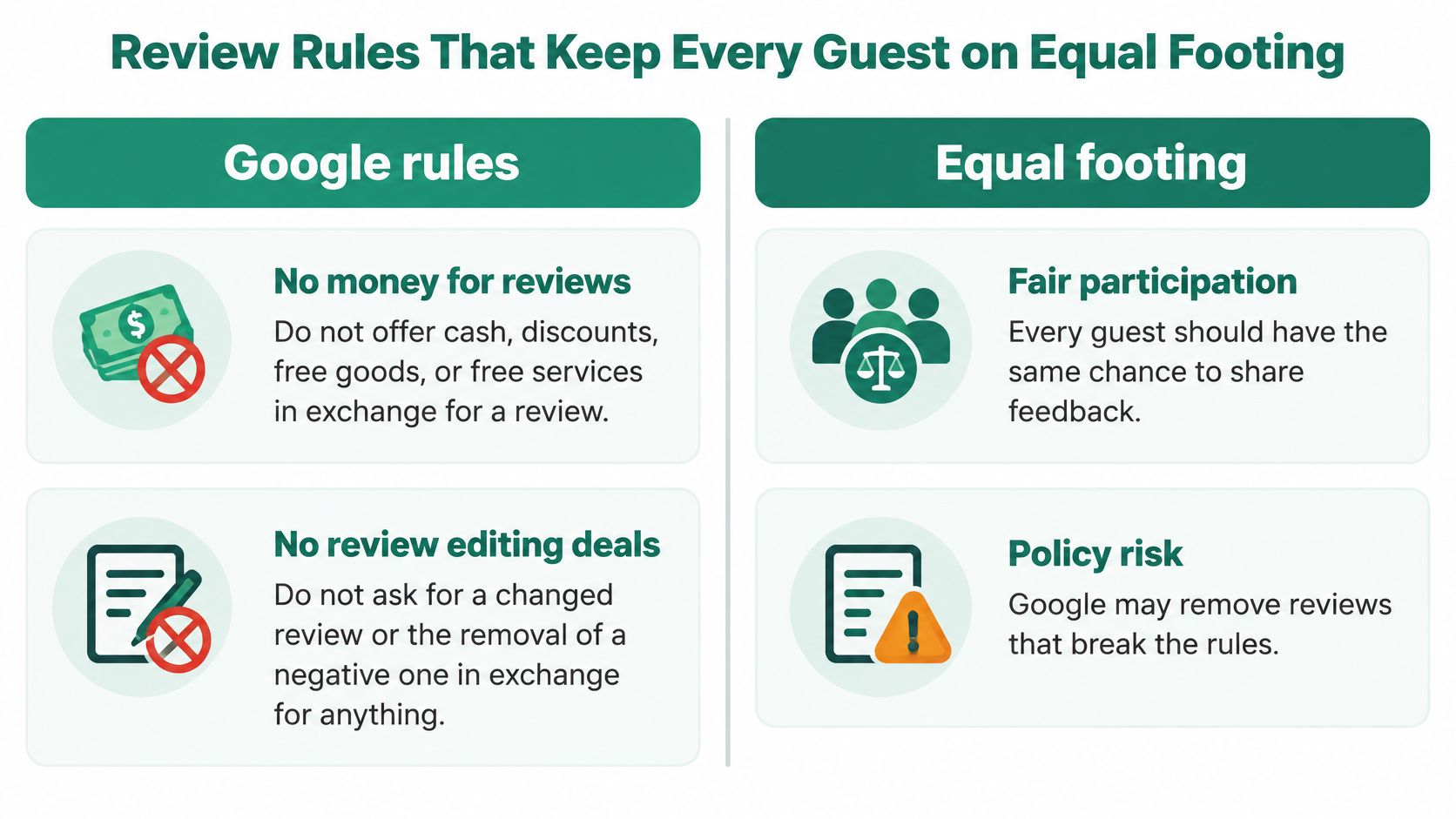
In practice, that gives a clean do and do-not list.
Do:
- Use one neutral review button for every guest, with no filtering by how happy they look.
- Word it as an invitation: ask for an honest account of the experience, nothing about stars.
- Keep a WhatsApp or feedback option open to everyone, so problems get solved without blocking anyone from reviewing.
- Show the code after checkout or equipment return, to every guest, every time.
Do not:
- Offer a free drink, a discount, an upgrade or a prize for a review.
- Ask only for five-star reviews, or ask guests to revise a negative one.
- Hand the code only to guests who seem satisfied, or hide it from anyone who complained.
- Tie staff bonuses to review counts.
A café owner might be tempted to print two codes, one for happy tables and one for complaints. That's the exact pattern Tripadvisor calls gating, and it puts the listing at risk. One code, everyone, same page.
The limit worth stating plainly: a direct link removes effort, and effort is the real barrier. It cannot control who reviews or what they write, and any setup that tries to is breaking the rules.
Compare Your Options and Start This Week
Two tools cover most of this ground, and they're built for different jobs. Linktree is the page-and-links product, with scan counts sitting in the Audience and Insights areas. Linktree's paid features overview lists scan-count reporting on Starter, Pro and Premium, with history running from 90 days on Starter to 365 days on Pro and lifetime access on Premium.
| Feature | Linktree | HolaQR |
|---|---|---|
| QR file formats | PNG or SVG download | Printable sticker and counter card, plus a code to show on a phone screen |
| Scan counts | Starter, Pro and Premium plans | The code has no scan limit |
| Direct review buttons | You add review links yourself as ordinary buttons | Google, Tripadvisor and Facebook |
| Guest language | Page appears in the language you write it in | Shows in each guest's language |
| Code expiry | Stays valid while the page behind it stays live | Never expires |
| Cost | Free plan covers the code; scan counts need a paid plan | Free |
Linktree suits an owner who wants one editable page and scan numbers. HolaQR suits an owner whose main need is reviews: it's a free QR review page with direct review buttons for Google, Tripadvisor and Facebook, WhatsApp contact and custom links for menus, routes and house rules, and it shows itself in each guest's language with a code that never expires. Past a Linktree link, it copies the existing links across. Neither is the wrong answer.
The start-this-week sequence:
- Pick the one placement with the highest intent, using the rule from the placement section.
- Generate the code from your live page and export the right file for that surface.
- Test it on two phones from the actual viewing distance.
- Write one benefit beside it, such as "Review us".
- Set a retest date and check the placement on that date.
Judge both tools with that same test. The choice should rest on what your guests do, not on a feature list. You can begin with nothing printed: show the code on your phone screen at the counter today, and print the sticker once it scans cleanly. Start with the placement that already has a waiting guest, build the page in about a minute, and let the first week of real scans tell you whether the code deserves a print run.