How to Make a QR Code for Google Reviews
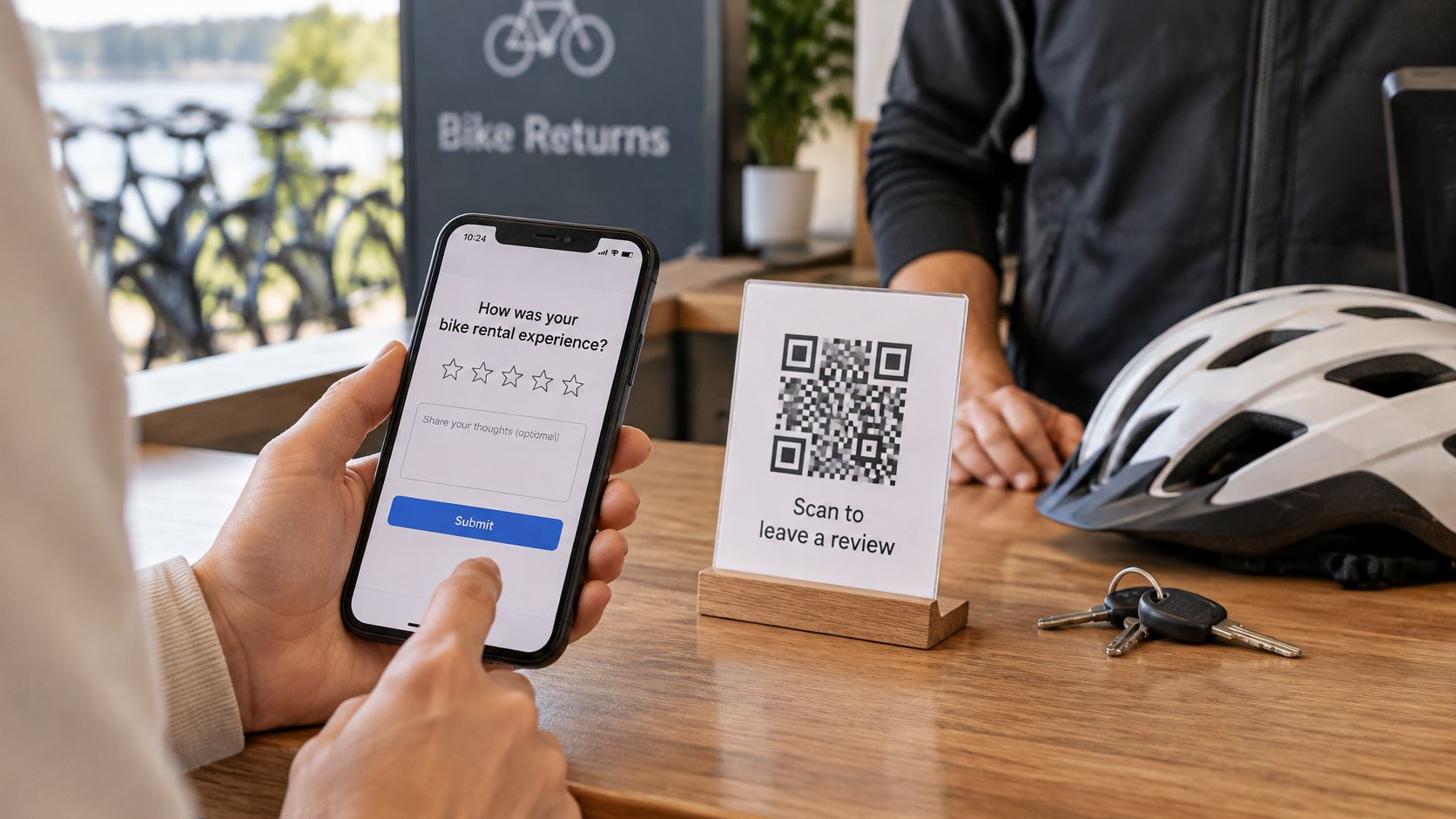
The guest is still at the counter. The helmet is in one hand, the phone is in the other, and the next rental is already walking up. That is when a QR code for Google reviews has to work. If the scan opens a map search, or a page the guest cannot read, the phone goes back in the pocket.
A useful code is a door, not a hunt. Every guest gets the same door at handover. Google's own code is enough when Google is the only site that matters and a computer is nearby. A free page from a Google review QR code generator that follows the phone language is the better print when guests arrive from many countries and one card has to cover more than one review site.
What a Google Review QR Should Open
A review QR should open Google's review form for that business. It should not open a map search, a profile page, or a new app.
Google's own code is free, and it opens only Google. It is made in a computer browser through Read reviews, then Get more reviews. That file fits when Google is the only site on the card and a computer is at the office.
The other path is a free review page. The scan opens a mobile page, then a direct review button. One tap opens the review window instead of a profile. The page follows the language already set on the phone, across 30 languages, so a second print for French, German, or Spanish guests is unnecessary. The page, the code, and the print files are free, and the code does not expire.
| Need | Google's own review QR | Free review page such as HolaQR |
|---|---|---|
| Where the scan opens | Google's review form for that profile | A mobile page, then a direct review button |
| Other review sites | Google only | Google, Tripadvisor and Facebook on one page |
| Languages | Google's own screens | Page in the phone language, 30 languages |
| How you make it | Computer browser, Read reviews, then Get more reviews | Type the business name or paste a website or Linktree link |
| Cost and expiry | Free from Google while the profile link works | Page, code and print files free, code does not expire |
| Who gets the same door | Every guest, one link | Every guest, same buttons, no filtering |
The commercial case is not only convenience. In the BrightLocal 2025 Local Consumer Review Survey of 1,026 U.S. adults, only 4% never read online business reviews, so about 96% read them at least sometimes. The same survey found 96% were open to writing a review, while 29% had written one in the previous year. 83% used Google to read local-business reviews, ahead of local news outlets at 48%, Yelp at 44%, Facebook at 40%, and YouTube at 34%. 74% checked at least two review sites before a purchase.
That is why the scan should land on Google while the visit is still fresh, and why a second button can still earn its place. People compare more than one site. Both paths still give every guest the same door, with no filtering.
At a bike or boat counter, the guest hands the helmet back and still has the phone out. Pick one column in the table, then build that file before the next handover.
How to Create the Direct Review Code
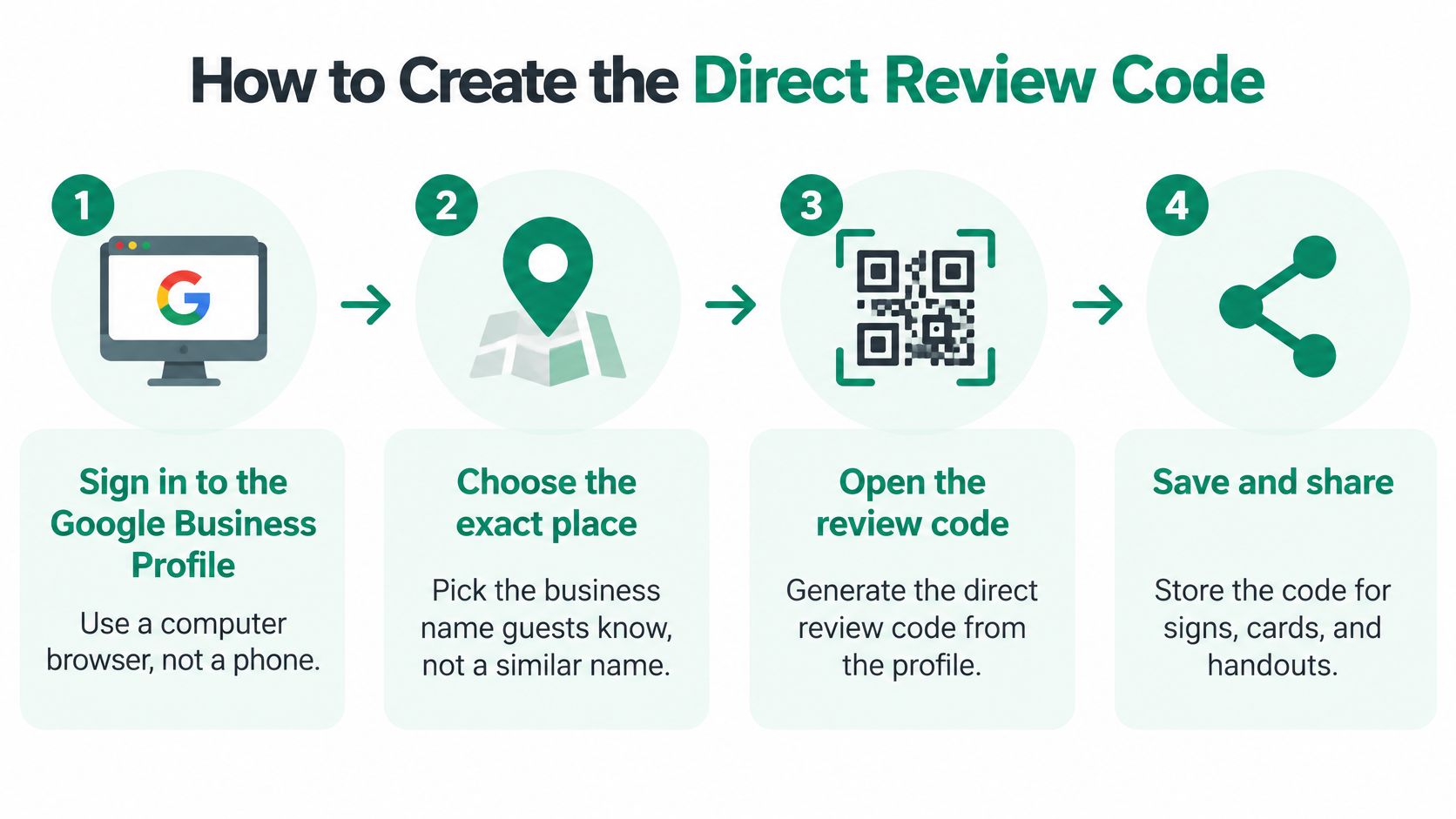
Google's file is the one to print when the card should open only Google. Google's help for review links and QR codes says an eligible Business Profile can share a direct review-request link and a downloadable QR code. The point of that file is fewer taps between the counter and the review form.
Current instructions say this code is generated in a computer browser, not on the phone. A phone-only owner can still show a review page on the phone screen the same day. The file in the steps below is the one Google generates.
Make the file on a computer
- Sign in to the Google Business Profile for the exact place guests know. A similar rental two docks away is the wrong profile, even when the name looks close.
- Open Read reviews.
- Choose Get more reviews.
- Copy the shareable link and download the QR file Google provides. Keep both. The picture is for print. The link is for email and receipts.
- Scan the downloaded file with a phone that is not the computer. The pass test is simple. The phone should land on the review window for that business, not a map list and not a profile with a search box still on screen. If it fails, do not print. Go back to Get more reviews and download again.
- Stop at the form unless a public review from that Google account is wanted. Guests still sign in to Google, the same as any other review. Staff do not type it for them.
The code keeps working while that profile and that link stay available. There is no need to rebuild it every busy weekend. Reprint only when the test fails or the profile itself has changed.
If the profile will not load
Fix the profile before a stack of cards goes to the printer. A code cannot rescue a place Google will not show. Check the name guests say out loud, the harbour or street, and that the profile is the one staff manage. A second location with a near-identical name should not share this file.
Google says the same code can go in customer emails, on receipts, and on printed signs. One file covers the counter card, the receipt footer, and a short note after the visit. A separate design for each channel only creates a second thing to test.
Practical rule: If the phone does not open the review window on the first scan, that file is not ready for paper.
The QR code is not a separate review system. It is a scannable door to Google's review-request URL. Once the test passes, the printed card can stay in use for the season.
A rental desk that also hands out a contact card can keep the two jobs apart. Reviews belong on the review code. Phone, map, and booking details belong on a QR code contact card. Mixing them sends a guest who meant to leave a review into a menu of links, and the review does not get written.
Ask for the review without trying to steer the rating or the words. The form is Google's. The stars are the guest's. The owner's job ends when the right window is on the screen.
Fixes When a Review QR Will Not Scan
Most failures come from the link or the print, not from the guest. Work the table from the top before blaming the phone.
| What you see | Usual cause | Fix first |
|---|---|---|
| Opens a map or profile | Link is not the direct review URL | Use Get more reviews or a direct review button and scan again |
| Camera will not lock | Code too small, glossy, pale or damaged | Reprint with a quiet margin on matte stock and test three phones |
| Wrong business name | Similar name nearby or an old profile | Stop printing and confirm the name on the form |
| Page in an unexpected language | Phone language, not the spoken language | A 30-language page follows the phone; the guest can change the phone language |
| Guest cannot post | Not signed in | They sign in themselves; staff do not write the review |
Wrong destination first
If the scan opens a map or a profile, the link is not the direct review URL. Go back to Get more reviews, or use a direct review button, and scan again. Do not add a bigger logo to a bad link. Size will not fix the destination.
A camera that will not lock is a print problem. The code is too small, glossy, pale, or creased. Reprint on matte stock with a clear quiet margin, the blank frame around the squares, and test in sun and under a canopy. Three phones are enough. One lucky scan on the owner's phone is not.
Name, language, and sign-in
If the form names the wrong business, stop the print run. Similar rental names on the same harbour are a common miss. Confirm the name on the form before another card is cut.
If the page language feels wrong, check the phone, not the guest's spoken language. The page follows the phone. A guest who wants another language changes it in the phone settings. The page itself is available in 30 languages, so a separate card per language is not required.
A guest who cannot post is usually not signed in. They sign in to Google or another review site themselves. Staff never type the review. The scan needs no app and no account to open the page in the browser. Posting still needs the guest's own login. The code has no scan limit, so a failed first try does not use up the card.
To compare placements, count scans and published reviews per 100 visits for the counter card and the checkout note. Keep the same door for every guest while that test runs.
Where to Put the Code on Signs and Cards
Give the same code to every guest at the moment the phone is already out. Do not wait for a smile, and do not skip a difficult table.
| Business | Best spot | Moment |
|---|---|---|
| Bike or boat rental | Return counter or helmet-hook card | Keys or the bike come back |
| Tour or activity | End card or seat pocket | Guests step off |
| Restaurant, café, bar or beach club | Table card or bill folder | The bill arrives |
| Holiday home, B&B or hotel | Welcome folder and checkout note | Arrival for info, departure for the review |
| Salon, spa or shop | Counter card by the card machine | While they pay |
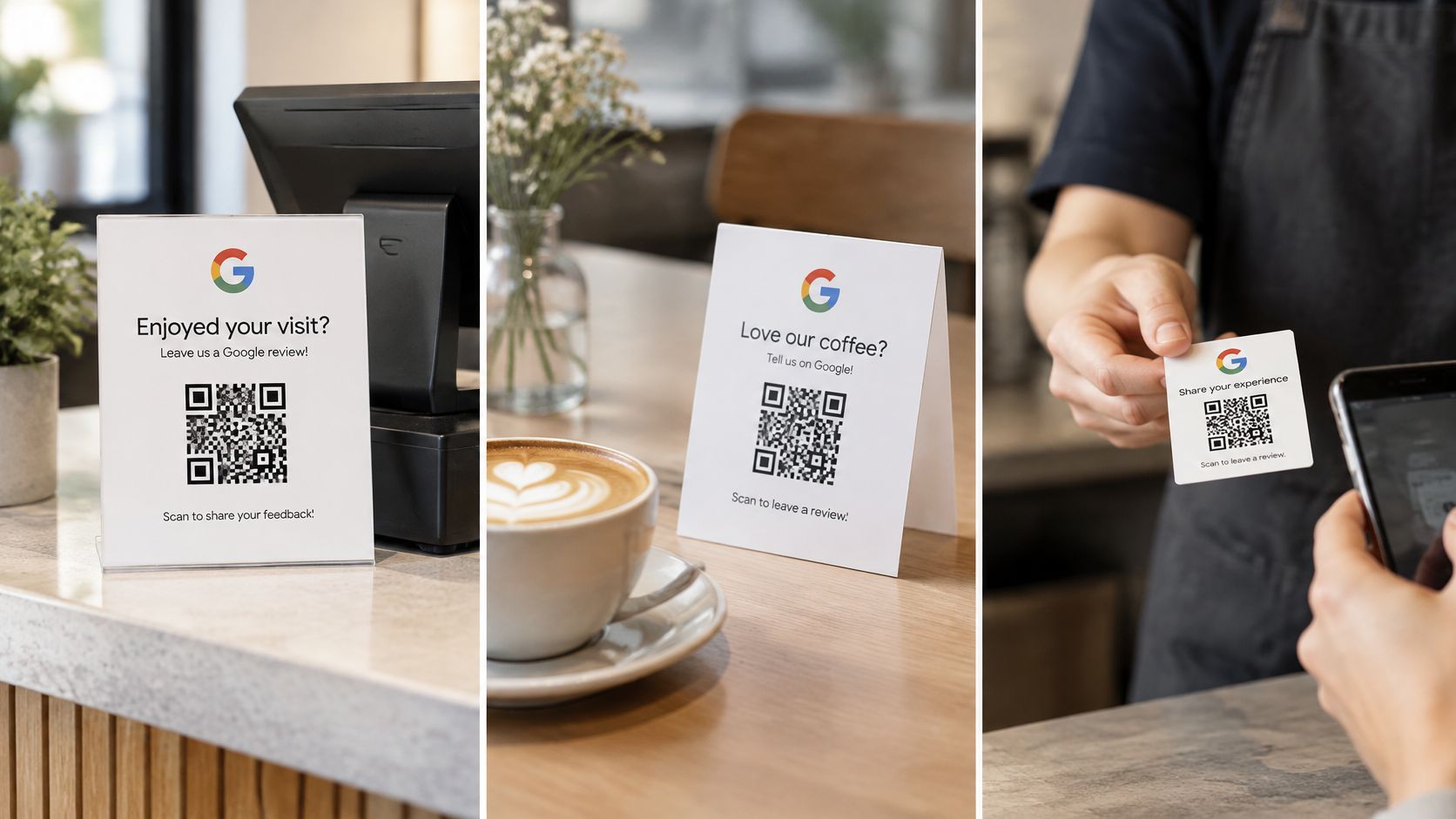
A bike or boat rental puts a card on the helmet hook or at the return counter when the keys come back. A tour uses an end card as people step off, while bags are still in hand. A restaurant, café, or beach club uses a table card or the bill folder when the bill arrives. A holiday home or B&B keeps the code in the welcome folder for questions and on the checkout note for the review. A salon or shop uses a counter card beside the card machine, while the guest is already holding the phone to pay.
The page can show the logo, the links, and the review buttons, so one card does not have to be a bare square. A printable sticker and a counter card cover the hook and the till. Print-ready sticker, flyer, and table card files are included, so the first batch does not need a designer.
Print with a quiet margin, on matte stock, large enough to scan at arm's length. Test three phones in real light before a batch is stuck down.
Timing is part of the placement. A study of 22.3 million review requests and 2.3 million submitted reviews found that response probability generally falls as the delay after purchase increases, with higher-response periods around midday and early evening, as reported in a discussion paper on review-request timing. In one travel-site experiment, 6.32% of customers reminded the day after the experience posted within a week, versus 12% in the no-reminder control, while a reminder after 13 days performed better than no reminder. Put the code at handover, then send one later message with the same link to everyone. Ask for honest feedback, not a positive rating.
Rules for Asking Every Guest the Same Way
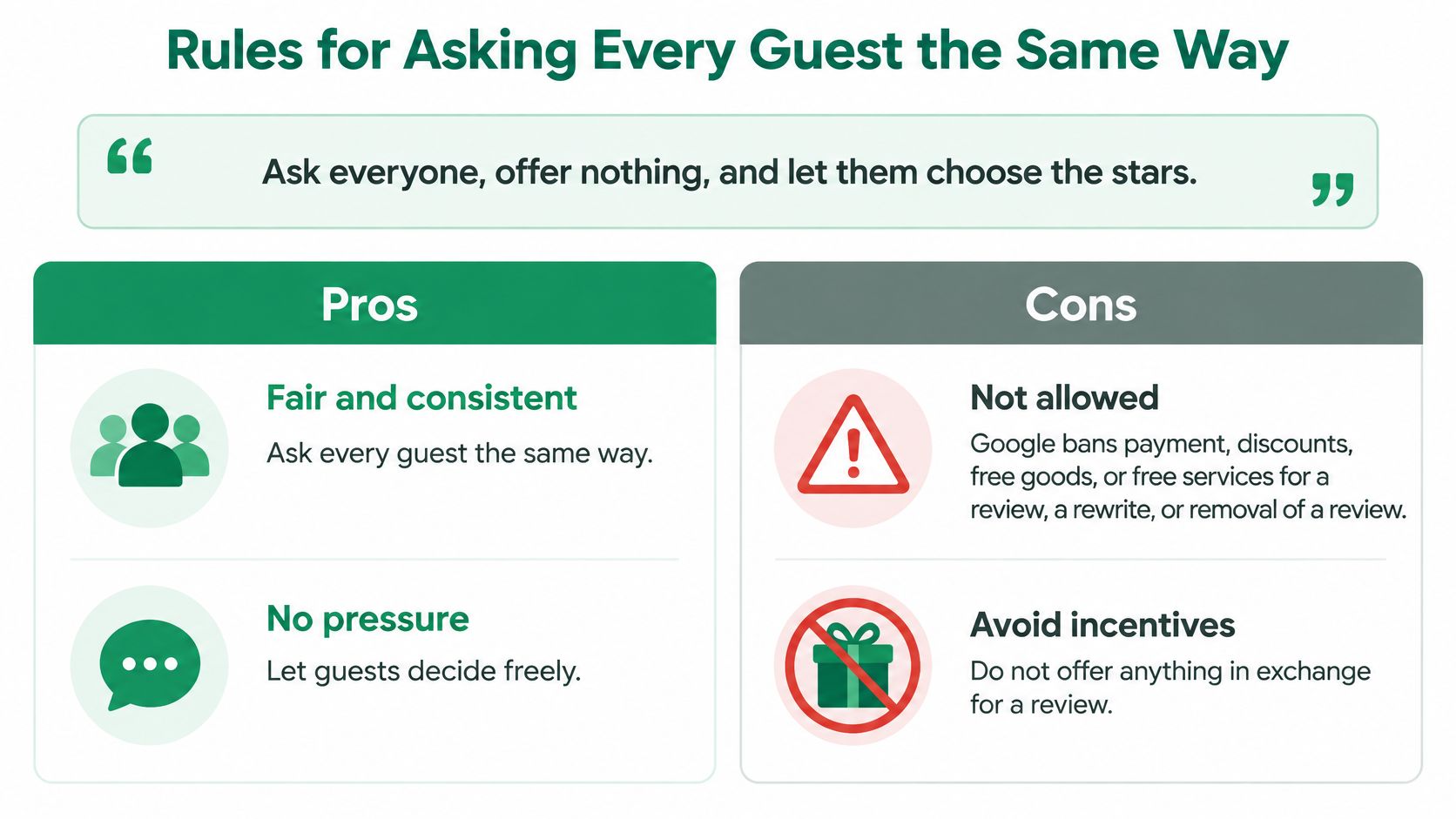
Ask everyone, offer nothing, and let them choose the stars.
That line is the whole policy in one breath. A QR campaign that bribes, filters, or scripts the guest is not a clever local trick. It breaks the rules of the sites the card is trying to reach.
What Google will not allow
Google's contribution policy bans payment, discounts, free goods, or free services in exchange for a review, a revision, or the removal of a negative review. It also bans discouraging negative reviews and asking only customers likely to leave positive feedback. Google says businesses should not pressure guests to leave a rating while they are on the premises, and should not require specific wording.
A free drink for five stars is out. A discount code hidden on the back of the card is out. A script that tells the guest which sentence to copy is out. Standing over the table until the stars are tapped is out.
The compliant habit is one neutral code after a real visit, shown to every guest. Each person decides whether to respond. Nobody is asked for a particular star rating or a set message.
What Tripadvisor treats as fraud
Tripadvisor prohibits review incentives no matter which rating is requested. Its examples include free drinks, discounts, contest entries, and donations made in a customer's name, as set out in Tripadvisor's review incentive rules. Review gating is banned too. A business cannot send pleased guests to Tripadvisor and send moderate or negative guests somewhere else. If a survey or page leads to Tripadvisor, the positive and negative paths must provide the same submission experience.
Tripadvisor's guidance for owners also treats selective requests, by email, survey, or another method, as a form of review fraud. Asking only the happy table is not "being smart about timing." It is the practice the site names as fraud.
The one sentence staff can say
Staff do not need a speech, and they do not need a target number of reviews. A short line is enough.
"If you have a minute, a review helps other guests. You choose the site, the words and the stars."
Say it once, at handover, to the guest who loved the trip and to the guest who did not. Then stop. Chasing a quota pushes people to invent reviews or to skip anyone who looks unsure. Both habits train the team to filter.
Asking for a review is allowed. HolaQR sends every guest to the same review window. It does not filter guests, does not change the rating, and never offers rewards or chooses who is asked. It only shortens the path. The guest still signs in and writes the review.
A single page is useful only when every guest sees the same buttons. It is not a sorting hatch. The owner does not read the mood and then hide Tripadvisor from one guest and Google from another.
The same rule belongs in email. One later note, same link, whole list. Not a shorter list of people who smiled. How a team handles the review after it appears, including a calm public reply, is a separate job from the ask. A practical note on customer service reviews covers that reply without turning the counter card into a script.
- Same door: One code, every guest, after a real visit.
- No payment: No discount, free goods, contest entry, or donation for a review, a rewrite, or a removal.
- No script: The guest picks the site, the words, and the stars.
- No quota: Staff are not scored on how many reviews they collect.
If a platform later removes a review, the fix is not a louder ask or a gift. The fix is the same neutral door for the next guest.
Show a Working Code Before You Print
A reprint of the whole counter is not the start. Ten minutes is enough to see whether the door opens.
If Google's file is already downloaded, put it on the counter phone and ask the next guest to scan it. The test is the same as before any print run. The review window for that business should appear. If it does, that phone can sit beside the till for the rest of the shift. Paper can wait until the sticker order is worth the ink.
If international guests need one card in the language of the phone, open HolaQR and enter the business name, or paste a website or Linktree link. The logo, social accounts, and review links are filled in automatically. Check the links and the review buttons on the page. If something is missing, fill the links in, which usually takes about a minute, then show the code on the phone. Nothing has to be printed first.
Pick the business type that matches the counter, from bike or boat rental to tour, restaurant, beach club, holiday home, salon, or shop. The page can carry the logo and the buttons, and a later note on branding QR codes is there when the sticker design comes after the test. The code does not expire, so a sticker printed today keeps working while its link stays live. There is nothing to cancel. Free is the start. Nothing needs to be paid to try the phone-screen version.
Marco, a bike rental owner, put it in one line. "They scan it while they hand back the bike. By the time I've hung up the helmet, the review is in."
Same code, every guest, no reward, and they choose the words and the stars.
Put the working code on the counter phone before the next handover. If Google is the only site on the card, use the file from Get more reviews. If guests arrive in many languages, build the free page, check the buttons, and let the next guest scan the screen. When that scan opens the right review window, order the sticker. Until then, the phone is enough.