QR Code for Multiple Links: Setup, Design and Testing
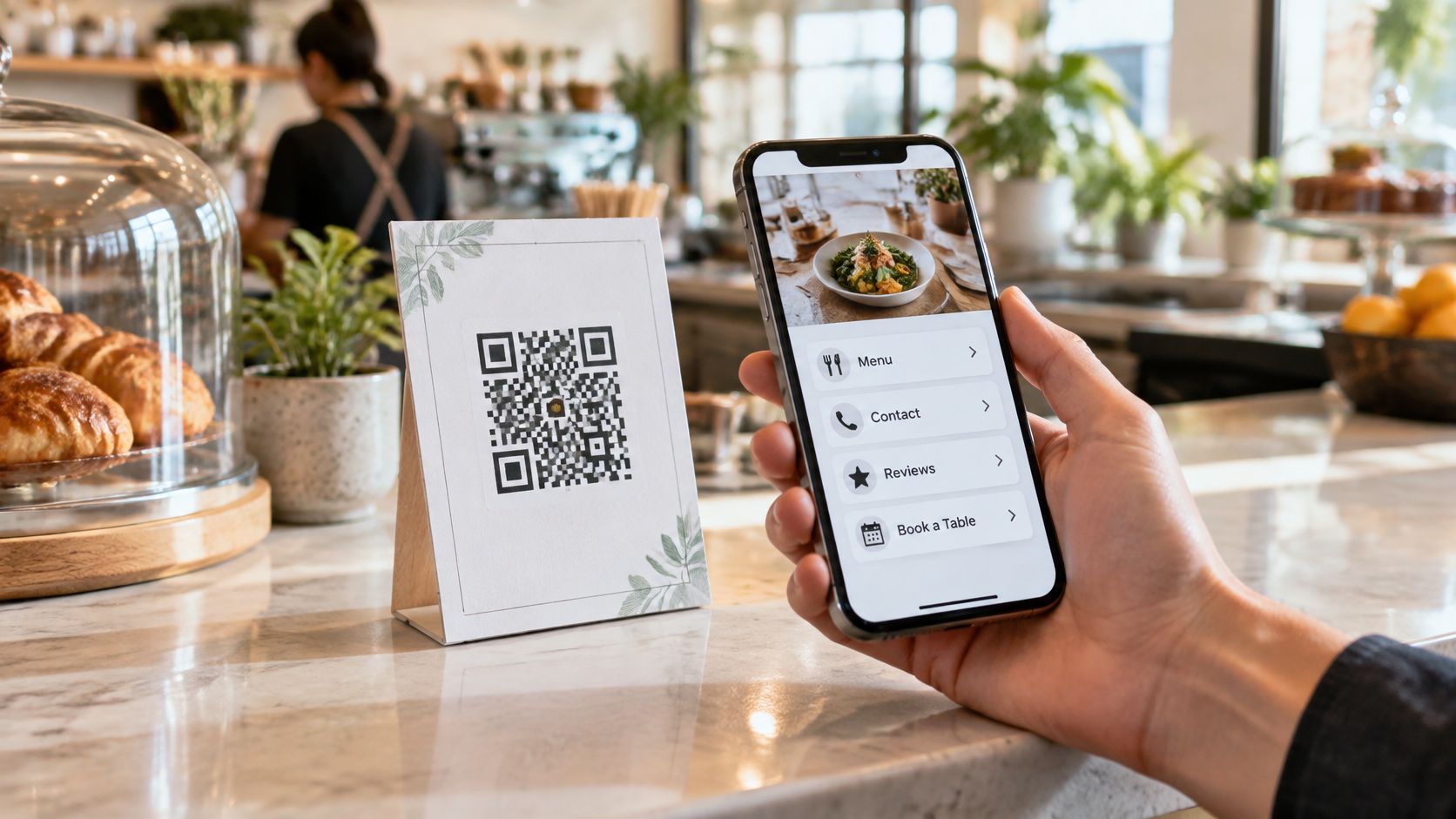
A guest is waiting at the bike handover desk. Someone else wants the menu, and a departing customer asks where to leave a review. The counter already has separate cards for WhatsApp, Instagram and Google. None makes the next step especially clear.
A QR code for multiple links can replace that clutter with a useful mobile page. The practical work is choosing what guests see first, making the printed code easy to scan, and keeping help available for anyone who can't use it. Review links need another check: every guest must get the same chance to leave an honest review.
Choose Links and Order Them by Guest Moment
Put the next useful action first. A guest collecting a rental bike needs route and safety information before social profiles. Someone checking out may want review options first.
| Guest moment | First button | Links below |
|---|---|---|
| Restaurant table | View today's menu | Reservations, WhatsApp, Instagram |
| Bike or boat handover | Route and safety guide | WhatsApp, house rules, review link |
| Tour meeting point | Meeting point and timings | WhatsApp, other tours, review link |
| Holiday home welcome folder | House guide | WhatsApp to host, local tips, review link |
| Hotel or B&B checkout | Leave a review | Google, Tripadvisor, contact details |
| Salon or shop counter | Book an appointment | Opening hours, Instagram, review link |
A clear label beside the code matters as much as the list of links behind it. Tell guests what scanning will help them do, such as “View the menu” or “Open the route guide.”
Give each placement a clear purpose
A page with equally prominent buttons leaves guests to sort through the options. Put the immediate task first, practical help below it, and optional browsing last. Social profiles rarely need the same prominence as directions or a menu.
Keep each printed code connected to a destination that can be edited. Adjust the first button and its wording to suit the placement. If a table and a checkout counter need different priorities at the same time, use separate pages for those contexts.
Selection rule: Include links that answer daily guest questions, not every account the business owns.
Place contact and review options where guests already pause, such as a handover desk or welcome folder. Leave out temporary material likely to become outdated unless someone is responsible for maintaining it.
Before settling the order, stand where the guest will scan. Read the first button aloud. The next action should be obvious without a staff explanation.
Set Up One QR Code for Several Links
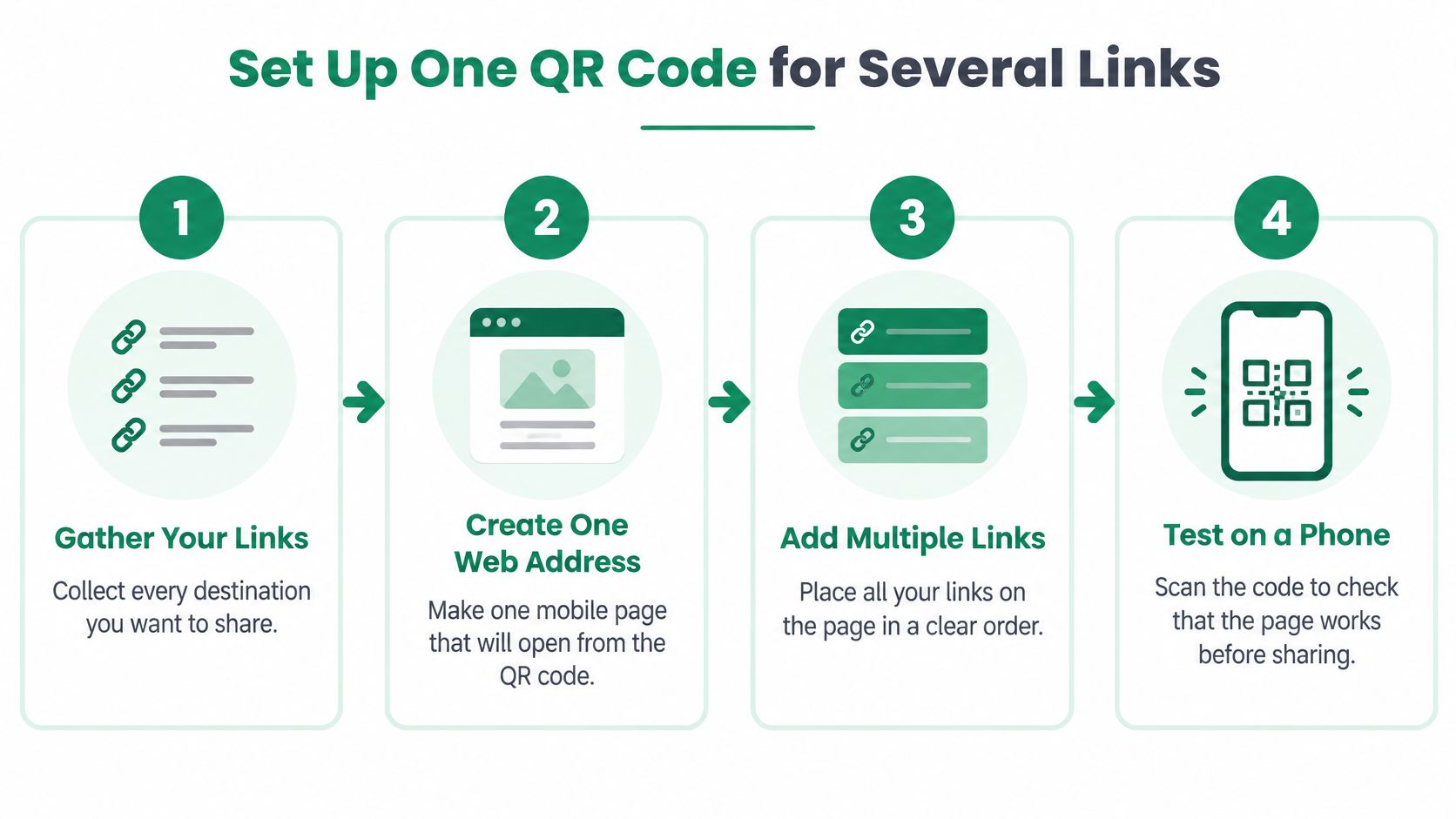
For this setup, the QR code holds a single web address. That address opens a mobile page containing the menu, contact options, review buttons and other destinations. The code doesn't need to store every destination separately.
An existing business website can host that page. A dedicated page builder is another option when the owner wants a simpler editing process. The important choice is a stable address that the business can maintain.
Build the page before arranging the print
Gather the destinations. Collect the website, Instagram, Facebook, review pages and WhatsApp number, plus any menu, rental route, house rules or local tips page. Working from a saved list prevents missing links during setup.
Create the mobile page. Enter the business name or paste an existing link-in-bio page where the chosen tool supports it, then check any imported logo, social accounts and review destinations. Automatically found details still need an owner's approval.
Add practical answers. Include useful destinations such as a route map or checkout instructions, with labels that describe the action. A guest should understand the button without knowing the business's internal names.
Save and open every destination. Check the page using mobile data rather than relying only on the office connection. It should work in a browser without forcing guests to install an app.
Export the print file. Before downloading, choose the code width from the distance table below and select a print-ready file. Use SVG or a print-quality PDF when available, or a sharp PNG at its intended size.
Choose the display position. Place the code where guests already look, such as the counter, equipment handover point, table card or welcome folder. Keep it away from hinges, seams and areas covered by other notices.
Keep the link list. Save each button label and destination in a shared business note. That gives staff a clear reference when the menu or meeting point changes.
HolaQR is one setup option. The owner types a business name or pastes a Linktree link, and HolaQR automatically finds the logo, social accounts and review links. It builds a branded mobile page with the business's links and a code for display or printing.
Other tools deserve the same checks: accurate destinations, clear labels, usable downloads and straightforward editing. A long feature list doesn't compensate for a page guests struggle to use.
Size the Code and Plan Print Fallbacks
Minimum code width for each scan distance
The following planning examples use a one-tenth sizing rule. Treat these as starting dimensions, not a guarantee that every camera, design and surface will scan.
| Scan distance | Minimum code width | Typical use |
|---|---|---|
| Up to 20 cm | 2 cm | Phone held close, booklet or small sticker |
| Up to 50 cm | 5 cm | Counter card or table card |
| Up to 1 m | 10 cm | Equipment label or wall sign at a handover desk |
| Up to 3 m | 30 cm | Shop window, door sign or poster |
Use a dark code on a light background, with an uninterrupted blank margin around it. Choose a matte finish to reduce glare and a flat surface without wrinkles. The guide to branding QR codes can help with appearance, but decoration mustn't make scanning harder.
Keep essential information outside the code
Print a short web address, a telephone number and the essential facts beside the code. Emergency numbers and check-in directions must always remain available in print. Add staff assistance at the counter or handover.
The ACM-hosted study of QR-code use found that older U.S. adults were only 13% as likely as younger adults to have used a QR code. Physical limitations, unfamiliar phones and limited digital skills are further reasons not to make scanning compulsory.
For a hypothetical bike handover, a label could carry the 10 cm code from the table, the emergency telephone number and the route start point. Staff should also be able to explain the route aloud.
Label the purpose in plain language, such as menu, route and reviews. Check that the label is readable from a step away.
- Distance checked: Test the actual printed size at its intended position.
- Backup added: Include essential printed information and a non-digital contact route.
- Label readable: Make the purpose clear before anyone lifts a phone.
Test the Page on Real Phones Before You Print
Start with a proof print at the actual location. Scan from the distance and angle guests will use, not just from a convenient computer screen. A code that works under office lighting may be awkward behind reflective glass.
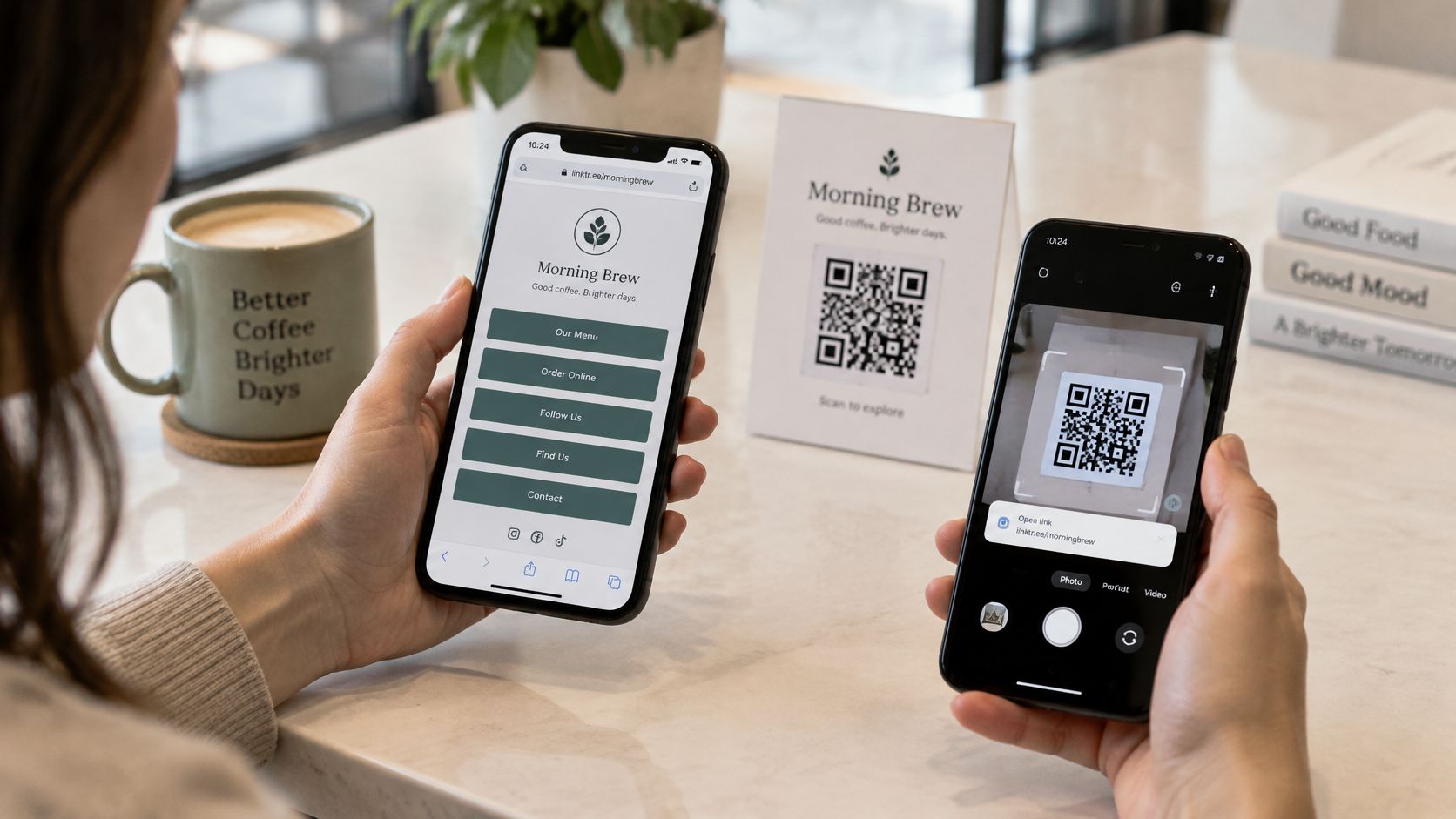
Run the guest journey from start to finish
- Camera and device: Try the standard phone camera and a scanner app. Include iPhone and Android where both are used by guests, without making the scanner app a requirement.
- Destinations: Open every button. Confirm that WhatsApp addresses the correct number and that review buttons reach the review form rather than stopping at a business profile.
- Connection: Switch off Wi-Fi and test where mobile reception is weak. Replace unnecessarily heavy documents if guests struggle to open them.
- Language: Try a phone set to a language other than the operator's own. Check that translated labels remain clear and that linked safety information is understandable.
- Outside perspective: Ask someone who doesn't work for the business to scan and complete a task. Note where that person hesitates rather than explaining the page immediately.
For HolaQR, guests scan with their phone camera and the page opens in the browser, with no app or account needed to view the page. Individual destinations may have their own requirements.
A successful scan isn't a completed task. Follow the link far enough to confirm that the guest can do what the button promises.
Keep a short test record with the distance, device, result and fix made. Retest after every change to a destination, button label or printed design, even when the previous version worked.
Keep Review Links Within Google and Tripadvisor Rules
Sending only happy guests to a public review form isn't a compliant shortcut. A page that first asks whether the visit was good, then gives different review options based on the answer, creates a problem before anyone posts.
Google's fake engagement policy prohibits incentives and review manipulation, including payment, discounts, free goods or services, and requests to change or remove negative reviews. Google can remove violating reviews and restrict a Business Profile from receiving new ones.
Use the same review path for every guest
Ask after a genuine visit. Google's guidance on getting reviews allows review requests through a link or QR code, but reviews must reflect genuine experiences and reviewers must sign in to a Google Account.
Keep the request neutral. Guests choose their own rating and wording. Staff can invite an honest review of the visit, without suggesting a star rating or offering a benefit.
Leave every review option available. The Tripadvisor review rules prohibit incentives such as discounts, upgrades or special treatment and require external pages to offer the same review path for positive and negative experiences.
Keep contact separate from filtering. A contact button can help a guest resolve a problem. It mustn't replace the public review option for someone who reports a poor experience.
A neutral staff sentence is enough: Guests are welcome to leave an honest review through this code. Use the same invitation and card regardless of how satisfied a guest appears.
Get the correct Google destination
Google's review-link setup instructions direct owners to open the Business Profile, select Read Reviews, choose Get more reviews, then share the generated link or QR code. For a multi-link page, use that review link as the Google button's destination.
The practical QR code for Google reviews guide can help with placement and setup. Print the finished code on a counter card, table card or handover folder.
Make the sign-in requirement clear when guests ask. A QR code reduces navigation, but it can't bypass Google's account requirement or determine what a guest writes.
Update Links and Measure What Actually Works
Edit the changed destination. Replace a new menu, revised meeting point or closed route on the page. Owners can change the links at any time without changing the QR code, so printed stickers and flyers keep working.
Test the replacement on a phone. Confirm that the correct content opens and that the button label still describes it accurately.
Record the change. Add the date and replacement destination to the saved link list. Staff can then check what changed without guessing.
Inspect the printed material. A working code doesn't correct an old departure time printed beside it. Reprint the affected item, not every card carrying the unchanged code.
Count useful outcomes
Outcomes to track and where to check them
| Outcome | What it tells you | Where to check it |
|---|---|---|
| Page views | Guests opened the page | The page tool's stats, if it shows them |
| Review button taps | Guests moved toward a review form | The page tool, if it reports taps |
| WhatsApp starts | Guests tried to contact the business | WhatsApp Business chats |
| Menu or route views | Guests used practical information | The page tool, if it reports views |
| Bookings or reservations | Guests acted on the page | The booking system |
| New Google or Tripadvisor reviews | Reviews were actually posted | The review pages on each platform |
A scan count describes access, not success. Review-button taps don't prove that reviews were posted, and a WhatsApp tap doesn't prove that someone sent a message. Check actual incoming chats rather than treating every button press as a conversation.
Keep measurement first-party and minimal. Count useful actions in business-controlled tools rather than collecting guest identities or connecting browsing activity across services.
Compare signals, not people. A posted review or confirmed booking matters more than a larger scan total.
For a printed promotion, the guide to an ad with a QR code offers a useful placement reference. Keep promotional results separate from everyday service use where the tools allow it.
Review results monthly. Consider changing the top button when its outcome stays low for several weeks while other actions remain healthy. Check wording and broken destinations before assuming guests aren't interested.
Start Your Multi-Link Code Today
Start with a guest scanning the code from the owner's phone screen. Nothing needs printing for that first trial at the counter or handover desk. Choose the first button for the busiest guest moment, build the page and check the destination before inviting the scan.
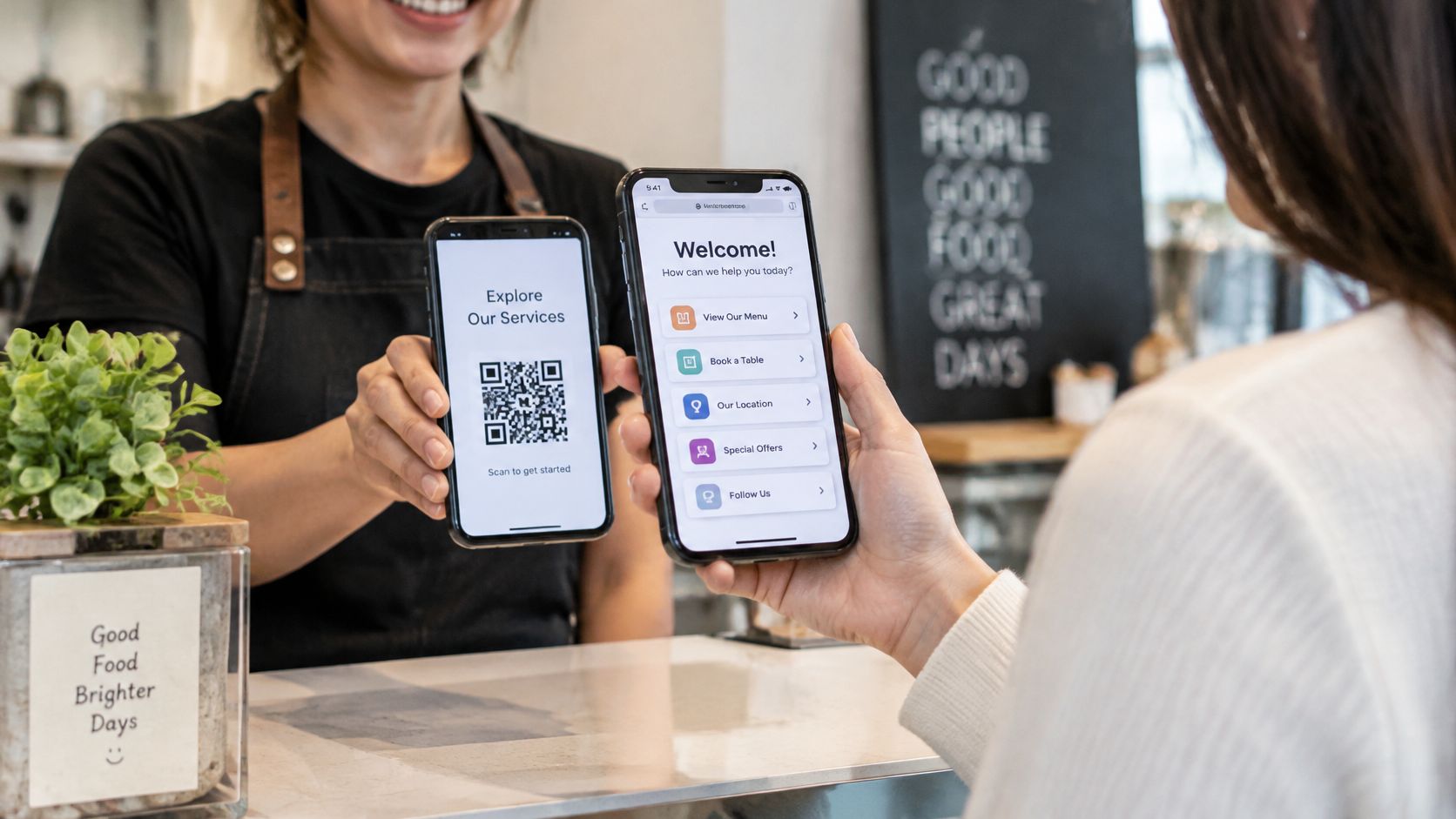
Watch whether the guest finds the intended action without help. Then test a proof at the planned distance before producing the finished card with its printed backup.
Criteria for comparing multi-link QR tools
| Criterion | What to check |
|---|---|
| Review rules | Direct review links that follow Google and Tripadvisor rules |
| Guest language | Page labels show in the guest's language |
| Print files | Print-ready download at a size that can be set |
| Editing after printing | Code stays the same when links change |
| Cost | Free features and any paid limits, stated in writing |
HolaQR is one option to compare. It's a free QR review page that shows itself in each guest's language, includes direct review buttons and uses a code that never expires. No credit card is required, and the page, code and printable files are free.
Check it against the same criteria as any other tool. The best fit is the one the owner can maintain and guests can use without explanation.
Choose a guest moment this afternoon, add its most useful link and invite a guest to test the page before ordering prints. Which link will the business add first, and which guest moment will it serve?