QR Code Restaurant Guide: Menus, Reviews and Guest Access
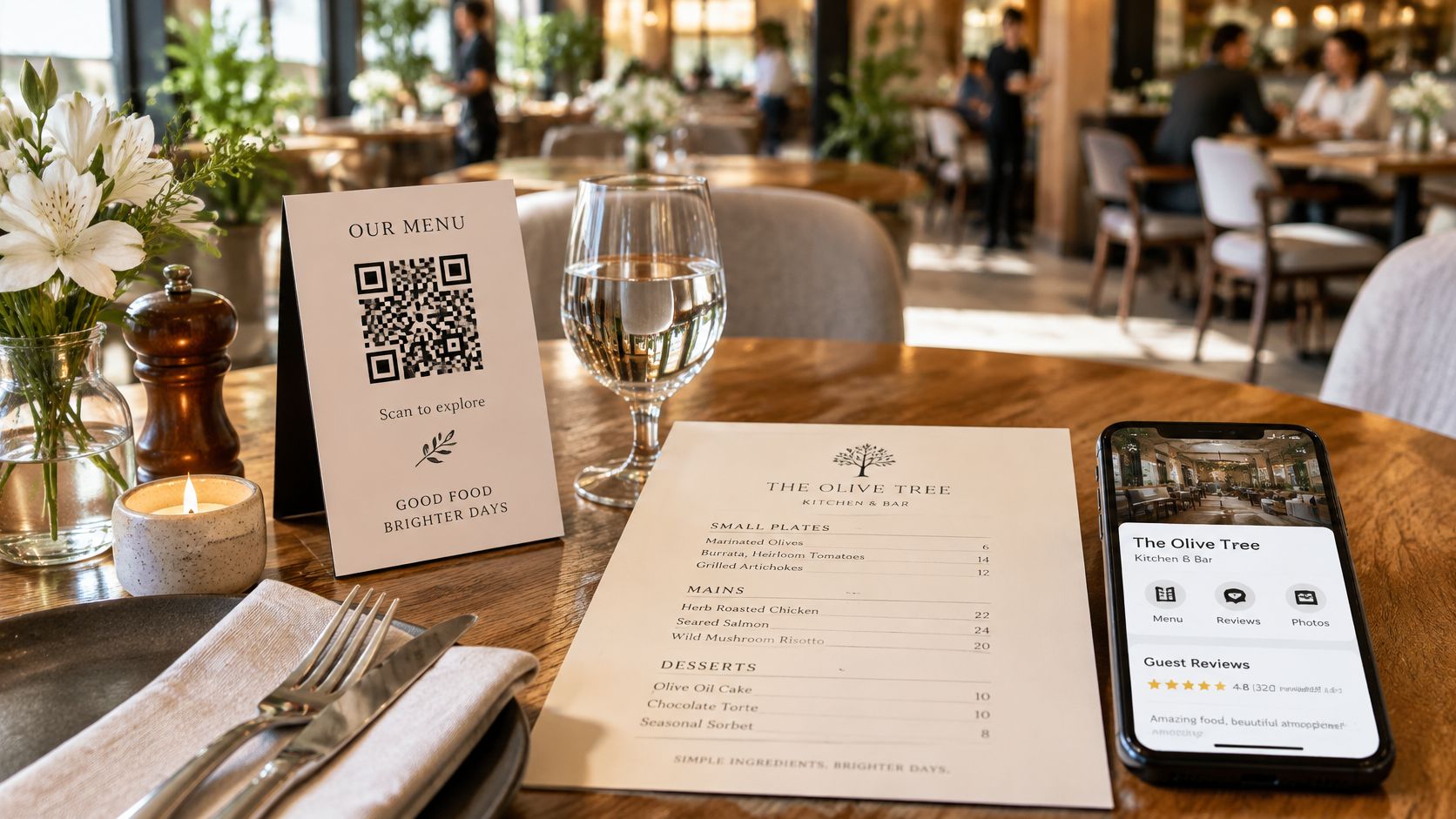
A table is waiting for menus, someone at the counter wants to book again, and an overseas guest is trying to find the restaurant's review page. Meanwhile, a server is explaining how to scan a faded sticker. A QR code should make these moments easier, not create another job for the team.
The best QR code restaurant setup gives guests another way to get what they need. It doesn't make a charged phone, mobile data or a willingness to scan the price of entry. Start small, keep paper available, and treat review requests and sticker checks as part of service.
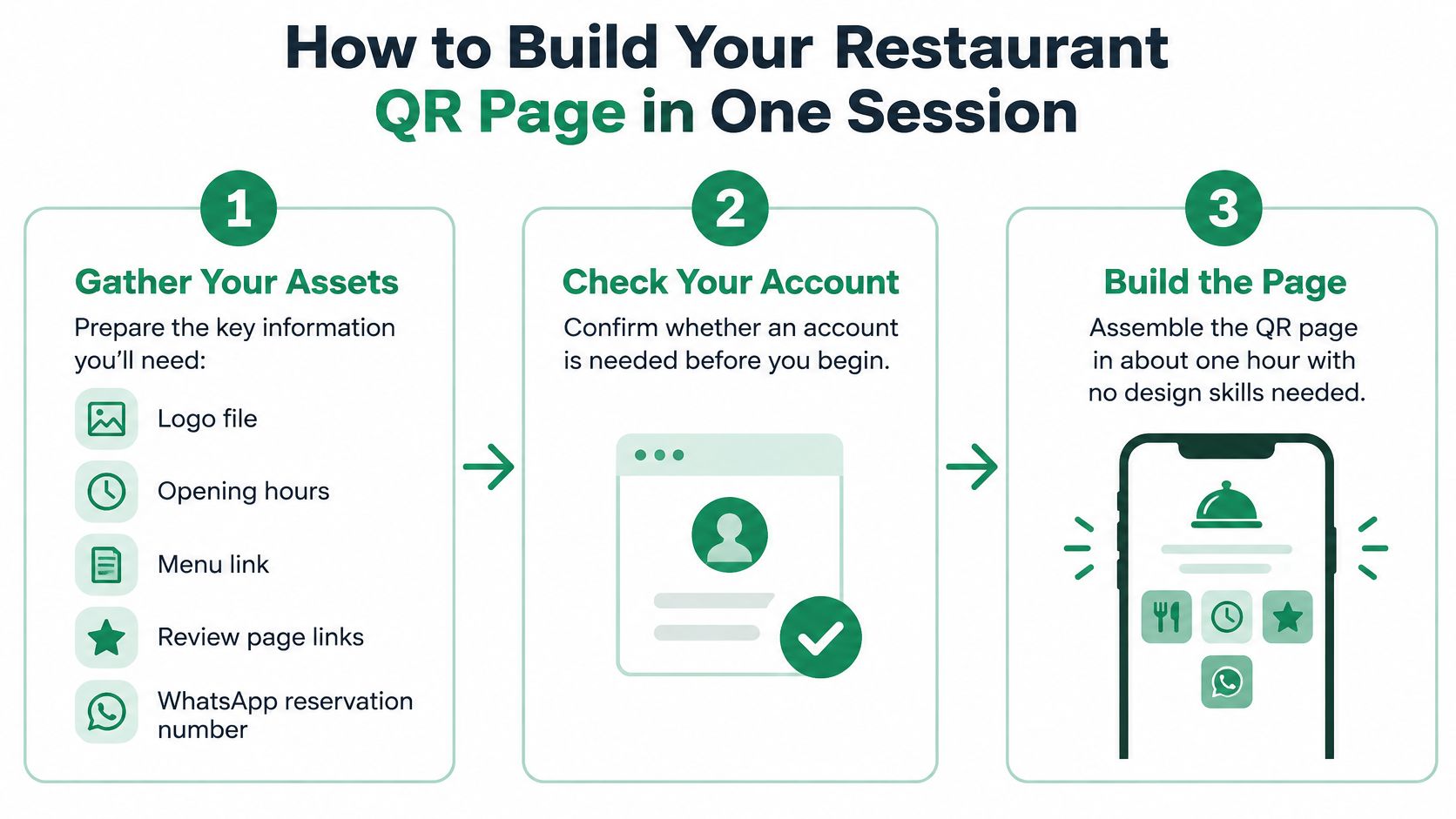
How to Build Your Restaurant QR Page in One Session
Set aside an uninterrupted session. Gather the logo file, opening hours, menu link, review links and WhatsApp reservation number before opening the page builder. No design skills are needed for a clear, useful page.
Check account requirements first. HolaQR allows owners to start without opening an account, and a page can be created by pasting the restaurant's website link. If the business can't be found, the owner can fill in the links manually in about one minute.
- Create the page. Enter the restaurant name and website address so guests can recognize the business.
- Check the logo, hours, address and destination links against the restaurant's actual details. A wrong address or link misdirects every guest who uses it.
- Add practical destinations. Include the menu, WhatsApp reservations, allergen sheet and house information. Use short labels that describe what opens.
- Put Google and Tripadvisor review links together in a clear row. Guests shouldn't have to search through social profiles.
- Test language handling. Open the page on a phone, then test with another phone language used by guests. Check labels and destinations.
- Download sticker, counter-card and table-card files if the chosen tool offers them.
- Print a trial. Place a table card and counter card, then scan both with an unfamiliar phone. Testing before a full print run avoids wasted copies.
A QR code with multiple links should still feel simple: logo at the top, a small group of useful buttons, and review buttons together.
Where Each Restaurant QR Code Belongs
Start with the guest's situation, not an empty space for a sticker. Someone waiting for food needs a menu. Someone collecting takeaway may need a reorder link later.
In a 2024 Toast survey of 850 U.S. adults who had recently dined out, 81% preferred a physical menu, while about 1% selected QR codes as their preferred format, according to KitchenHub's restaurant QR guide. The code should be an extra door, not the only door.
QR code placement by guest moment
| Placement | Guest moment | Best destination | Watch out for |
|---|---|---|---|
| Table tent | Waiting for food | Menu and WhatsApp reservation link | Keep the menu page short |
| Counter card | Ordering or paying | Google or Tripadvisor review page | Place it where a phone is already out |
| Bill folder | Paying the bill | Review buttons and contact link | Never attach a reward to the request |
| Front-door sticker | Arriving | Opening hours and booking link | Keep it clear of glare |
| Takeaway bag insert | Eating at home | Reorder link and review page | Print the domain beside the code |
For example, a café could trial table tents in a small seating area, a counter card and a takeaway insert, all opening the same page. That keeps destination management simple without covering every surface.
QR codes support broad interoperability rather than requiring restaurant-specific scanners, as DENSO's account of the technology explains. With HolaQR, guests use their phone camera and open the page in a browser, without an app or account.
Start with a table tent in the trial seating area. It reaches guests while they have time to browse.
Asking for Reviews Without Breaking Platform Rules
The common mistake is treating a review as something the restaurant can trade for a dessert or discount. Another is asking guests to rate privately, then sending only high scorers to a public platform. Neither belongs in a sound review process.
Ask for honest feedback, not a particular result. Google's fake engagement policy prohibits payment, discounts, free goods or services in exchange for posting a review, changing one or removing a negative one.
Tripadvisor's incentive policy also prohibits benefits connected to reviews, including free drinks, bill discounts, raffle entries and employee bonuses for generating reviews. The restriction applies even when the benefit isn't guaranteed, and violations can result in review removal and temporarily downgraded rankings.
Review requests allowed and not allowed
| Practice | Allowed | Why |
|---|---|---|
| Ask every guest for a review | Yes | Same request for all guests is allowed |
| Offer a free dessert for a review | No | Incentives for reviews are prohibited |
| Ask guests to rate privately first, then send only high ratings | No | Review gating is prohibited on Tripadvisor |
| Use one review button for every guest | Yes | Same interface for positive and negative feedback |
| Remove a negative review in exchange for a benefit | No | Google prohibits this as rating manipulation |
| Show a review code at the bill with no reward | Yes | Neutral request and the guest picks the rating |
Tripadvisor's review integrity rules prohibit review gating, including interfaces that divert negative feedback while passing positive feedback to Tripadvisor. A private service complaint channel can exist, but it mustn't become a filter for public reviews.
Keep the invitation neutral
A bill or counter card can use a simple line:
Honest feedback helps other guests. Any rating that reflects the visit is welcome.
Staff should offer the same invitation consistently, without judging who looks pleased. This applies equally at a bike return, boat handover, tour finish or holiday-home checkout.
HolaQR sends every guest to the same review window. It doesn't filter guests, alter ratings, offer rewards or choose which guests are asked. Guests remain responsible for their words and ratings.
Find the correct review destinations through Google Business Profile and the Tripadvisor owner account. Test them, then use those same destinations across placements. A practical guide to asking customers for Google reviews can help standardize staff wording.
Google says repeated or serious policy violations can lead to rejected content or account suspension under its Maps enforcement process. A consistent invitation is safer than trying to engineer the rating.
Serving Guests Who Prefer Paper or Struggle with Phones
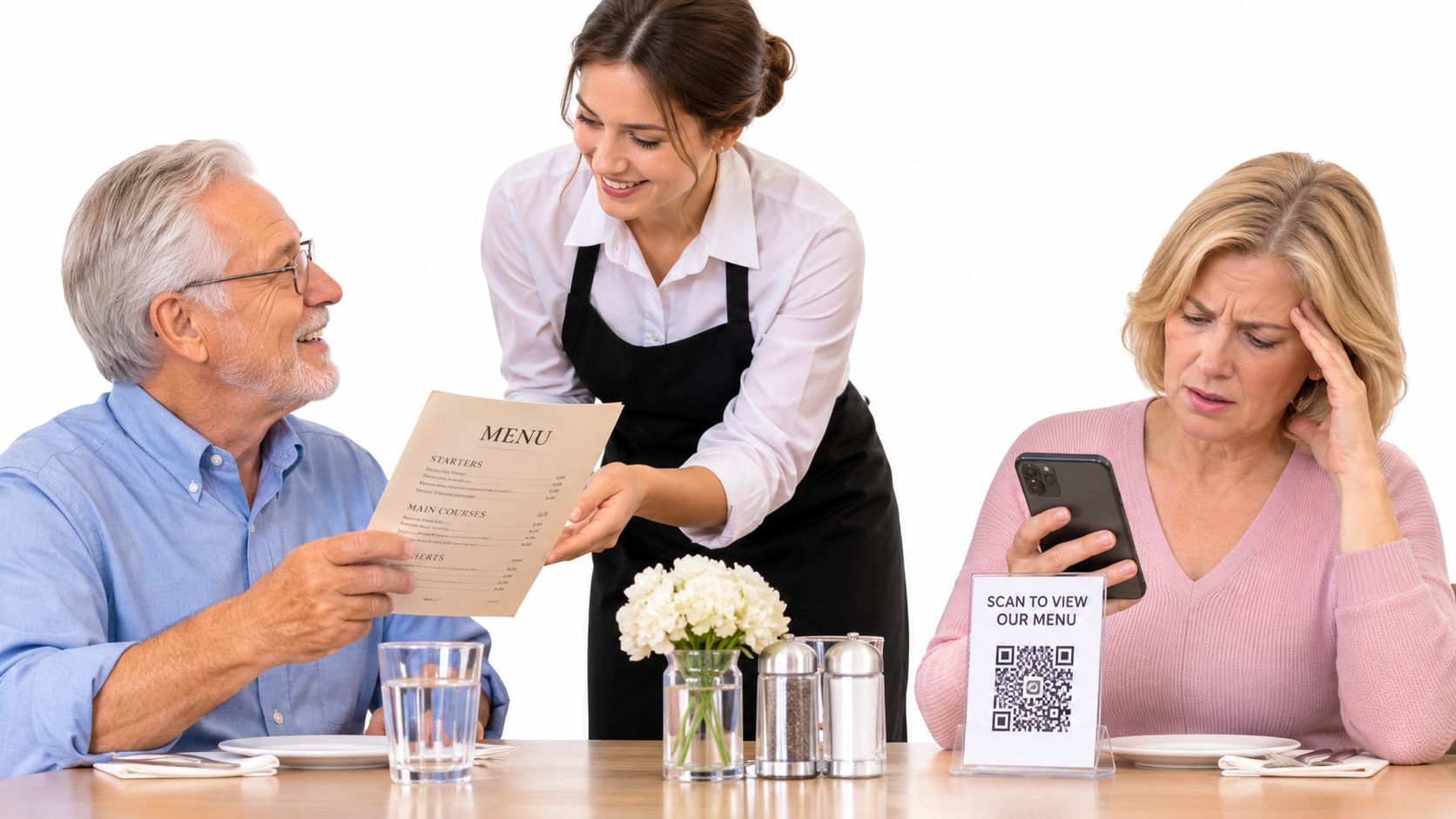
A guest shouldn't have to explain poor vision, a flat battery or a dislike of phones to receive a menu. Paper is a service option, not an exception that needs approval.
Survey findings covered by Restaurant Business illustrate the balance: 88% of surveyed diners preferred paper menus, 66% disliked taking out their phone immediately, and 55% found QR menus difficult to read or browse; a separate survey identified small text at 26%, phone-use frustration at 20%, and unreliable technology at 16%. Among consumers who had used QR codes for menus or payment, however, 70% said they liked them, while use ranged from 68% of Gen Z consumers to 22% of Boomers.
Make both routes obvious
- Keep paper visible. Place a printed menu beside the code, or clearly state that paper and large-print versions are available.
- Check readable text. Hold a small phone at arm's length. Prices, dish names and allergen links should remain easy to find.
- Test accessibility. Use the phone's screen reader to check button names and reading order.
- Remove awkwardness. Staff can tell guests that a paper menu is available and bring it without asking why.
A table card can carry the code on one side and a short printed menu on the other. Staff must still provide a way to order when the phone route fails.
A guest's refusal to scan isn't a service problem. Leaving that guest without a menu is.
Before expanding the setup, watch guests of different ages use the page. Note where they hesitate rather than explaining the interface immediately.
Spotting and Preventing Tampered QR Codes
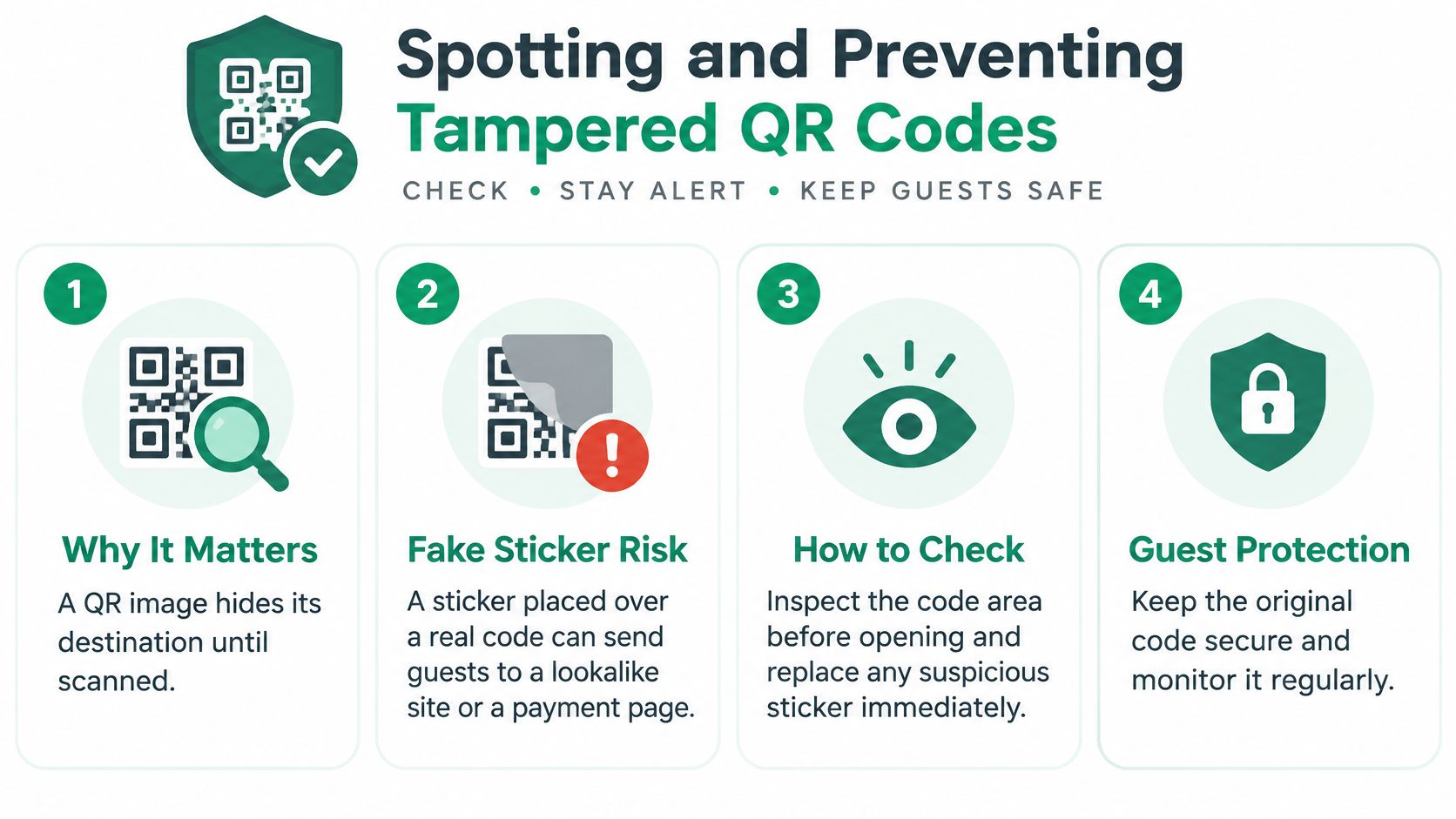
A fake sticker over a genuine QR code can send a guest to a lookalike website or an unwanted payment page. The printed image doesn't reveal its destination until someone scans it.
Duck Hub's coverage of QR-menu security and privacy describes sticker-over-sticker tampering and the privacy risks of tracking tools and social logins. Branding helps guests recognize the restaurant, but it isn't proof that a code is genuine.
Give staff a repeatable check
- Inspect the room. Schedule the check for Friday before dinner service. Look for raised edges, mismatched stickers and labels placed over other labels.
- Compare the printed domain beside each code with the approved page address. Check spelling carefully.
- Scan the destination. Confirm that the expected restaurant name appears at the top. Read the address rather than relying only on a familiar logo.
- Check that the address starts with HTTPS. This protects the connection, but it doesn't prove the operator is legitimate.
- Reject unnecessary requests. Viewing a menu shouldn't require card details or unrelated personal information.
- Note unexpected social logins, tracking notices or permissions. Escalate anything that wasn't part of the approved setup.
- Keep service available. Use printed menus if the destination is unavailable or suspicious.
Respond before putting the card back
Show staff a sample of an altered sticker during training. The useful signs are physical: a second layer, an unfamiliar material, a different domain or a crooked replacement label. Staff should know who receives the report.
If an altered sticker appears, remove the card from service, photograph it, notify the owner the same day and replace it from an approved printed backup. Scan the replacement before guests use it. If the approved destination itself has changed unexpectedly, pause the code rather than print another copy.
Collect as little information as possible. A menu page should work without requiring personal details. Contact or booking actions can request information when a guest chooses that action, with a clear explanation.
Assign a named staff member to the weekly inspection. Keep findings in the same log, including the location, issue and action taken. The owner should review that log monthly so repeated damage or interference at a particular placement gets attention.
Fix QR Code Problems Before Guests Notice
A server hearing that the code won't scan needs a clear fix, not a new software project. Separate printing problems from page problems before changing anything.
A damaged code needs physical attention. A working code that opens an outdated destination needs a page edit.
QR code problems, causes and fixes
| Symptom | Likely cause | Fix |
|---|---|---|
| Code will not scan | Glare, low contrast or print too small | Reprint larger on matte paper and move it away from glare |
| Page opens in the wrong language | Phone language setting differs from the guest's | Check on a phone set to another language; the page follows the phone |
| Page loads slowly | Large photos or too many links | Compress images and keep only essential links |
| Old link still shows on the page | Link was not updated | Edit the link; the printed code keeps working without a reprint |
| Sticker peeled or replaced | Wear, tampering or a moved card | Inspect weekly and replace from the printed backup |
Edit the page or replace the print
Changing links on a HolaQR page doesn't change its QR code. Existing stickers and flyers keep working, so an updated menu address doesn't require a new print run. That distinction is the practical value of an editable dynamic QR code.
Reprint when the code itself is damaged, peeling, too small or difficult to scan. Moving a card away from a window or overhead reflection may solve glare without replacing it. Leave clear space around the code and avoid decorative backgrounds that reduce contrast.
Page changes can be quick when the owner already has the correct destination. Replace the stale link, save the change and open it from the printed card. Don't assume that a successful edit means the guest's full route works.
For slow pages, reduce photo file sizes and remove links that don't serve the visit. A menu page doesn't need a gallery, every social profile and a long introduction before the menu button.
Practical rule: Test the guest's route, not just the owner's editing screen.
After each fix, scan from a normal seated distance, then try a dim corner and a phone with low screen brightness. Check whether the destination is readable as well as scannable. Language tests should use a phone set to another guest language.
Keep a notebook by the till. Record each problem once with the date, symptom, location and fix. After a month, repeated entries can show which placement or setting deserves attention first.
Read Your Results After Seven Days
After seven days, compare the trial with the previous week before moving cards or rewriting buttons. The purpose is to spot useful patterns, not prove that every guest should scan.
Count scans if the chosen tool provides them. Separate table-card scans from other placements only if the reporting supports that distinction. Otherwise, staff can tally guests who mention the code or ask for the review page.
Keep a small operating record
- Access: Record scan totals where available, or staff tallies where they aren't.
- Requests: Count neutral review invitations made at the bill.
- Reviews: Note new Google and Tripadvisor reviews without trying to match them to individual guests.
- Friction: Read menu requests and technical complaints alongside the problem log.
Low scans with few paper-menu requests are a reason to test visibility, not proof that guests dislike QR codes. Move the card where waiting guests can see it, away from glare and clutter.
Frequent paper-menu requests may reflect preference, readability trouble or slow loading. Staff should ask whether help is needed without challenging the request. A preference for paper doesn't require a digital fix.
Steady scans with little review activity may mean the review buttons are hard to find. It may also mean guests came only for the menu. Make the invitation clear without making it intrusive.
Keep the placement that works and change the others individually. Avoid changing the card position, wording and page layout together, because the owner won't know which adjustment helped.
Confirm Your Restaurant QR Setup Today
Start with a table-card trial this week, placed where seated guests wait. Use the seven-day record to judge whether the setup helps, rather than committing to a restaurant-wide print run immediately.
Other QR tools and review software may suit different operations. A restaurant that needs ordering, payment or booking-system connections should check those workflows carefully. A review page isn't a replacement for a connected ordering system.
Choose the smallest useful test
HolaQR is a free QR review page that displays in each guest's phone language, with direct review buttons and a code that never expires. The page, QR code and printable files are free. The code keeps working, and there's nothing to cancel.
The owner can begin by displaying the code on a phone screen for guests to scan, with nothing to print first. Once that route works, print the trial table card. Bike rentals, boat operators, tours and holiday homes can use the same approach at their handover or checkout point.
- Pick a placement: Start with the guest moment that needs easier access.
- Write a neutral invitation: Make clear that any honest rating is welcome.
- Check the domain: Print the approved address beside the code and verify the destination.
Set up that trial today, keep the paper option beside it, and assign someone to record problems. After seven days, keep what helps guests and change what gets in their way.